
Picture a project manager on a Wednesday morning. The plan for the next sprint is coming together. The standup just confirmed two engineers will pair on a feature next week. Forty minutes later, a Slack message from one of them: "Hey, I forgot to mention, I am off Tuesday and Wednesday." The other engineer was planning to pair starting Monday. The PM now has to rearrange the sprint, ping a second person to confirm coverage, and try to forget about it before standup tomorrow.
This is not a discipline problem. The engineer did request the time off properly. The leave was approved a week ago. The PM did not have a place that showed it. Three calendars, two Slack channels, and a Google Sheet does not equal one calendar everyone trusts.
A shared team calendar fixes the problem when it is the source of truth: every approval writes to it, every employee reads from it, and the conflict check fires before the request gets approved in the first place.
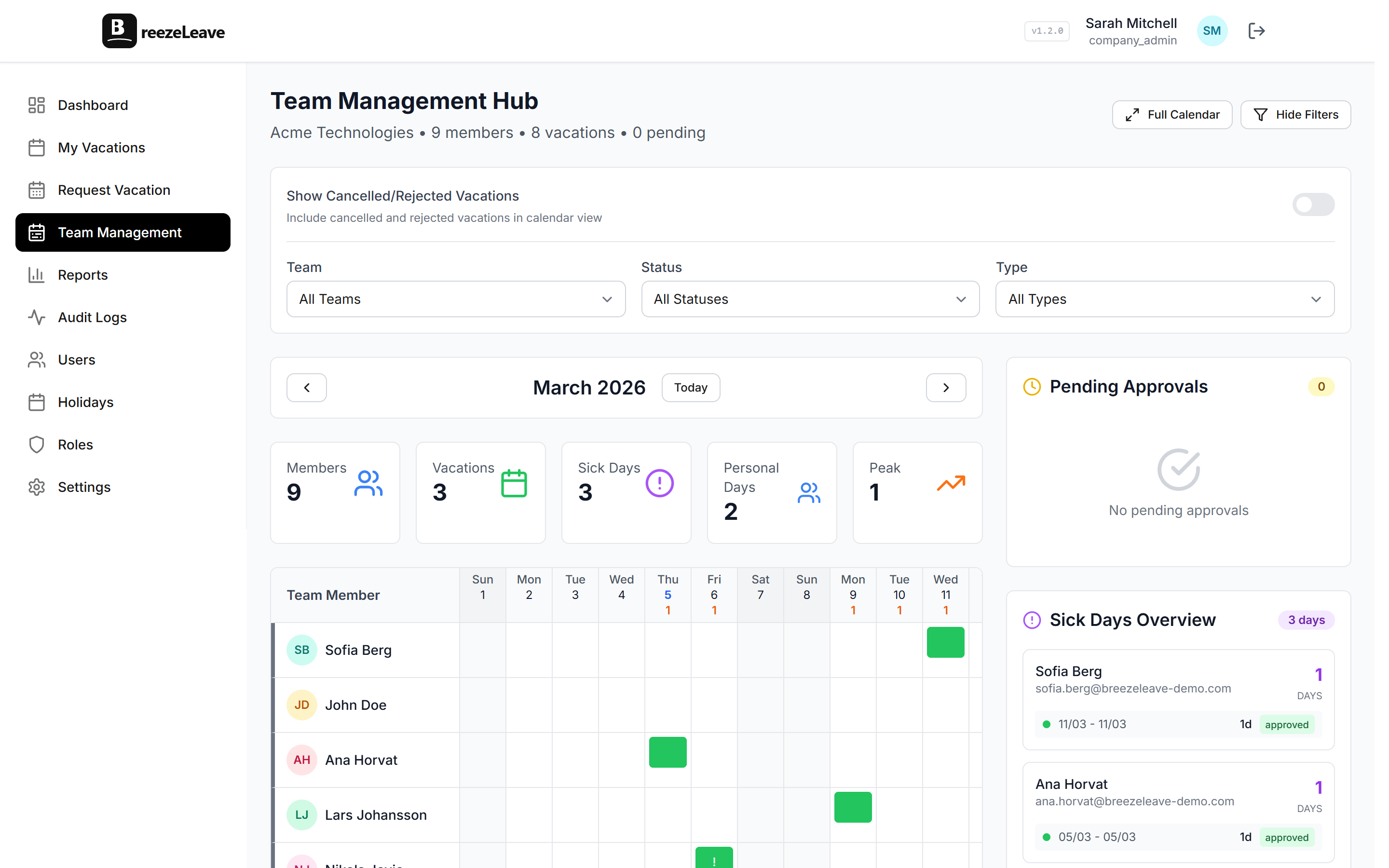
What the current calendar shows
Open BreezeLeave and the team calendar shows three layers stacked on the same view:
- Approved leave. Every approved request, labelled with the employee name and the leave type. Vacation, sick leave, parental leave, and any custom leave types you created.
- Public holidays. The public holiday calendar for every country represented in the team. A US employee sees the German Unity Day on the calendar if Germany is represented on their team, but their balance does not deduct it.
- Pending requests (for approvers). Approvers see the requests they need to act on alongside the approved leave. Other employees see only the approved view.
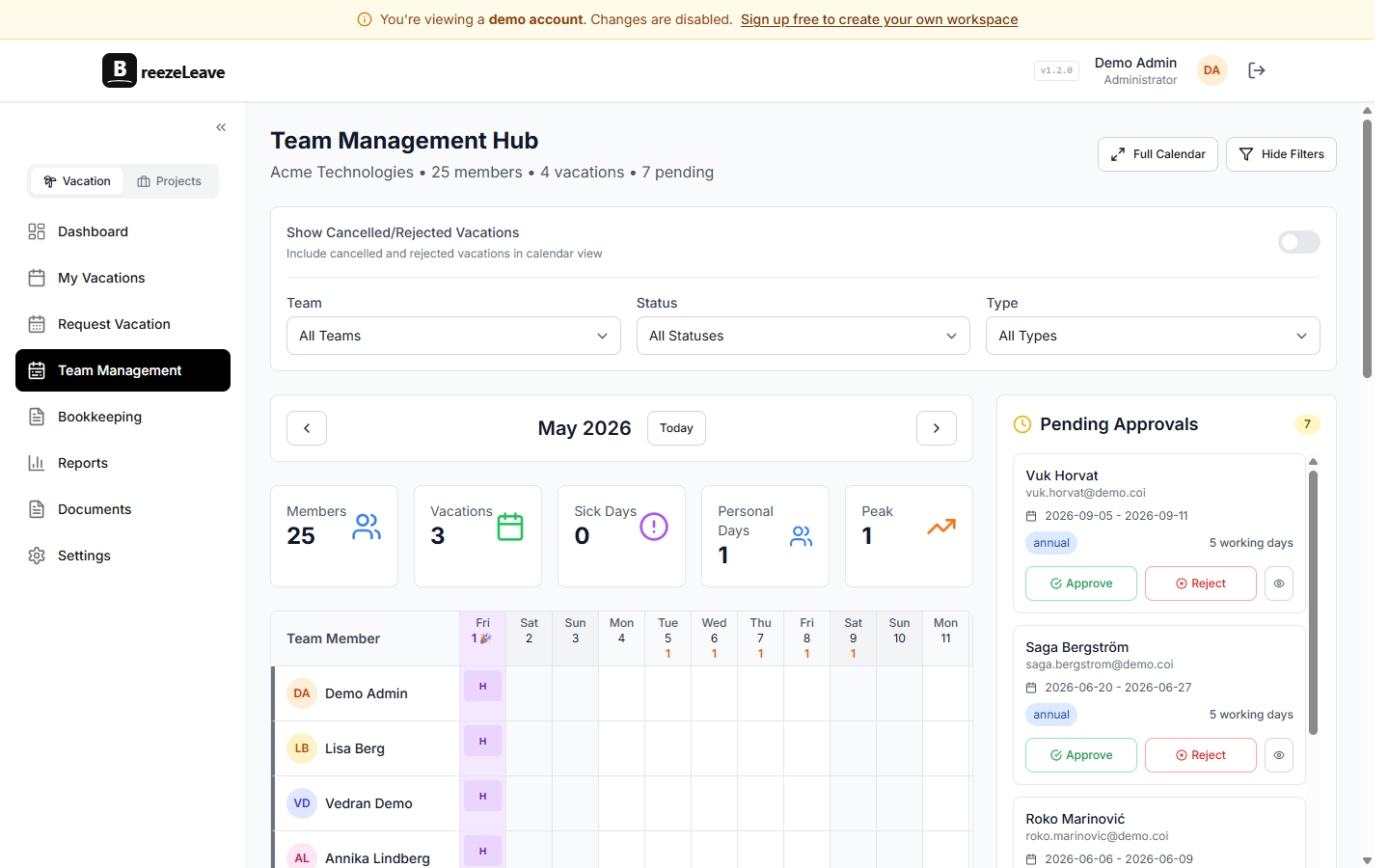
The calendar updates the moment a request is approved or declined. There is no sync delay, no refresh button to remember, no overnight job that catches up on yesterday’s decisions. If someone’s vacation was approved five minutes ago, it is already on the calendar.
Conflict detection at submission time
The conflict check is the part that prevents the sprint-rearranging scenario above. When an employee picks dates, the system compares the range against approved leave for everyone on the same team. The request page shows the result:
- If nobody on the team is off, the request shows a clear green path.
- If one or two teammates are off on overlapping days, the request shows who and which days.
- If the overlap reaches a configured threshold, the request can be set to route to approver review even when other auto-approval criteria are met.
The approver sees the same context when they review. Sometimes the right call is to approve anyway with a handoff note. Sometimes it is to ask the employee to shift dates. Either decision is made with both pieces of information visible rather than relying on the approver to remember who is off when.
For deeper coverage of the conflict patterns that come up most, the team vacation conflicts guide walks through how to handle three people asking for the same Friday and similar cases.
Coverage view for capacity planning
For project leads and team managers, the calendar is also a capacity tool. Three common reads:
- Sprint planning. Before committing scope for a two-week sprint, open the calendar for the sprint dates. Count the working days each team member has available. If two engineers are off a full week, scope down or pull in another contributor.
- Milestone planning. When picking a launch date, the calendar shows whether the key people on the launch team are around. Slipping the date by a week to keep the right people available is a small adjustment that prevents a bigger one later.
- Seasonal forecasting. Over time, the calendar reveals patterns: heavy PTO in August, school-holiday clusters in October, year-end shutdowns. The reports section turns these patterns into numbers you can plan against.
Cover-person assignments
Knowing someone is off is half the answer. The other half is knowing who handles their work while they are out. Cover-person assignments let each user profile record a designated teammate for that role. When the employee submits a leave request, the cover-person appears on the request, on the team calendar entry, and on the away-channel summary.
This is informational, not enforceable. The assignment does not change the approval flow or the deduction math. What it does is answer the "who do I ping" question and saves someone from hunting through the org chart. The cover-person assignments blog post covers the operational patterns that make assignments useful versus a checkbox.
Visibility in Slack and Teams
Most of the team will not open the BreezeLeave web app every day. The chat integrations push the same data into the channels they already watch:
- Daily who-is-off summary. Posted to the configured away channel every morning at the start of the working day. Lists everyone off that day with their cover-person.
- Approval notifications. Posted to the action channel when a request is approved. The team sees the absence at the moment it is locked in, not weeks later when standup catches up.
- /whoisoff command. Typed in Slack, /whoisoff returns the current absences. Add a date argument to look ahead. The response is private to the user who typed it, so it does not clutter the channel.
Two-channel setup is the typical pattern: an action channel for approvers and an away channel for everyone. The Slack vacation bot setup guide covers permissions and channel configuration in detail. Microsoft Teams users follow the same pattern with configured channel IDs.
Why a dedicated calendar beats a shared Google Calendar
Some teams start with a shared Google Calendar called "Time off" where everyone adds their own events. It works for the first six months. Then it breaks in three familiar ways:
- Hand-entered events drift. People forget. They enter the wrong dates. They cancel a trip and forget to remove the event. The calendar drifts from the actual state of the team.
- No approval flow. A Google Calendar event does not check the balance, the conflict, or the blackout window. The approval lives somewhere else (email, Slack thread, or nowhere) and the calendar is just a record.
- No conflict detection. Two people on the same project can both add the same week without the calendar flagging it.
A dedicated calendar fixes these because the calendar is the result of an approved request, not a separate hand-entry step. If you still want the leave published to a shared Google calendar that the rest of the company can subscribe to, the Google Calendar integration handles that while BreezeLeave stays the source of truth.
Getting set up
- Invite your team. Each user profile holds their country, starting balance, and (optionally) their cover-person.
- Configure Slack or Teams. Authorize the workspace and pick the action channel and the away channel. The daily summary starts the next morning.
- Let requests run through the standard flow. Every approval writes to the calendar. There is no separate calendar setup step.
- Pin the calendar somewhere visible. Most teams pin the away channel summary to the channel header so newcomers find it immediately.
Related reading
- Building a shared team vacation calendar that works covers the practical patterns for keeping the calendar useful.
- Team capacity planning with leave data shows how the calendar feeds sprint and milestone planning.
- Remote teams use case for the async visibility patterns that pair with the calendar.
- See pricing for plan limits (free for teams up to 10).
Frequently asked questions
Everything you might want to know before getting started. Still have questions? Reach out anytime.
Approved leave for every employee in the company by default, plus public holidays for every country represented on the team. Filters let you scope to a single team or department for cleaner views. The calendar updates the moment a request is approved; there is no manual sync step.
When an employee submits a request, the system checks whether anyone on the same team has approved leave overlapping the date range. The result is shown on the request itself: which teammates are already off and on which days. The approver sees the same context. The check uses team membership, so a cross-functional project that pulls people from multiple teams will not flag conflicts that exist across the project; team scope is the default and matches the most common organisational structure.
A cover-person is a teammate designated to handle a leave-taker's responsibilities while they are out. Each user profile has a cover-person field. When the employee submits a request, the cover-person is shown on the request and on the away-channel summary so the team knows who to ask. The assignment is informational; it does not change the approval flow or the deduction math. The Cover-person assignments blog post covers the operational patterns that work.
The calendar is visible inside BreezeLeave to anyone with an account. For sharing with people outside the platform, the integration with Google Calendar publishes approved leave to a shared Google calendar that you can subscribe to from any calendar app. The Slack and Teams integrations cover the everyday "is X off today" question without forcing the team to open another tool.
The shared calendar supports filtering by team. Country, role, and individual user filters are usable through the same view. Most teams use the team filter as the default and switch to a wider view only when they need cross-team visibility (sprint planning across squads, capacity check before a launch).
Approved leave is the default view because that is what affects the team plan. Pending requests are visible to the approver in the request queue and on the request detail page. If you want a pending view on the calendar, the manager view includes it; the employee view stays on approved leave to keep the public-facing calendar clean.