
A remote team has a particular failure mode for leave tracking. Nobody notices the absence until the Monday standup. The Berlin engineer was off Wednesday for a German public holiday. The Toronto product manager did not have that holiday on their radar. The retrospective ran without the engineer who was supposed to demo the feature. Someone says "we should put this somewhere" and a Google Sheet gets another tab.
The visibility gap is not about whether people are working hard. It is about where the source of truth lives. If it is in three places (a spreadsheet, a Slack thread, and someone’s memory of last week’s standup) then it is in zero places. The fix is one surface that approvals, balances, holidays, and the daily who-is-off all write to, with a way to read that surface from inside the chat app the team already uses for everything else.
What async visibility looks like in practice
For a distributed team of 25 across the United States, Germany, and the Philippines, a normal week with BreezeLeave runs roughly like this:
- Monday morning, Manila time. The away channel in Slack posts the who-is-off summary for the week. The Manila project lead sees that two Berlin engineers are off Wednesday for German Unity Day and adjusts the sprint board before standup.
- Tuesday afternoon, New York. A designer requests Friday off through the web form. The request fits the auto-approval criteria configured for the team (single day, no overlap, requester past probation). It auto-approves and posts to the action channel. The team calendar updates in seconds.
- Wednesday, Berlin. An engineering lead types /whoisoff next week in Slack to confirm coverage before booking a cross-region demo. Two people are already booked off; the demo gets moved.
- Thursday, Manila. An engineer requests a full week off two months out. The conflict check flags that another teammate on the same project has three of those days already approved. The approver reviews in Slack, asks for a handoff note, then approves.
- Friday, all regions. The away channel posts the daily summary. No surprises for Monday.
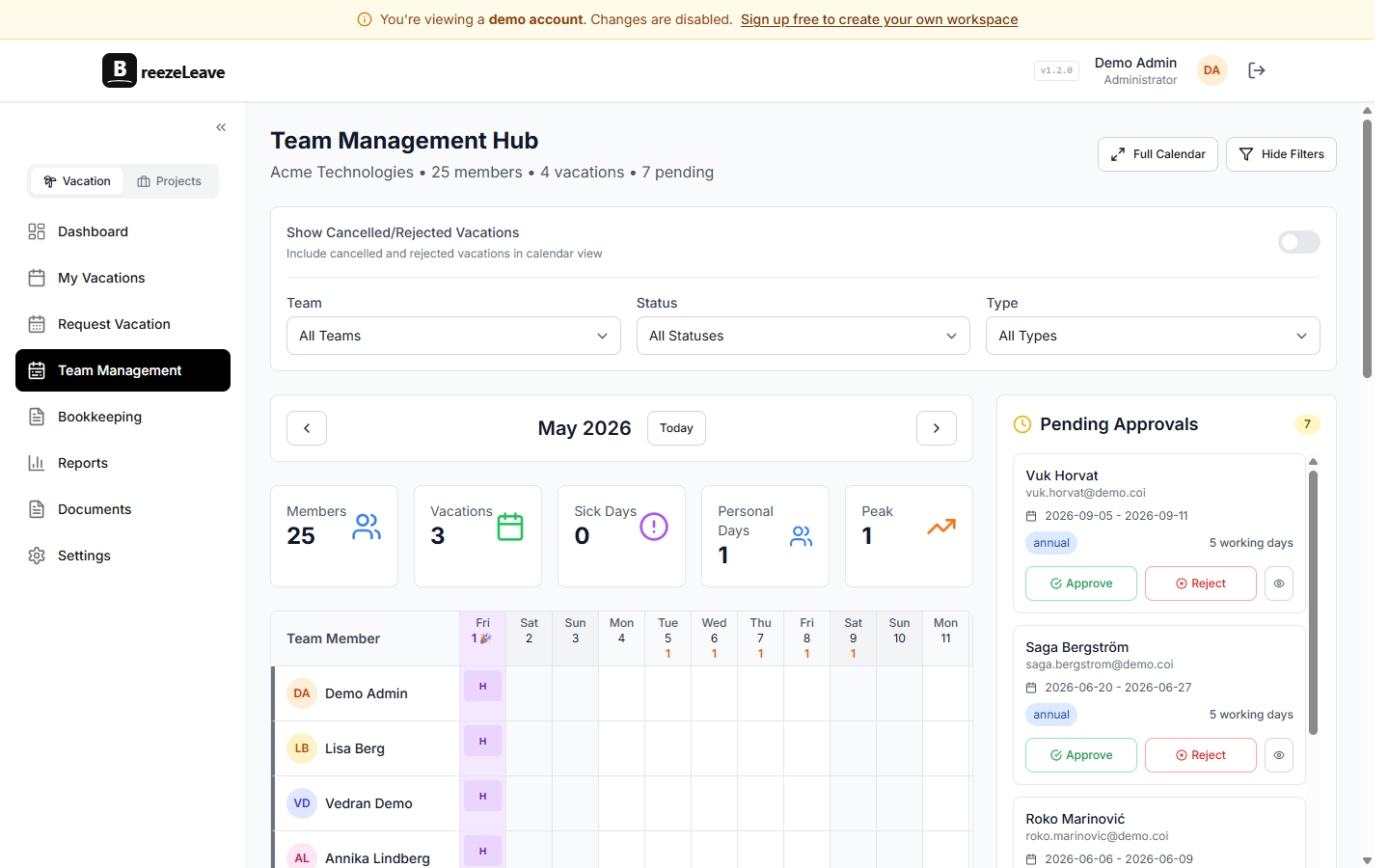
Country calendars attached per employee
BreezeLeave ships with public holiday data for over 240 countries. Each employee carries a country assignment on their user profile. That assignment drives three things at once:
- The set of public holidays that show on the personal calendar.
- The deduction math for any request that crosses a public holiday.
- The default vacation allowance that loads when you invite the user.
The shared team calendar then shows the union of those calendars, so a New York manager planning a Wednesday call can see that the Frankfurt office is closed for a public holiday. The deduction math stays local to the requester. A US employee asking for a week off does not lose a day for a German holiday in that week. A Berlin employee asking for the same week does.
Multi-country setup is covered in depth on the multi-country use case page, including how per-country allowances populate on new hires.
Slack and Teams as the approval surface
The chat integration handles the everyday motions: submit a request, approve a request, look up who is off. Approvers see new requests as a message with approve and decline buttons. The message includes the requester, dates, leave type, the balance after the request, and any team overlap flagged by the conflict check. Tapping approve updates the calendar and notifies the requester in the same thread.
Two channels do the heavy lifting:
- Action channel. New requests, approvals, declines, and escalations land here. Pin it for managers, mute it for everyone else.
- Away channel. Daily who-is-off summaries and absence reminders land here. Most teams point this at a general channel so everyone sees it without opting in.
The Slack vacation bot setup guide covers the channel split and permissions in detail. Microsoft Teams users follow the same pattern using channel IDs configured in settings.
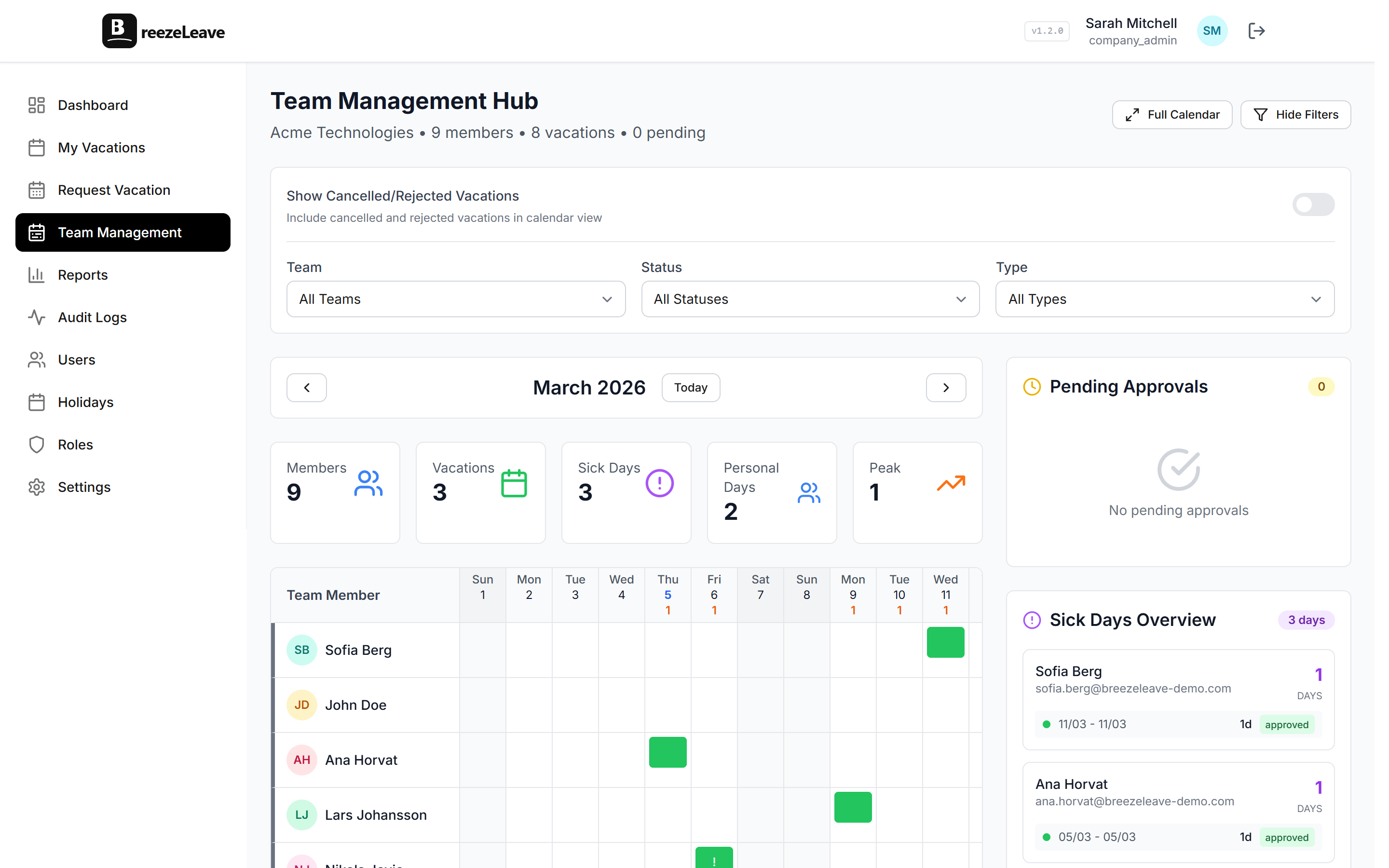
The /whoisoff filter for everyday lookups
/whoisoff is the chat equivalent of glancing across the office. Typed with no arguments, it lists who is out today in your workspace. Add a date or a range to look ahead. Some example invocations:
/whoisoffreturns today’s absences for the whole workspace./whoisoff next weekreturns the absences for the upcoming working week./whoisoff 2026-07-04returns the absences for a specific date.
The response is private to the user who ran it, so it does not clutter the channel. Project managers reach for it before scheduling cross-region meetings. Team leads use it during sprint planning. Engineers use it before pinging a teammate at 10pm their time.
Auto-approval to close the time-zone gap
Waiting twelve hours for a Friday-off approval because the manager is asleep is the most preventable kind of friction. Auto-approval rules let you decide which cases never need a human. A common starting configuration:
- One-day requests with no team overlap and the requester past probation.
- Two-day requests during the off-peak months you configure.
- Any request that does not touch a blackout date and stays inside the balance.
Anything outside the auto-approval criteria routes to the configured approver in Slack or Teams. The reasoning is visible on every decision: the request page shows which rule fired and why. The auto-approval use case page walks through the rule criteria in more detail, including what to leave on manual review.
Conflict checks that flag the problem before it ships
Two people on the same project off the same week is a problem you want to see at submission, not at the standup the week before. The conflict check runs against approved leave on the same team for the same date range. The approver sees the overlap in the request itself. Sometimes the right call is to approve anyway with a handoff note. Sometimes it is to push one of the requests by a week. Either way, the call gets made with both pieces of context in view.
The team vacation conflicts guide covers the operational patterns that work for small remote teams: rotating coverage during peak seasons, cover-person assignments, and how to handle the awkward case where three people ask for the same Friday.
Setup for a remote team takes one afternoon
- Connect Slack or Teams. Authorize the workspace, pick the action channel and the away channel, and configure who approves what.
- Invite the team. Assign each employee’s country so the right public holidays attach. Set the default allowance per country if you have not already.
- Configure leave types. A single PTO type for combined US-style allowances, plus a separate Sick Leave type for European employees, is a common starting point.
- Pick your auto-approval rules. Start conservative: one-day requests with no team overlap. Expand once the team is comfortable with what gets approved without review.
- Turn on daily summaries. Point the away channel at a place the team actually reads. The summary becomes the single source of truth nobody has to maintain.
Related reading
- How to build a vacation policy for remote teams covers the policy questions that come before the tooling.
- Leave management for remote teams walks through the practical setup with examples.
- Shared team calendar use case covers the visibility layer in more detail.
- See pricing for plan limits (free for teams up to 10).
Frequently asked questions
Everything you might want to know before getting started. Still have questions? Reach out anytime.
The approval lands as a Slack or Teams message in the approver's configured channel. They can approve or decline directly from the message, even on mobile. If a request fits the auto-approval criteria you set (for example, single day, no team overlap, requester out of probation), it never waits on a human. If you need a longer leash, configure auto-approval for one and two-day requests and keep manual review for anything longer.
Typed in Slack, /whoisoff posts a private response with everyone on leave today. Add a date or range argument to look ahead: /whoisoff next week, /whoisoff 2026-06-15. The response is scoped to the workspace, so an employee on the EU team sees the same answer a teammate in Manila gets. There is no separate dashboard to open.
Yes. BreezeLeave supports two notification channels by design: an action channel for new requests and approvals, and an away channel for daily who-is-off summaries and absence updates. Many teams point the action channel at #pto-requests and the away channel at #general or a regional channel like #team-emea. Microsoft Teams uses the same pattern via configured channel IDs.
Each employee carries a country assignment that maps to a public holiday calendar. The shared team calendar shows the union of those holidays so a project manager in Toronto can see that the Berlin team is off for German Unity Day next week. The working-day calculation per request only deducts holidays from the requester's own country, not from every country on the team.
No client install. Employees use BreezeLeave through the web app for the request form and balance, or through Slack and Teams for everyday actions (submit, approve, who-is-off). The web app handles the longer flows: balance history, exports, settings. Most employees touch the chat surface day to day and only open the web app a few times a year.
The product is timezone-agnostic in two ways. Leave requests are date-based, not time-based, so an approval at 9pm London is the same as one at 9am London for the deduction math. Notifications respect the user's configured locale, so the Friday daily summary lands at the start of the working day for each region rather than at one global hour. Teams of three time zones up to seven or eight all run on the same setup.
Approval chains can list more than one approver per scope. You can configure the chain to require one approval (any approver acts), majority, or all. If your primary approver is on leave, the back-up approver in the same scope receives the same message and can act. Combined with auto-approval for low-risk requests, this keeps the queue moving even when an approver is away.