
An HR admin at a 140 person agency runs payroll, signs off on requests, and is the contracted contact for an external HR consultant who handles compliance work for the German employees only. The agency also has a finance lead who needs project cost visibility and a delivery lead who needs project totals without seeing individual salaries. Five jobs, five very different access patterns. A flat "admin or not" permission model breaks on day one.
Role-based permissions are the layer that makes leave management trustworthy at any team size over twenty. The right person sees the right data; the wrong person does not see it at all. BreezeLeave ships five built-in roles for the common setup and a custom-role builder for the cases the five defaults do not cover. Each role is composed from a permission matrix that controls access at the page and field level.
The five built-in roles
Most teams under 50 people get everything they need from the defaults. The roles map to the five common HR job shapes:
Owner
Account-level administrator. Owners hold billing access, can transfer ownership, and can delete the company. There is always exactly one Owner. Use this role for the founder or the billing contact.
Admin
Full company access except billing. Admins manage people, policies, holidays, integrations, and reports. The HR director and the operations lead typically hold this role. You can have as many admins as you need.
HR
People-focused access. HR users manage employees, balances, leave types, and policies. By default they do not see project finance fields. The role is the right fit for HR specialists whose job stays inside the leave and people area.
Manager
Team-level approval and visibility. Managers approve their team's requests, see their team's calendar and balances, and read team-scoped reports. They cannot read other teams' data.
Employee
Their own requests, their own balance, and the shared calendar according to company privacy rules. The default role for everyone who is not on the people or management side.
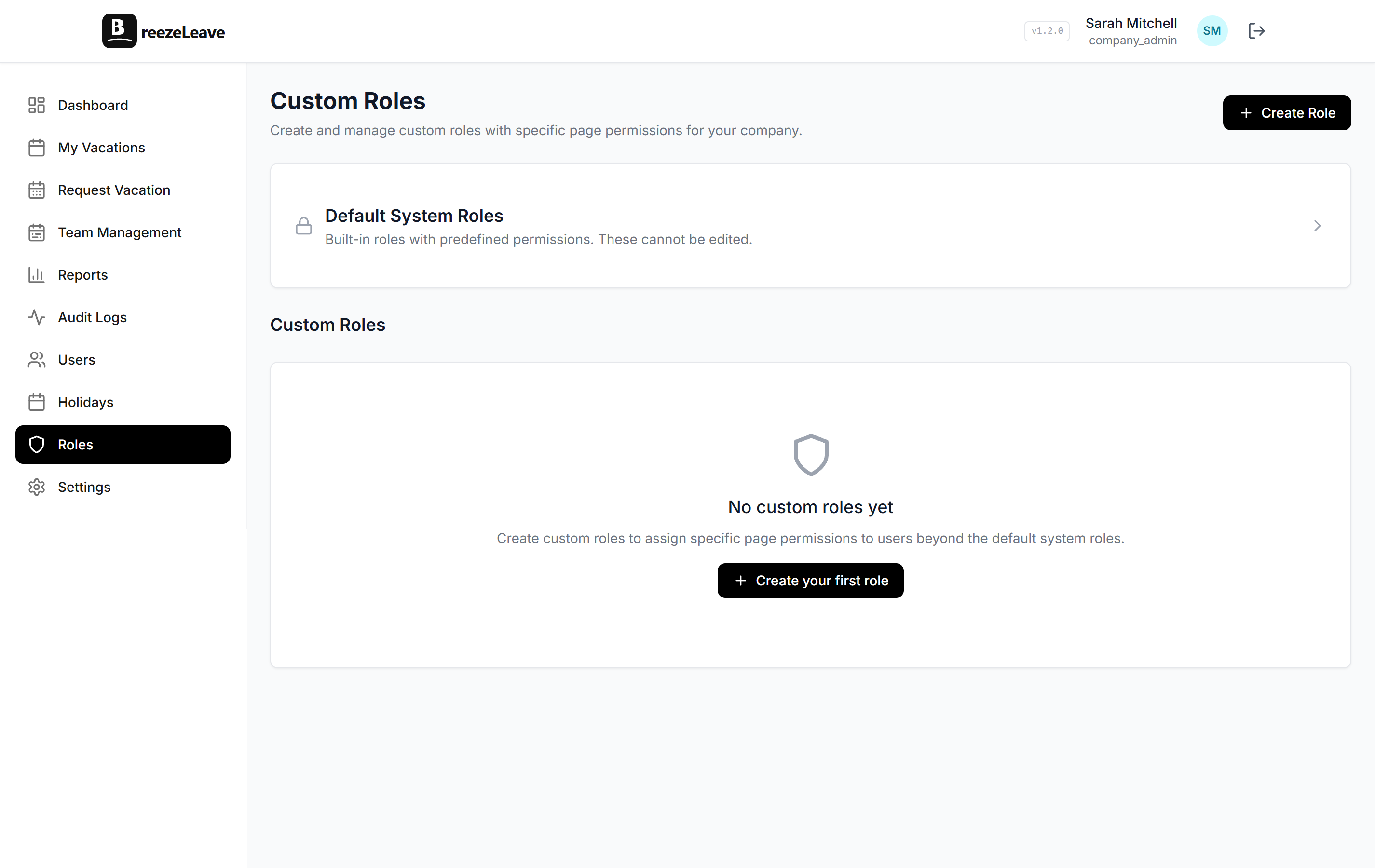
Custom roles with the permission matrix
Once the team grows past 50 people, gaps appear in the five defaults. A finance lead needs cost visibility but should not edit leave policy. A compliance officer needs audit-log read access but no edit rights anywhere. A regional HR lead needs HR rights for one country only. Custom roles cover these cases by composing permission keys from the matrix.
The matrix is grouped into seven areas:
- People and balances. Read and write keys for employee data, balance adjustments, and accrual rules.
- Requests and approvals. Submit, approve, reject, cancel, and view-all keys.
- Policies and rules. Vacation rules, leave types, holidays, blackout dates, and accrual configuration.
- Reports. Personal, team-scoped, and company-aggregate report read access. Export rights are gated separately.
- Audit and compliance. Audit log read, audit log export, and role-change read access.
- Project and finance. The four cost-and-revenue keys covered in the next section.
- Settings and integrations. Company settings, integration configuration, and user invitation rights.
A custom role is built by ticking the boxes in each area. The matrix shows exactly which surfaces each key controls. When you save the role, BreezeLeave validates that the combination is internally consistent (export rights require read rights, for example) and assigns the role to users from the same screen.
The four labor-cost permission keys
Cost data is where the access decisions matter most. A salary leak through an overly broad role is the kind of incident that lands in the company's risk register. BreezeLeave splits cost visibility into four independent keys so you can grant exactly the slice each role needs.
- projects_costs_read. Project-level cost totals (the sum of categorized cost lines on a project). A delivery lead holding only this key sees the project totals but not the individual contributors behind them.
- projects_person_costs_read. Per-person cost rates and time-logged cost attribution. Required to see whose hours add up to the project labor cost. A finance lead holding this key plus projects_costs_read sees the full breakdown; without it, they see only the aggregate.
- projects_revenue_read. Project revenue, retainer allocations, and contracted value. Pairs with projects_costs_read to expose margin.
- budget_aggregate_costs_read. Company-wide aggregate cost in the budget view. The finance lead and the CEO typically hold this. Project managers usually do not.
Three example role compositions show why the split matters:
- Delivery lead. projects_costs_read (see project totals), no projects_person_costs_read (salary detail stays hidden), no projects_revenue_read (revenue conversations sit with the account manager).
- Finance lead. All four cost keys plus the standard finance reporting access. The full picture, restricted to the finance role.
- Account manager. projects_revenue_read (read revenue and retainer status) without any of the cost keys. Sees what the client is paying, does not see what the project costs to deliver.
Scoped roles for multi-country and multi-team setups
A role does not have to apply across the whole company. Scoping limits the role to a specific country, team, or set of teams. Three patterns show up most often:
- Regional HR. An HR specialist who manages people for the Berlin entity but not the New York entity. Assign the HR role scoped to "country: Germany" and the user can read, approve, and edit data only for Germany-based employees.
- Department head. The engineering director who needs Manager-level access for the engineering team but should not see HR or operations data. Scope the Manager role to the engineering team.
- External HR consultant. Outsourced HR help for one or more specific countries. Mark the user as External HR and pick the countries they cover; access filters server-side to employees in those countries only. Remove the user when the engagement ends.
Scoping is enforced at the database query level, not at the UI level. An out-of-scope record does not return from the API, so a determined user cannot read it by inspecting network responses or guessing record IDs. The external HR scoped access guide covers the consultant case end to end. The external HR users article covers the broader pattern of bringing outside HR help into the system.
Setup tip
When designing a new custom role, list the three or four specific actions the user needs to take, then tick only those permission keys. Resist the temptation to grant "view everything" access just to avoid a future support ticket. Every extra permission is a future audit finding.
User management and invitations
Roles only matter if assigning them is fast. The users screen pairs the role list with an invitation flow that takes about a minute per user:
- Email address and full name.
- Role assignment from the dropdown (built-in or custom).
- Scope selection if the role is scoped (country, team, or both).
- Optional manager assignment for the approval chain.
- Send invitation; the user accepts and signs in with their own credentials.
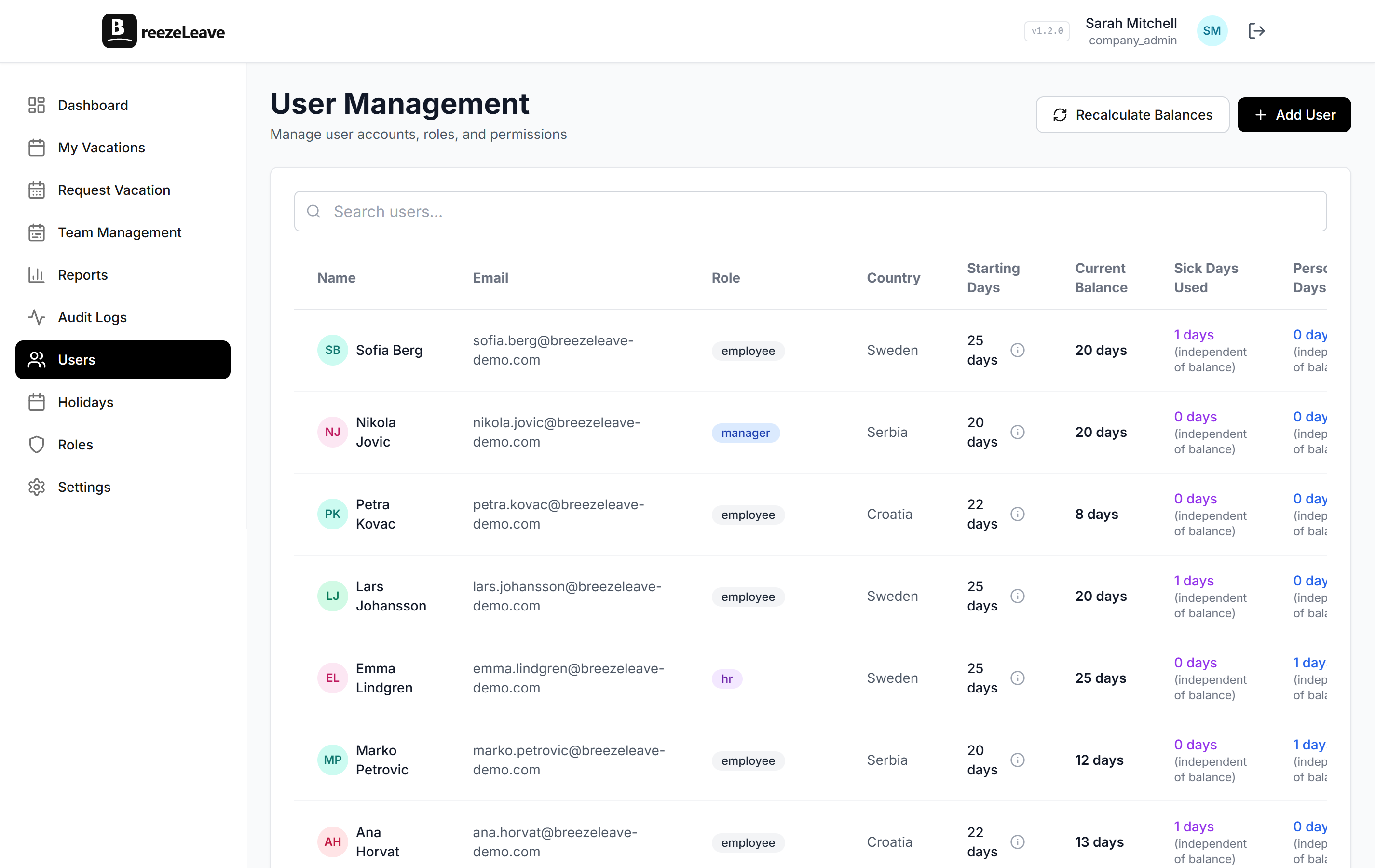
Removing a user is a single action: the user loses access immediately, all sessions are revoked, and the audit log records the removal with the actor and timestamp. The user's historic actions remain in the log under their email, so audit trails do not disappear with the user.
Roles, multi-company, and the audit log
For agencies and holding companies running several BreezeLeave companies under one account, the role system layers on top of the company boundary. A user invited to one company does not automatically see another company. A user with explicit cross-company access (a finance lead at the parent organization, for example) gets the access through a separate invitation per company.
The multi-company leave management page covers the multi-company structure. Every role change, scope change, and invitation produces an entry in the audit log; the audit logs page covers what the log records and how to read it.
Where BreezeLeave fits for permission-conscious HR teams
Permission systems can be over-engineered or under-engineered. BreezeLeave aims for the middle: five defaults that cover most teams, a custom-role builder for the rest, and a permission matrix that is honest about what each key controls. Typical fits:
- HR teams between 30 and 500 people where the default roles need a finance-lead or compliance-lead variation.
- Agencies and holding companies running several entities, each with its own scoped HR contact.
- Companies bringing in external HR consultants who need bounded access for a fixed period.
- IT-led HR rollouts where the security review asks for documented role assignments and revocation procedures.
For deeper reading on access design, the role-based access article covers the access principles, and the permissions matrix article lists each key with the surface it controls. The pricing page shows which plans include custom roles and external HR seats.
Frequently asked questions
Everything you might want to know before getting started. Still have questions? Reach out anytime.
Five built-in roles cover the common HR setup: Owner (account-level admin with billing access), Admin (full company access except billing), HR (people and policy access, no project finance), Manager (team-level approval and visibility), and Employee (own requests and balance only). Most companies do not need anything beyond these five for their first six months.
Custom roles let you compose any combination of permission keys to match an internal job title that does not fit the five defaults. A finance lead who needs cost visibility but not people management, an external HR consultant who needs scoped access to one country, a compliance officer who needs audit-log read access. Build the role once; assign it to as many users as you need.
A scoped role applies the role permissions only inside the chosen scope. A regional HR lead with HR permissions scoped to Germany can read, approve, and edit data for employees marked as Germany-based and cannot see employees in other countries. The same logic applies to scoping by team. Scoping is enforced server-side so the data simply does not return for out-of-scope queries.
BreezeLeave splits cost visibility into four independent keys: projects_costs_read (project-level cost lines), projects_person_costs_read (individual person cost rates), projects_revenue_read (project revenue), and budget_aggregate_costs_read (company-wide aggregate cost). A delivery lead can hold projects_costs_read on its own, so they see project totals while salary detail stays hidden.
Each user holds one primary role. Where two responsibilities overlap, you compose a custom role that combines the permission keys from both. The reason is auditability: a single role assignment per user keeps the access decision easy to read and easy to revoke.
External HR is a common pattern for companies that outsource part of HR. The built-in External HR option marks the user as external and scopes their access to one or more assigned countries, so the consultant sees only employees in those countries. The audit log records the invite and the removal. When the engagement ends, removing the user revokes access in a single step.
Two complementary references: the role-based access blog covers the access principles, and the role-based permissions matrix article lists each permission key with the surfaces it controls. The settings UI itself also shows the matrix with checkboxes when you build a custom role, so the assignment is a checklist rather than guesswork.