
Picture an HR admin on a Tuesday afternoon. A new hire who started three weeks ago has just submitted a two-week vacation request for next month. The manager forwarded it to HR with a note: "Probation, right? I think we said 90 days. Can you check?" The admin checks the offer letter, confirms 90 days, replies to the manager, the manager declines the request, the new hire takes it personally because nobody explained the rule up front, and the manager spends Wednesday smoothing it over.
Probation leave restrictions break in this exact pattern. The policy exists. The offer letter mentions it. The new hire forgot or assumed it would be fine. The manager felt awkward declining and replied slowly. A short policy turned into a bad first month for the hire and a discouraging interaction for the manager.
The fix is to surface the rule at the moment the request is being made, not after. A probation lockout configured in BreezeLeave does exactly that: the request form loads with the affected leave types blocked and the reason visible, including the date the lockout lifts.
Admin setup: pick the duration and the covered leave types
Open Settings and find the probation lockout section. Two decisions:
- Probation duration in days. 90 is the most common value for full-time hires. Set the number that matches your employment contract. The lockout window for each employee runs from their hire date for that many calendar days.
- Which leave types are covered. Vacation, personal days, and unpaid leave are the usual targets. Sick leave, bereavement, and parental leave typically stay outside the lockout. Many jurisdictions treat sick leave as a statutory entitlement that cannot be restricted, so leaving it outside is the safer default.
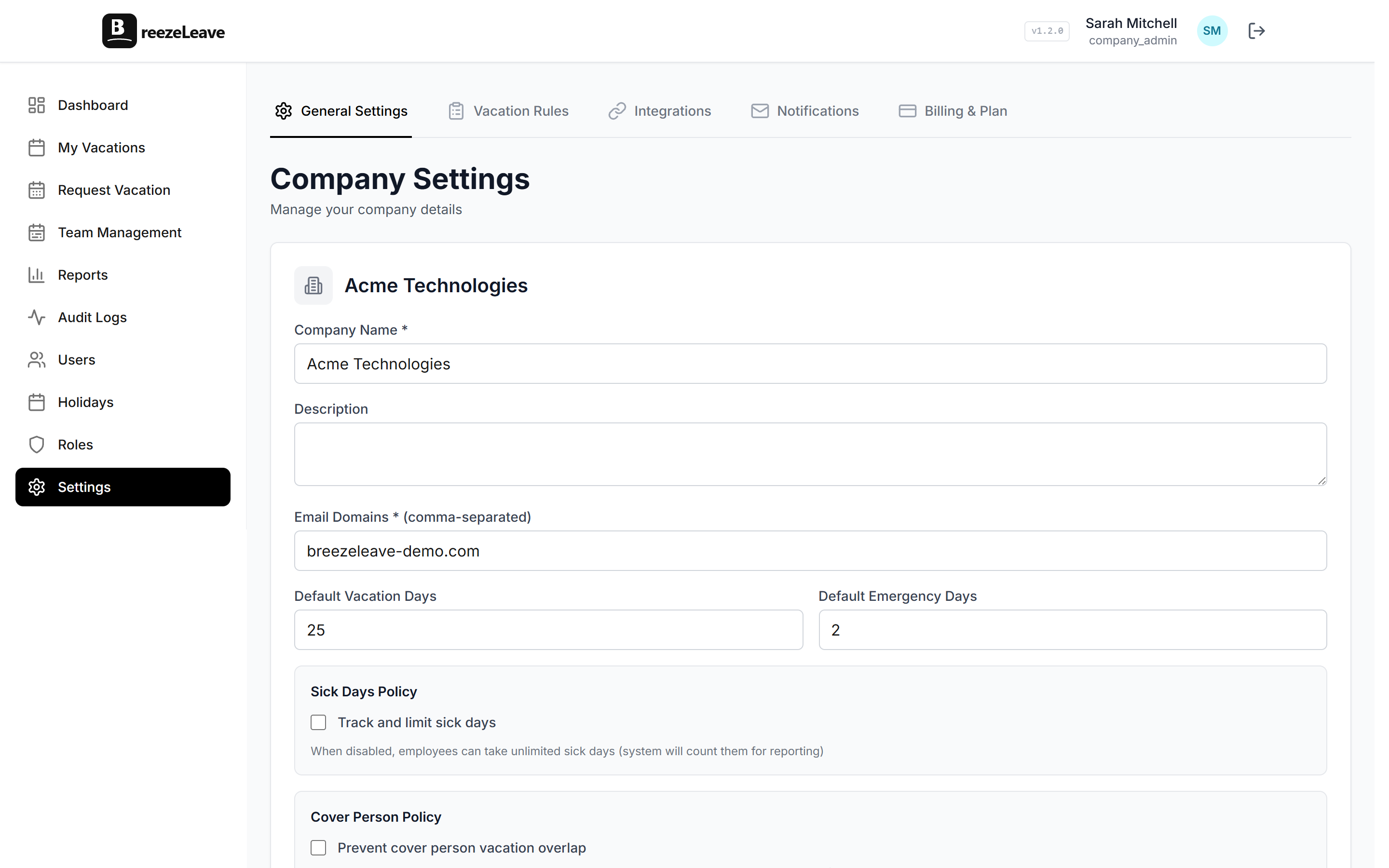
Once the setting is saved, the lockout applies to every employee whose hire date plus the duration is in the future. New hires invited after the setting is in place are covered automatically; existing employees whose probation window is still running are also covered.
What the employee sees on the request form
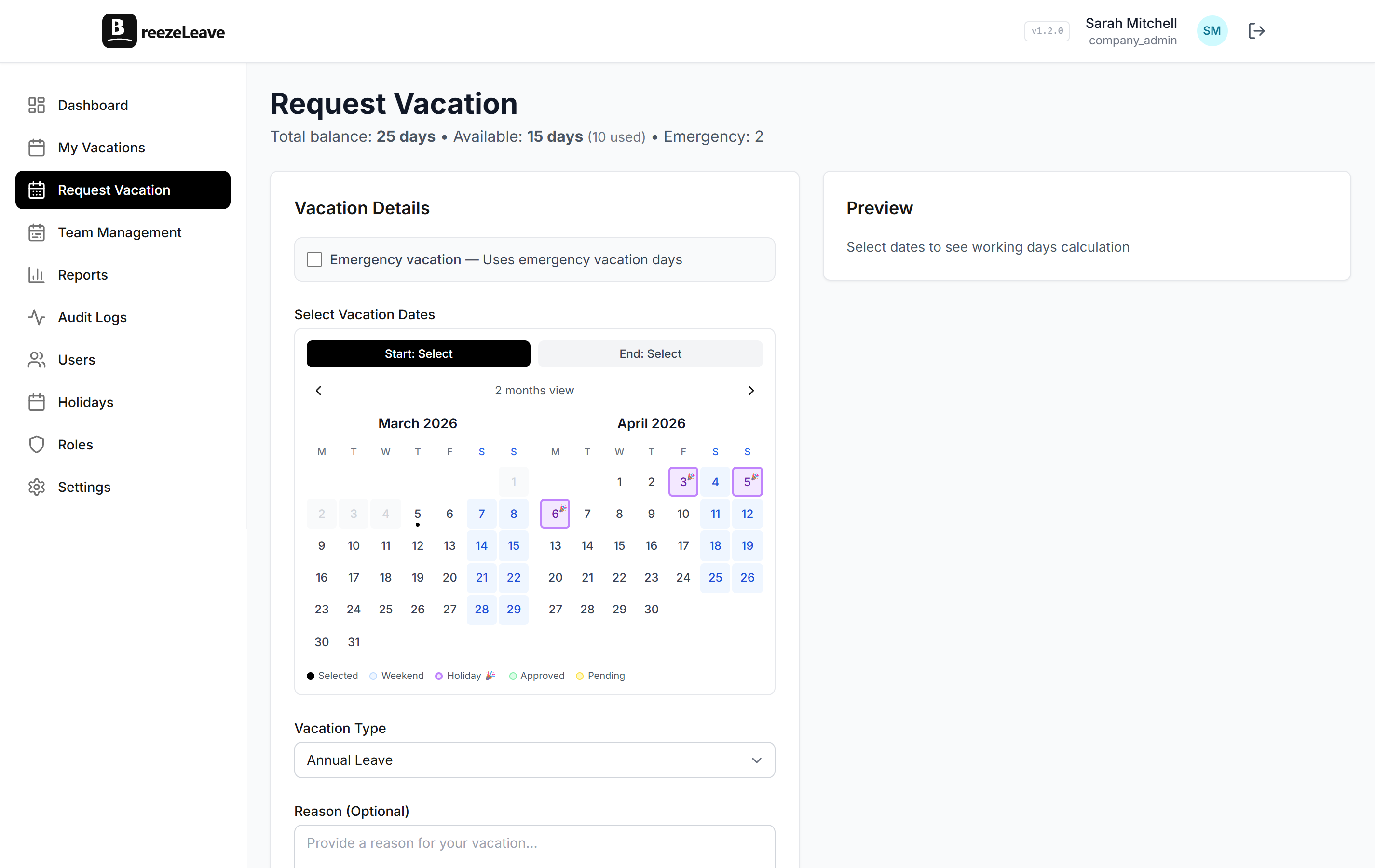
A new hire opens the request form during their probation window. The leave types covered by the lockout are disabled. A clear message explains the lockout: the probation length, the hire date, and the date the lockout lifts. There is no partial flow that lets the employee fill out the form and then surprises them with a decline; the form is blocked up front for the leave types that cannot be requested.
Leave types outside the lockout (sick leave, bereavement, parental leave) remain available on the same form. The employee can still submit those and they will not hit the lockout.
When the lockout lifts
On the day after the hire date plus probation duration, the lockout lifts automatically. The employee can submit requests for the covered leave types from that moment on. There is no HR ticket to file, no manager action required, and no notification that needs to be sent manually. The rule expires; the form opens.
If you change the probation duration company-wide after the lockout is in place, the change applies to every employee from that moment. Shortening it lifts the lockout early for anyone whose probation period under the new rule is already over. Lengthening it puts employees back into the lockout if they are still inside the new window. Either change is logged in the audit trail so you can see what happened and when.
Handling the pre-planned vacation case
The most common policy exception: a new hire mentioned during interviews that they have a wedding to attend two months in. Honour the commitment while keeping the rule intact for everyone else:
- Record it before the lockout matters. Submit the request on the employee’s behalf as an admin, or record the absence as a pre-existing commitment in the user profile.
- Make it visible to the manager. The team calendar shows the absence the same way it shows any other approved leave. There is no surprise when the date rolls around.
- Keep the rest of the lockout intact. The exception is one date range. Anything else the employee submits during probation still goes through the standard block.
This is the right path because it documents the agreement up front rather than forcing the new hire to ask permission for something that was already promised.
Where the lockout sits in the rule stack
The probation lockout fires before any other rule that runs on a request. If the employee is in the lockout for the leave type they picked, the form blocks submission and no further checks run. The auto-approval rules, advance-notice rules, and balance checks all sit downstream of the lockout. That ordering matters: an admin should not be in a position where auto-approval fires on a request that the probation rule should have blocked.
The vacation rules engine page shows the full rule stack and the order each check fires in.
Communicating the policy on the surfaces that already exist
A probation policy that lives only in the offer letter is one most new hires forget within a week. Three small things keep the policy clear and avoid a steady drip of reminders:
- Mention the lockout in the welcome message. One sentence in the onboarding email, ideally with the exact date the lockout lifts.
- Let the form do the explaining. The first time a new hire opens the request form, the lockout message is right there. No surprise later.
- Document the exception path in the handbook. If pre-planned vacations are honoured, write that down so the new hire knows the right way to flag a known commitment.
Audit trail
Every probation-related event is logged: lockout configuration changes, manual overrides for individual employees, exceptions granted by admins, and the timestamps for when each employee’s lockout lifted. If a manager asks why a hire is or is not in the lockout, the answer is on the user profile and in the audit log.
Getting set up
- Confirm the probation length in your contract. The number you configure should match the contract. 90 days is the most common.
- Decide which leave types are covered. Vacation is the standard target. Sick leave usually stays outside.
- Save the configuration. Existing employees inside the window come under the rule from that moment; new hires are covered automatically.
- Mention it in your onboarding email. One sentence, with the date the lockout lifts. The form will handle the rest.
Related reading
- Setting up probation period leave lockouts covers the policy questions before the setup screen.
- Vacation tracking for growing teams covers the broader set of rules that come into play as headcount grows.
- Auto-approval use case for how the probation lockout interacts with auto-approval rules.
- See pricing for plan limits (free for teams up to 10).
Frequently asked questions
Everything you might want to know before getting started. Still have questions? Reach out anytime.
The end date is the hire date stored on the user profile plus the probation duration you configure in days. If the hire date is March 1 and the duration is 90 days, the lockout lifts on May 30. The system uses calendar days, not working days. If your contract uses working days for probation, set the duration to the working-day equivalent (about 65 for a 90 working-day period).
Yes, if you configure it that way. The lockout is per leave type. Most teams keep the lockout on vacation, personal days, and unpaid leave, and leave sick leave outside the lockout. In several jurisdictions sick leave is a statutory entitlement that cannot be restricted; treating it as outside the lockout is the safer default. Bereavement leave usually sits in the same bucket as sick leave.
Handle it as a manual adjustment before the lockout window starts. An admin can pre-approve the dates by submitting the request on the employee's behalf or by recording the absence as a pre-existing commitment. The lockout still applies to anything new the employee submits during the window; the pre-approved trip is recorded outside the rule.
The lockout uses the hire date and the current probation setting. If you shorten probation from 90 to 60 days, employees whose hire date plus 60 days is in the past come off probation immediately. If you lengthen it, employees inside the new window go back into the lockout. Either change should be flagged in the audit log so the team can see what changed and when.
An admin can submit a request on behalf of the employee or grant a one-off exception in the user profile. The override is logged in the audit trail with the admin who acted and the reason. This is the right path for the pre-planned trip scenario or for genuine emergencies. It is the wrong path for a routine vacation request that does not justify breaking the policy.
Yes. The request form loads with the leave types covered by the lockout visibly disabled or with a clear message explaining why the form is blocked. The message includes the probation end date so the employee knows when the lockout lifts. The intent is to communicate the policy at the moment it applies, not after the employee has filled out the form.