
Most "Slack vacation bots" are post-only. They send a message that says "Alex requested three days off", and the manager has to open a browser, log into a different app, and approve it there. The Slack message is a nudge, not a tool. For a five-person team that is fine. For a 30-person team it falls apart by Wednesday.
BreezeLeave's Slack integration is bidirectional. Requests are submitted from Slack with/vacation, approved with Slack buttons, and the daily who-is-off summary is posted to a channel the team already reads. Status: Live. The Slack app handles the OAuth, the slash commands, and the interactive components automatically; no webhook URLs to copy.
The eight slash commands
Once the workspace is connected, BreezeLeave installs eight slash commands. They run against the live database, respect your company's visibility rules, and answer in a clean Slack message rather than a web link.
| Command | What it does | Who uses it |
|---|---|---|
| /whoisoff | Lists everyone away right now, with return dates. | Anyone, especially at standup. |
| /vacation | Opens a modal to request vacation. Dates, type, note. | Employees. |
| /iamsick | Logs a sick day for today (or a range). Auto-approved. | Employees, when getting out of bed is hard. |
| /mybalance | Shows your remaining balance per leave type. | Anyone planning time off. |
| /teamcalendar | Posts the upcoming team absences for the next 14 days. | Managers, project leads. |
| /onleave | Lists people on leave for a given date or range. | Anyone checking coverage. |
| /logtime | Logs hours against a project. Project Operations only. | Agency staff billing time. |
| /myhours | Summarises the hours you logged this week. | Anyone using the hour tracker. |
Every command respects the visibility rule attached to each leave type. If sick leave is configured as private at company level, /whoisoff hides sick days from non-managers and only shows the count.
Approve and reject in the request message
Every leave request creates an interactive Slack message in the action channel. The message carries everything an approver needs to decide: the employee name, the dates, the leave type, the day count, the running balance after the request, and any note the employee attached. Two buttons sit below: Approve and Reject. A Reject opens a modal asking for an optional reason.
One click writes the decision back to BreezeLeave. The balance moves, the calendar entry is created or updated, and the audit log records the approver, the decision, and the timestamp. The original Slack message is replaced with a summary so the action channel does not stay cluttered with stale pending requests.
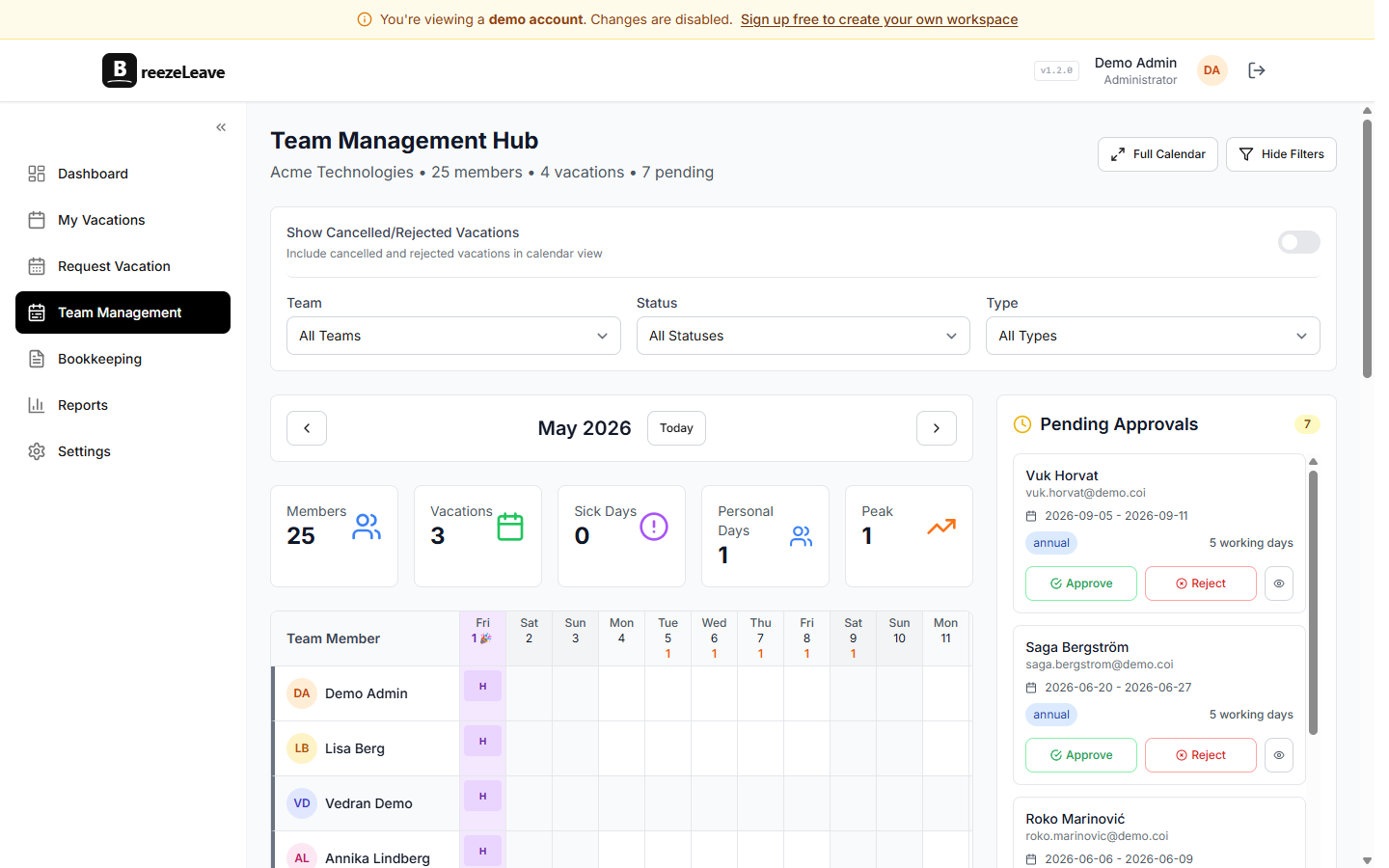
For teams using multi-person approval, every approver in the request's voter list gets the same interactive message in the action channel (DMed if they are not in the channel). The message updates in place when a colleague votes, so the second approver sees the current tally before they click. The Slack vs Teams approval comparison post walks through the two flows side by side if you are choosing between platforms.
The two-channel pattern
BreezeLeave stores two Slack channel IDs per company in company.settings.slackChannelIds. They split the integration into action and awareness, which keeps the noise out of the place managers actually have to click.
slackChannelIds[0]is the action channel. New leave requests, pending approvals, cancellation requests, and any message that needs a click goes here. Approvers should treat it like an inbox.slackChannelIds[1]is the awareness channel. The daily who-is-off digest, sick-day alerts, approved leave summaries, and weekly upcoming-absences post land here. Reading it is optional; clicking is never required.
The two-channel split is more useful than it sounds. When everything goes into one channel, approvers start muting it because half the messages do not need their attention. When action items have a channel of their own, the muting problem goes away. The Slack vacation bot setup guide explains how to wire the channels in three minutes.
The who-is-off digest
Every morning at a time you pick (default 09:00 in the company's timezone), BreezeLeave posts a digest to the awareness channel. The digest covers three things:
- Who is off today. Each person with their leave type and return date.
- Who comes back today. Names of people whose leave ended yesterday and who should be back online.
- Upcoming absences in the next 14 days. Helpful for project leads planning the week ahead.
If nobody is off, the post says so in one line. Teams often pin the latest digest on Monday mornings; it becomes a lightweight "who is around this week" reference anyone can glance at. The who-is-off digest guide covers the visibility rules and how to suppress the digest on weekends or company holidays.
Reminders nobody has to chase
Two reminder flows run in the background. The first sends a Slack DM to each employee a few days before their approved leave starts, so they remember to hand off active work and set the right out-of-office status. The cron job in NotificationsService handles the timing and dedupes so the same employee never gets two reminders for the same trip.
The second is an approver nudge. If a request has been pending longer than the configured delay (one or two days is typical), the approver gets a follow-up DM with the same interactive buttons. Pending requests do not expire on their own; they wait until someone clicks.
User mapping and access rules
Slack identities and BreezeLeave employees are linked on first interaction. If the Slack user's email matches a BreezeLeave account, the mapping is automatic. If not, the user is asked to confirm their identity once via a modal, and after that every command runs against their real balance and role.
Approval permissions follow the BreezeLeave role model. A regular employee who clicks the Approve button on someone else's request gets a clear error: "You are not an approver on this team." The audit log stays clean because Slack cannot bypass the permission rules in the backend.
Setup walkthrough
- Add BreezeLeave to your Slack workspace from the Integrations page. Slack's OAuth screen asks for the channels-read, chat-write, commands, and users-read scopes. Approve and you are back in BreezeLeave.
- Pick your two channels. The action channel (for approvals) and the awareness channel (for digest and notifications). Most teams use existing channels; some create new ones called #leave-action and #leave-updates.
- Set the digest time and the locale (so weekend skipping uses the right calendar). The default 09:00 works for most teams.
- Test with
/whoisoffin any channel. The response should show your current absences. Submit a test request via/vacationand click Approve in the action channel. - Invite the rest of the team to BreezeLeave. Each new user maps to Slack automatically when they run their first command.
The full step-by-step with screenshots is in how to set up a Slack vacation bot that works. For the broader integration list, see the integrations page.
Slack today, Teams alongside
Plenty of companies run Slack for engineering and Microsoft Teams for finance, sales, or HR. Both integrations live in BreezeLeave; you can have leave requests from one team land in Slack and another in Teams, with the same data and the same approval flow. If your team is mostly on Teams, the Teams leave management page covers the Adaptive Cards version of this flow.
Project Operations adds /logtime and /myhours
BreezeLeave is two products that share the same workspace. The leave management side ships the six commands listed first. Project Operations, the agency add-on, installs /logtime and /myhours. The first lets people log hours against an active project from Slack. The second shows your running weekly total. If your team uses BreezeLeave only for leave, these commands sit dormant and never appear in your daily flow.
Pricing for the integration is on the pricing page. Slack is included on every plan, including the free tier for teams up to 10.
Frequently asked questions
Everything you might want to know before getting started. Still have questions? Reach out anytime.
Eight commands ship with the app: /whoisoff, /vacation, /iamsick, /mybalance, /teamcalendar, /onleave, /logtime, and /myhours. The first six cover leave management; the last two belong to the Project Operations add-on for logging hours.
The action channel (slackChannelIds[0] in company settings). Every new request lands there with Approve and Reject buttons. The awareness channel (slackChannelIds[1]) gets the daily who-is-off digest and sick-day alerts.
Yes. Slash commands and interactive buttons do not require a paid Slack tier. The app works on Free, Pro, Business+, and Enterprise Grid workspaces.
BreezeLeave links each Slack user ID to a BreezeLeave employee on first interaction. If the Slack email matches a BreezeLeave account, the mapping is automatic. Otherwise the user is asked to confirm their identity once, after which every command runs against their real balance.
Yes. The Approve and Reject buttons are standard Slack interactive components that render natively in iOS and Android. A manager can approve a request from their phone in two taps, including any rejection comment.
The interactive message stays live in the action channel until someone votes. You can also turn on email reminders so approvers get a nudge after a configurable delay (typically one or two days).
Yes. Both integrations can run in parallel. Engineering teams often stay in Slack while finance or HR sit in Teams, and BreezeLeave routes notifications to whichever workspace the team belongs to.