How to Set Up a Slack Vacation Bot That Actually Works
A hands-on guide to building a real Slack leave management workflow with slash commands, interactive approvals, smart notifications, and zero context-switching.
I've installed probably a dozen Slack vacation bots over the years. Most of them do the same thing: someone requests time off, a message lands in a channel, and then nothing happens. The approval still lives in another app. The calendar still lives in a spreadsheet. The bot is a glorified RSS feed.
That's not a Slack leave management integration. That's a notification you learn to ignore after two weeks.
So what does an actual vacation bot Slack setup look like? One where your team can request time off, approve it, and check who's out without ever leaving a Slack window. That's what this guide covers.
The problem with most Slack PTO bots
Outgoing webhooks are easy to build. You fire an HTTP request when something happens, Slack renders a message, done. That's why 90% of Slack time off integrations stop there.
But a one-way notification isn't an integration. It's a pipe. Your manager still opens a separate app to hit "approve." Your team still asks "hey, is Sarah around this week?" in random channels. The bot posts messages nobody reads because clicking them doesn't do anything.
What you want is bidirectional. Slack sends commands to your leave system. The leave system sends structured, interactive messages back. Two-way. Actionable. That's the difference between a Slack vacation bot that works and one that just sits there collecting dust.
| Capability | One-way bot (webhook only) | Two-way integration |
|---|---|---|
| Posts absence notifications | Yes | Yes |
| Submit requests from Slack | No | Yes |
| Approve/reject via buttons | No | Yes |
| Slash commands (/whoisoff) | No | Yes |
| Context-switching required | Yes, for every action | None |
Step 1: Connect your Slack workspace
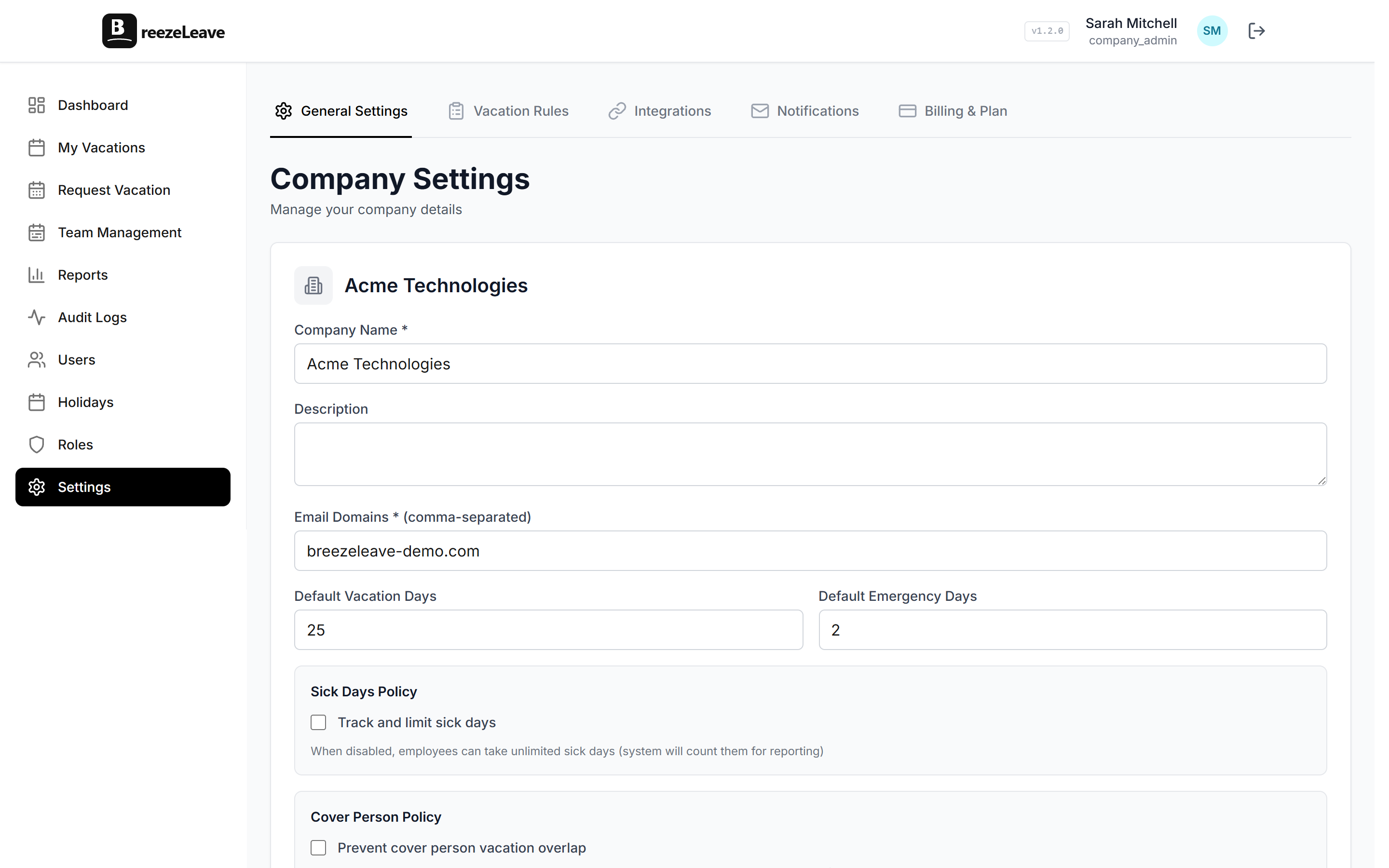
The setup starts with an OAuth flow between your leave management tool and Slack. In BreezeLeave, this takes about two minutes. You go to Settings, click "Connect Slack," authorize the app, and you're done.
What gets installed behind the scenes
- Slash command registration (
/whoisoff,/vacation) - Permission to post messages and DMs
- Permission to read user profiles (for matching Slack users to your team roster)
- Interactive component handling (so button clicks actually do something)
Once connected, pick a default channel for team-wide notifications. Most teams go with something like #time-off or #team-updates. Managers can also configure a private channel for approval requests if those shouldn't be visible to the whole team.
Pro tip
If you're an agency managing multiple companies, each organization gets its own workspace connection. Notifications for Client A never leak into Client B's Slack. This sounds obvious, but a surprising number of tools get it wrong.
Step 2: Set up the /whoisoff command
This is the single most-used feature once your Slack vacation bot is running. I'm not exaggerating. Teams tell us they use it multiple times a day.
Type /whoisoff in any channel or DM. You get back an instant summary: who's out today, who's leaving this week, and when everyone's back.
Think about how often this question comes up in your day:
- Before standup, is everyone actually here?
- Before scheduling a meeting, will the right people be around?
- Before assigning a code review, is this person on PTO?
- Before pinging someone who hasn't responded, are they just busy or on a beach somewhere?
Right now you're probably doing one of these: asking a manager, scrolling Slack history, checking a spreadsheet, or just guessing. /whoisoff replaces all of that with a two-second command.
The command is available to everyone on the team, not just managers. It respects your team structure too, so you can scope it to a department or the whole company.
Step 3: Configure interactive approval buttons
This is where a Slack vacation bot goes from "nice to have" to "how did we do this before."
When someone submits a leave request using /vacation or through the web app, their manager gets a structured Slack message. Not a plain text blob, but a formatted Block Kit message with:
- Employee name
- Leave type (vacation, sick, personal, etc.)
- Dates and total days
- Any notes the employee added
- Two buttons: Approve and Reject
The manager clicks Approve. The request is confirmed. The employee gets a DM. The team calendar updates. Done. Nobody opened a browser tab. Nobody sent a follow-up message asking "did you see my request?"
And if you're thinking about whether to require manual approval for every single request, we wrote about why auto-approving most vacation requests can save managers a surprising amount of time.
Pro tip
When rejecting a request, an optional text field appears so managers can suggest alternate dates or explain the conflict. The employee sees the note alongside the rejection, so no separate conversation is needed.
Step 4: Turn on automatic notifications
There are four notification types worth setting up. You don't need all four on day one, but each one solves a different problem.
- New request alerts. Sent to the manager (or an approval channel) when someone submits a request. This is the message with the approve/reject buttons.
- Status change confirmations. DM'd to the employee when their request is approved or rejected. No more refreshing a dashboard to see if someone acted on it.
- Sick day notifications. Immediate alert when someone logs sick leave. Team leads use this to adjust workloads and reassign tasks the same morning.
- Pre-vacation reminders. A message posted 24 or 48 hours before someone's leave starts, listing who's going offline. Teams use this as a trigger for handoff conversations and coverage planning. If overlapping absences are a recurring headache for your team, our guide on preventing team vacation conflicts goes deeper on that.
Pro tip
Start with just the approval flow and pre-vacation reminders. Those two alone kill 80% of the "wait, I didn't know you were off" situations. Add the others once the team is comfortable.
What your leave tool needs to support (and where most fall short)
On the Slack side, you need admin permissions to install apps to your workspace, or approval from whoever does.
On the leave management side, the tool needs to support Slack's interactive components API. This is the critical part. Lots of tools can post messages to Slack. Fewer can receive button clicks back and act on them. If your current tool only supports incoming webhooks, that's why it feels like a one-way street.
A quick checklist for evaluating any Slack PTO bot:
- Can users submit requests from inside Slack? (Not just receive notifications)
- Can managers approve/reject from Slack without opening another app?
- Are slash commands registered natively? (
/whoisoff, not a workaround) - Does it support per-workspace isolation for multi-company setups?
- Are notifications DM'd to the right person, or blasted to a channel?
BreezeLeave's Slack vacation bot covers all of these. But even if you're evaluating other tools, these are the questions to ask. If you're still in the early stages of choosing a system, our guide on vacation tracking for growing teams covers what to look for beyond just Slack.
Rollout plan: don't turn everything on at once
The fastest way to make people hate a Slack vacation bot is to flood their workspace with bot messages on day one. Roll it out gradually.
- Week 1: Connect the workspace. Set up approval notifications for managers only. Let them get used to the approve/reject buttons.
- Week 2: Roll out
/whoisoffto the whole team. Announce it in a channel, show people how to use it. Add a channel for daily absence summaries. - Week 3: Enable pre-vacation reminders and sick day alerts. By now people are used to the bot and actually want more from it.
Give each change a full week before layering on more. You want the integration to feel like it was always there, not like someone dumped a new tool on the team overnight.
The signal that it's working
You'll know the Slack leave management setup is actually working when a specific type of message disappears from your channels: the "hey, is [person] around this week?" message.
That question stops getting asked because the answer is always one /whoisoff command away. Approvals happen in seconds instead of hours. Nobody shows up to a meeting only to find out the key person is on vacation in Greece.
It's a small thing. But multiply it across a 50-person team, five days a week, and the time savings are real. Not because the tool is doing something magical, but because it's doing the obvious thing in the place where your team already works.