
Picture a retail operations lead at the start of October. The Black Friday plan is coming together, the support team is sizing up coverage, and someone in finance asks whether anyone has booked time off the week before Cyber Monday yet. Three people have. Two are critical. The CC-everyone email about the peak season went out in July, and by October it was buried under sixty newer threads. The lead spends Friday afternoon explaining the policy individually and asking three people to move their trips.
This is the problem blackout windows solve. Communication-only policies decay. Someone joins the team after the email went out. Someone reads the message, thinks it sounds like a suggestion, and books the dates anyway. Someone replies "got it" and forgets a month later. A blackout window changes the policy from a message everyone is supposed to remember to a check that runs every time a request is submitted.
Setting up a blackout window
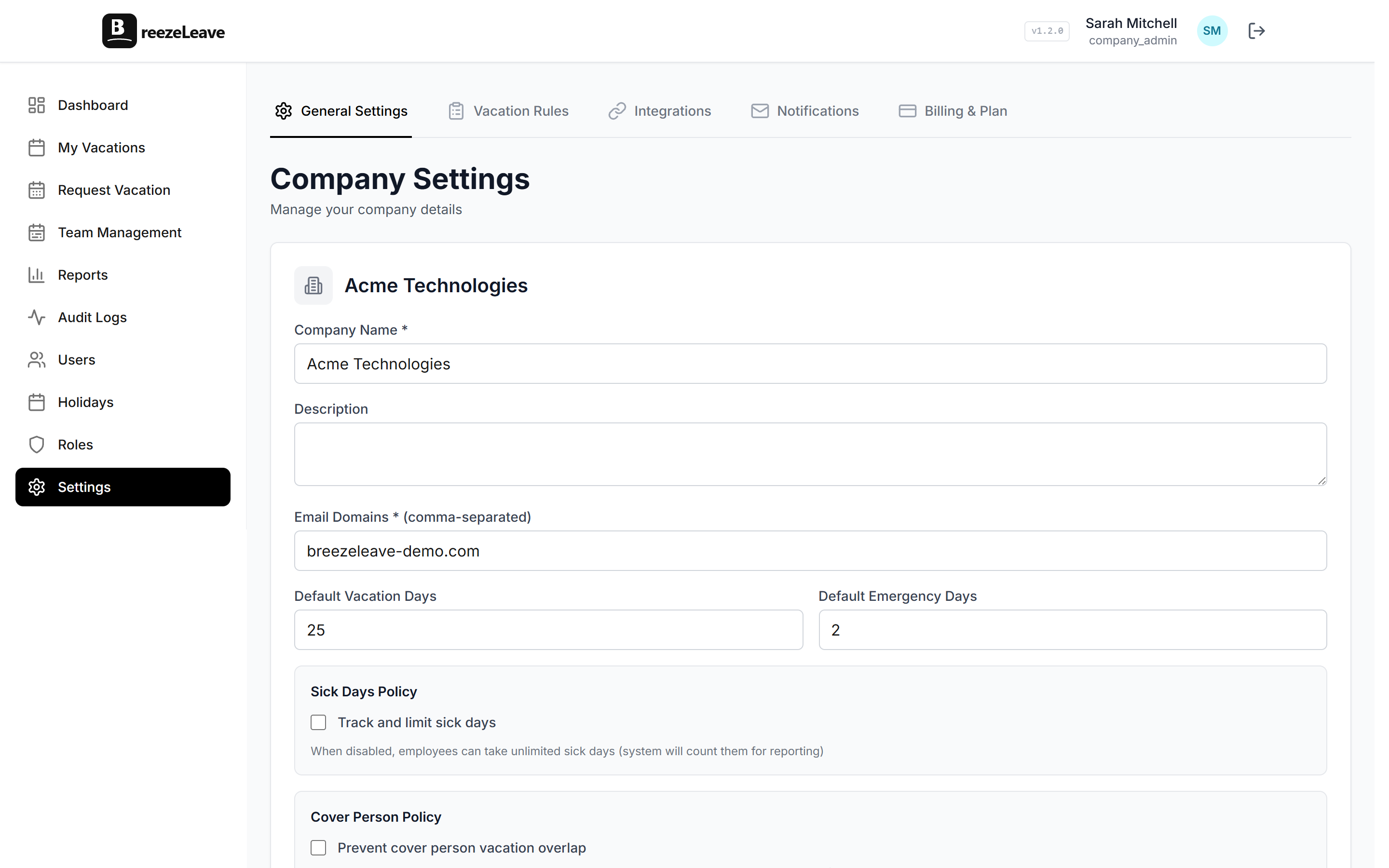
Open Settings, find the blackout dates section, and add a window. Each window has four pieces:
- Start date and end date. The range during which leave requests are blocked. Inclusive on both ends.
- Scope. Company-wide, specific teams, or specific user groups. A blackout that applies to a finance close should not affect engineering.
- Reason or note. The text shown to the employee when their request is rejected. "Black Friday week. Closed for vacation requests through December 1." is far easier to accept than a generic block message.
- Leave types covered. Vacation is the default. Sick leave, parental leave, and bereavement usually stay outside the blackout for obvious reasons.
What request prevention looks like in the form
An employee picks dates in the new vacation request form. The system runs the blackout check before showing the working-day calculation. If the dates overlap a blackout window that applies to them, the form blocks the submission and shows the reason on the line under the date picker. The employee can see exactly which days are blocked and which are clear. There is no quiet rejection that gets discovered later.
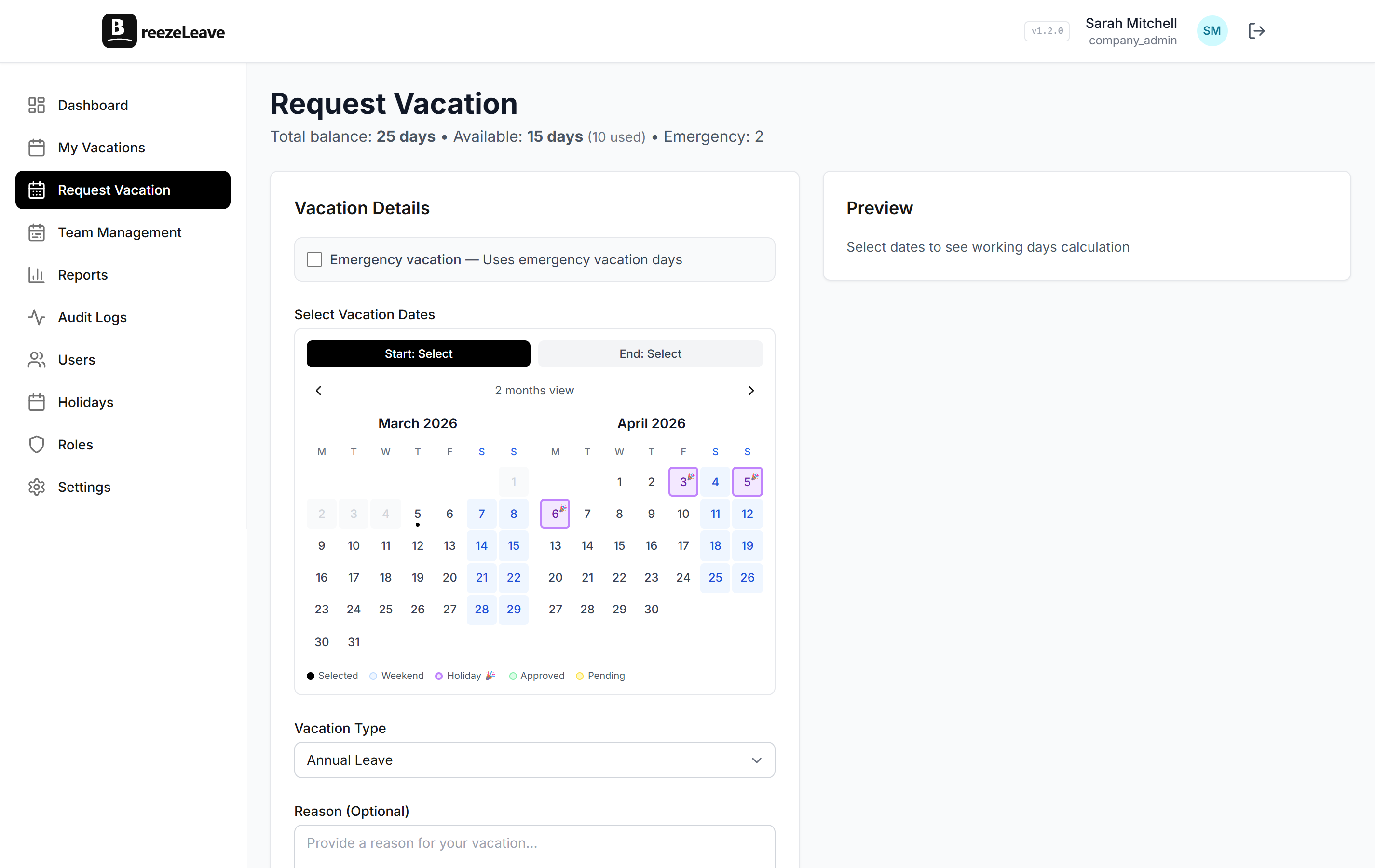
Some teams prefer a softer enforcement: the request can still be submitted but always routes to the approver rather than auto-approving. This is the right setting for soft-launch windows where exceptions are possible. For hard windows (Black Friday, financial close), the strict block is the safer default.
Three industry patterns that come up often
Retail: Black Friday through New Year
A typical retail blackout runs from the Monday of Black Friday week through the first Friday of January. Scope is the support team, fulfilment team, and the sales floor. Engineering and finance stay outside the window. The reason note reads something like "Peak shopping season. Vacation requests reopen Monday January 12." Employees plan their December trips around it because the calendar made the restriction obvious in October.
Engineering and product: launch and freeze windows
Two weeks before and one week after a major release is a common engineering blackout. Scope is the squad shipping the release, not the whole engineering org. The reason note ties to the release name: "Q3 launch window. Vacation reopens September 23." Other squads still get to plan around their own milestones; the blackout is targeted enough that nobody outside the squad feels the policy.
Finance: quarter-end and year-end close
The four close windows of the year run for roughly five business days each, plus the two-week year-end window in late December and early January. Scope is the accounting team and the FP&A team. Reason note ties to the close milestone: "Q4 close. Vacation reopens January 17." Engineering teams writing the reporting code stay outside the scope, since they finish their work well before the close deadline.
Auto-approval still respects blackout windows
Auto-approval runs the blackout check before deciding whether to fire. A request that would otherwise qualify for auto-approval (single day, no team overlap, requester past probation) still gets blocked or routed to the approver if it overlaps a blackout. The two systems work together: auto-approval handles the routine cases that fall outside protected windows; blackouts protect the windows that need every hand on deck.
The auto-approval use case page walks through how the two checks interact in the rule stack. The vacation rules engine page shows the full order that all checks fire in.
Things that go wrong with blackouts
Three patterns that turn a useful policy into a morale problem:
- Too many windows. If half the year is a blackout, the policy stops being a real restriction and starts being a sign that the company does not trust people to plan their own time. Reserve blackouts for windows that genuinely cannot lose coverage.
- No advance notice. Setting a blackout the week before it starts forces employees to cancel plans. Set windows as early as you can predict them. Annual windows like Black Friday should be on the calendar in January.
- No exception path. Genuine emergencies happen. A blackout without a manual override path turns into a policy that requires lying. Keep the override available and document the legitimate reasons up front.
Audit trail and visibility
Every blackout creation, edit, and override is recorded in the audit log with the admin who acted and the timestamp. If a manager overrides a window to approve a request inside it, the override is visible alongside the approval. This matters for two reasons: compliance teams can see the trail when they review, and employees can see that overrides are exceptional rather than common.
Employees can see all active and upcoming blackout windows that apply to them on their personal calendar. The dates are flagged before they try to submit, which is the difference between a useful policy and an irritating surprise.
Getting started
- List the windows you know about. At the start of each year (or fiscal quarter), sit down with the team leads who own peak periods. Walk through the year and write down every window that needs protection.
- Pick the right scope. Company-wide is rarely the right answer. Scope to the team or group that actually cannot lose people, and leave the rest of the company on normal rules.
- Write the reason note. The text shown to the employee. Specific and dated; "Q1 close. Reopens April 8" beats "No vacation."
- Save and let the form do the rest. The next time someone in scope picks overlapping dates, they see the reason on the form. No follow-up email needed.
Related reading
- How to set up blackout dates covers the policy questions before the configuration screen.
- Blackout date policy examples shows windows that worked and ones that did not, by industry.
- Shared team calendar use case for the visibility layer that complements the blackout policy.
- See pricing for plan limits (free for teams up to 10).
Frequently asked questions
Everything you might want to know before getting started. Still have questions? Reach out anytime.
The request form rejects the submission with a clear reason: the name of the blackout window, the date range it covers, and (if you set one) the note explaining why the window is closed. The employee can still see the dates on the calendar so they know which days are off-limits without having to guess. They can either pick different dates or, for genuine emergencies, message HR for a manual override.
Yes. Scope is part of the configuration. You can apply a window company-wide, to specific teams, or to specific groups of users. A finance team can have a quarter-end window that does not affect engineering. A support team can have a launch-week window that the rest of the company never sees. Pick the smallest scope that actually needs the restriction; over-applied blackouts erode trust in the policy.
Approved leave that already overlaps the new window is not auto-revoked. The window applies to new submissions from the moment it is saved. Existing approvals show up on the team calendar so you can see them and decide whether to ask the employee to reschedule. This is usually the right behaviour: revoking approved leave breaks trust fast, and the policy will not be perfect from day one.
An admin can approve a request inside a blackout window manually. The override is logged in the audit trail with the reason. This is the right path for genuine emergencies (a family bereavement, a medical procedure that cannot wait) and the wrong path for "I forgot when the window starts." Treating overrides as exceptional protects the policy.
As early as you can predict them. Retail teams set Black Friday and the holiday shopping season in January. Finance teams set quarter-end windows for the full year at the start of the fiscal year. Engineering and product teams set release windows at the start of each quarter as the roadmap firms up. The further in advance the window is visible, the easier it is for employees to plan around it.
Each blackout window is a date range you configure. To repeat annually (Black Friday week, year-end close), add the dates for next year at the same time you add this year. There is no recurring rule that auto-generates future windows. The trade-off is that you need to revisit the list at the start of each year; the upside is that the policy is explicit and the calendar never shows a stale rule.