Blackout Dates: How to Block Leave During Critical Business Periods
End-of-quarter, product launches, audit season. Some weeks you can't afford to have people out. Here's how to enforce blackout periods without micromanaging.
It's the last week of the quarter. Your sales team is pushing to close deals. Two engineers are trying to ship a release. And then you see the notification: three people just requested vacation for the same critical week.
You could reject them one by one and have three awkward conversations. Or you could set up blackout dates that prevent the requests from being submitted in the first place.
What are blackout dates?
Blackout dates (sometimes called leave blackout periods or restricted dates) are date ranges during which employees cannot request time off. The system blocks the request before it's even submitted. No approval needed, no rejection needed, no conversation needed.
Common use cases:
- End-of-quarter closes: finance and sales teams need everyone present
- Product launches: engineering and marketing on deck
- Annual audits: compliance teams can't afford gaps
- Retail peak seasons: Black Friday through New Year
- Conference or event weeks: when the whole team is expected to participate
The key difference between blackout dates and just rejecting requests: blackout dates are proactive. Employees see the restriction before they plan their trip, not after.
How blackout dates work in BreezeLeave
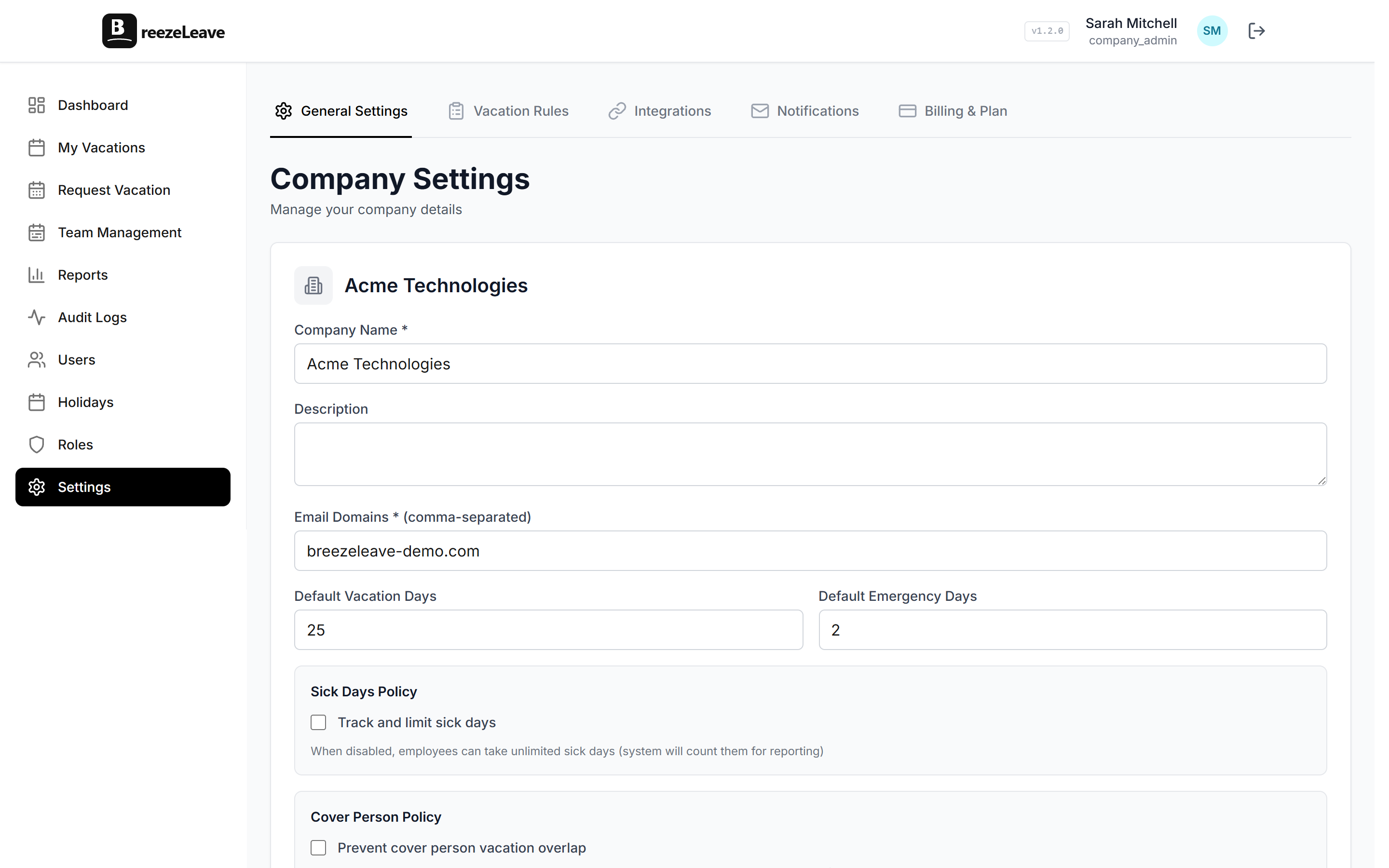
BreezeLeave lets admins and HR managers define blackout periods from the settings panel. Each blackout period has:
- A start date and end date
- An optional description (so employees understand why)
- Scope: apply to specific teams or the whole company
When an employee tries to submit a vacation request that overlaps with a blackout period, the system blocks it with a clear message explaining the restriction. They can't submit the form. There's no ambiguity.
Blackout dates vs. capacity limits
These solve different problems:
| Feature | Blackout Dates | Capacity Limits |
|---|---|---|
| What it does | Blocks all leave during specific dates | Limits how many people can be off simultaneously |
| When to use | Known critical periods | Ongoing team coverage needs |
| Flexibility | Zero (nobody takes leave) | Some (first-come, first-served up to the limit) |
Most teams use both. Blackout dates for the known crunch periods. Capacity limits for everyday team coverage. If you want to learn more about preventing scheduling conflicts without hard blocks, see our guide on preventing team vacation conflicts.
Best practices for blackout periods
Blackout dates are powerful, but overusing them backfires. Here's what works:
- Keep them rare. If every month has a blackout week, you don't have a blackout policy; you have a "you can't take vacation" policy. Limit blackouts to truly critical periods, ideally no more than 4 to 6 weeks per year.
- Announce them early. Set blackout dates at the start of the year so employees can plan around them. Surprise blackouts breed resentment.
- Add descriptions. "Q4 close: all sales and finance" is better than just blocking dates with no explanation. BreezeLeave shows the description to employees when they try to book during a blackout.
- Scope them when possible. Does the engineering team really need to be blocked during the finance audit? Apply blackouts to specific teams rather than the whole company when the crunch is department-specific.
Pro tip
If you need flexibility within a blackout (allowing senior staff to take leave but blocking junior roles), combine blackout dates with your approval workflow. Set the blackout as a company-wide default, then allow managers to override with manual approvals for exceptional cases.
What employees see
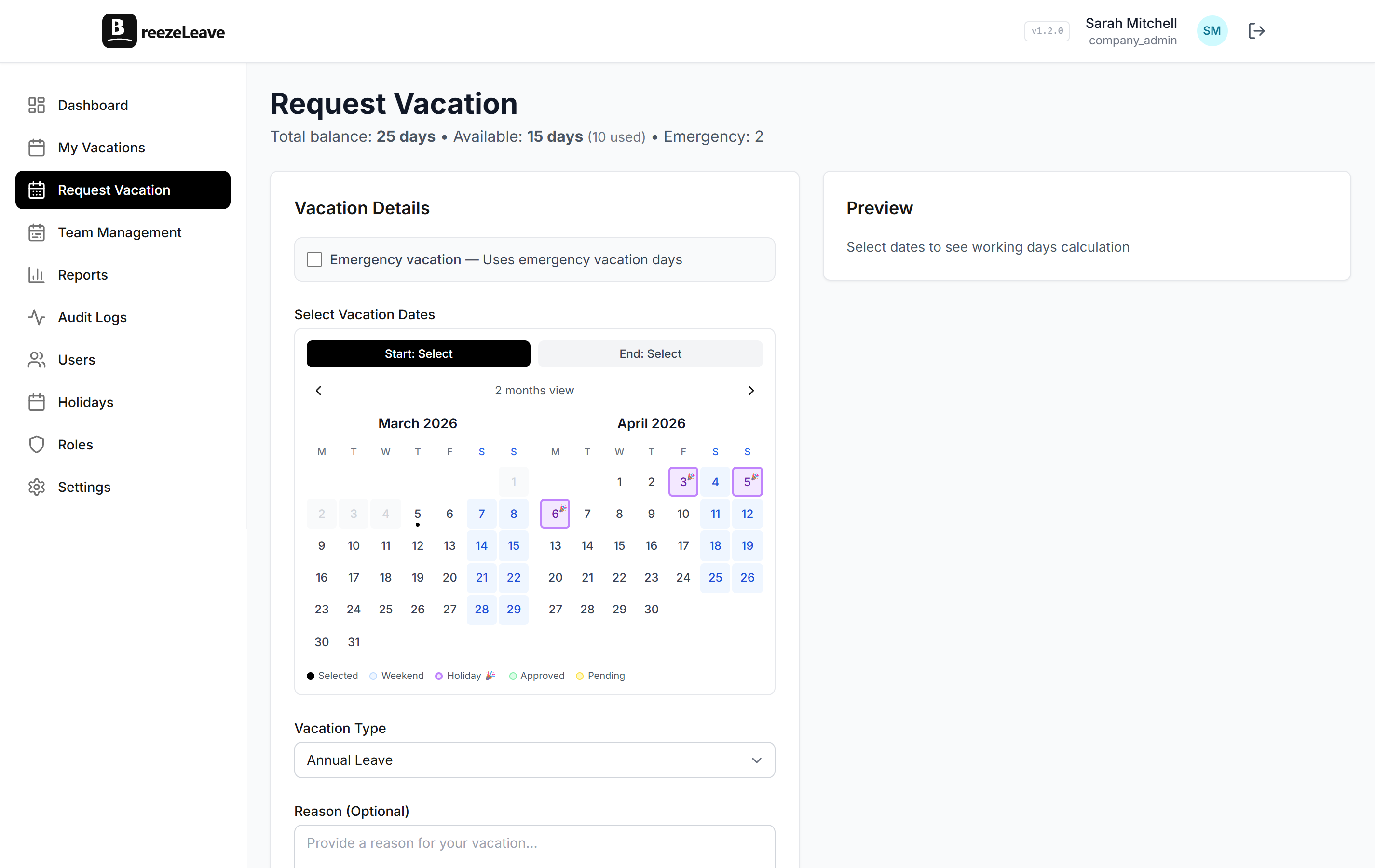
Transparency matters. When an employee opens the vacation request form and selects dates that overlap with a blackout period, they see a clear message:
"These dates overlap with a blackout period: Q4 Revenue Close (Dec 15 to Dec 31). Please select different dates or contact your manager."
No guessing. No submitting a request only to have it silently rejected days later. The employee knows immediately and can adjust their plans.
Setting it up
Blackout dates take about a minute to configure:
- Go to Settings
- Find the Blackout Dates section
- Add a new blackout period with start date, end date, and description
- Choose whether it applies to specific teams or the whole company
- Save
You can set up all your blackout dates for the year at once. Employees will see them reflected immediately when they try to request leave during those periods.