
A quick honest framing. BreezeLeave is not a stopwatch. It does not capture time entries. Your team will keep logging time in ClickUp the same way they do today. What BreezeLeave does is read those entries and turn them into the agency reports your delivery leads, account managers, and finance lead need every week.
That distinction matters when you are evaluating agency time tracking software. A lot of tools in this category include native time capture, then quietly hope the team will adopt it instead of the system they already use. In an agency on ClickUp, that double-tracking is where time data quality goes to die. Reading from the tool the team already trusts keeps the logging honest and the reports usable.
What problem this solves
Most agencies have ClickUp time entries. Few have answers to questions like:
- How many billable hours did the design team log last month, by retainer?
- Which people consistently log under their expected hours?
- Which projects had logged hours that match the work that shipped, and which were padded?
- What is the utilization rate for senior developers vs juniors over the last 6 weeks?
- How does logged hours translate into actual project labor cost and margin?
The answers exist in ClickUp. They are spread across thousands of time entries, dozens of spaces, and a few hundred tasks. Pulling them into one view by hand is a half-day exercise that nobody has time for, which is why these questions rarely get answered.
How the ClickUp sync works
The integration is a one-way read from ClickUp into BreezeLeave. ClickUp stays as the system of record for tasks and time. BreezeLeave is the reporting and operating layer on top. For a deeper look at the integration mechanics, see the ClickUp time tracking integration page.
Workspace sync
BreezeLeave connects to a ClickUp workspace. It mirrors the hierarchy (spaces, folders, lists, tasks) and the time entries attached to each task. The sync runs on a schedule so the data is fresh; no manual refreshes are needed.
Hierarchy mapping
ClickUp tasks live in lists, folders, and spaces. BreezeLeave projects live at the agency level. The hierarchy mapping decides which ClickUp containers feed which BreezeLeave projects. A single retainer can pull from one ClickUp folder. A multi-stream client can pull from several.
User mapping
Each ClickUp user is linked to a BreezeLeave employee. Unmapped users are flagged in a dedicated report so you can decide whether they are external contributors, ex-staff who should be archived, or current employees who need to be linked.
Time entries become reports
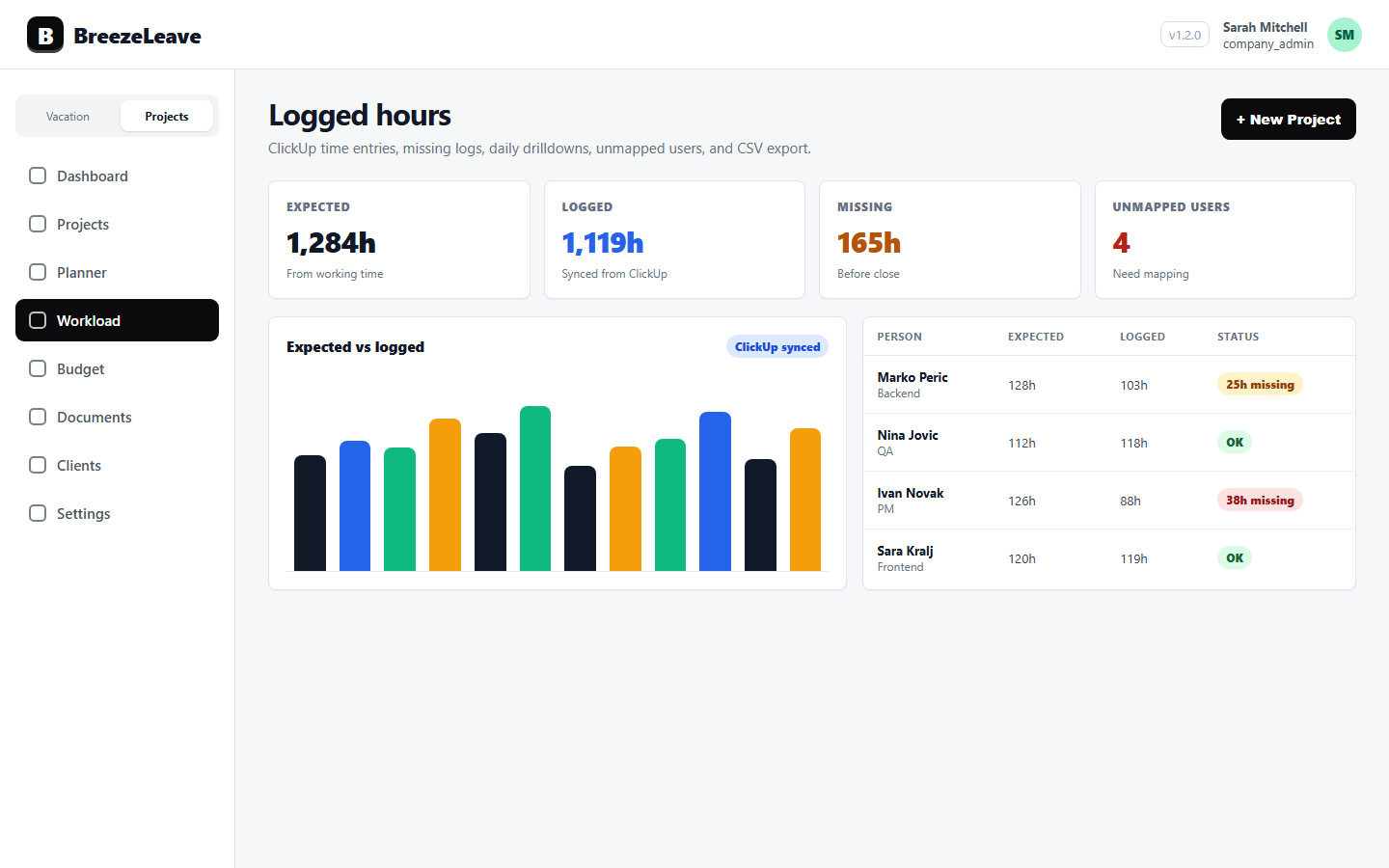
Once entries are mapped, they feed the logged hours dashboards, the workload and capacity views, the project budget cost lines, and the margin reports. Same data, several angles.
The reports you get out of it
ClickUp time entries become five distinct reports inside BreezeLeave. Each answers a different agency question.
Expected vs logged hours
For each person and period, BreezeLeave computes expected hours from working days, PTO, and public holidays, then compares it to ClickUp logged hours. The gap is the signal. A consistently low logger usually has a coverage issue (missing task assignments, work happening outside ClickUp) that the report exposes.
No-log periods
Days where a person logged zero hours despite being scheduled to work. The no-log report flags those days so a delivery lead can ask before the week closes. See the no-log period reminders for agencies article for how teams use this.
Unmapped users
ClickUp users that have not been linked to a BreezeLeave employee. Their time still exists in ClickUp; it just does not contribute to cost or margin until they are mapped. The report keeps the gap visible.
Card efficiency analytics
For each task, BreezeLeave compares logged hours against signals like task status, story points (if used), and completion date. The pattern matters more than the absolute number: which tasks consistently take twice as long as estimated, which estimates are reliable.
Billable hours by project
Logged hours filtered by billable flag, grouped by project, retainer, or client. The number finance actually wants when comparing what was logged to what was invoiced.
Capacity and utilization from the same data
Logged hours are an input to two more views: capacity and utilization.
- Workload. Planned hours per person per week, minus PTO, minus public holidays. Compare to logged hours to spot over-plan and under-plan. The workload and capacity planning page covers this in detail.
- Utilization. Billable logged hours divided by available working hours. Computed per person, per role, or per team across any period. A senior developer at 85 percent utilization is fully booked; at 110 percent they are working over capacity.
What this is not
Honest scope so you can decide quickly:
- Not a stopwatch. The team logs time in ClickUp. BreezeLeave reads it. If you are looking for a native start/stop timer for staff who do not use ClickUp, this is not the right tool.
- Not invoicing. Billable hours roll up. Generating invoices stays in your finance system (Xero, QuickBooks, FreshBooks).
- Not multi-tracker. BreezeLeave currently syncs from ClickUp. If your team is on Toggl, Harvest, or Clockify, the time-tracking dashboards will not have data to read.
- Not a CRM. Pipeline and lead management live in your sales tool. The time tracking layer starts at signed work.
For agencies that fit the ClickUp pattern, this is a fast way to turn time entries into operating insight. For agencies that do not use ClickUp, treat BreezeLeave as the leave and capacity planning layer and keep your existing time tracker.
How this compares to native trackers
A fair comparison for agencies that have already evaluated Harvest, Toggl Track, or Clockify.
| Capability | Native trackers (Harvest, Toggl, Clockify) | BreezeLeave (reads ClickUp) |
|---|---|---|
| Where time is logged | Inside the tracker | Inside ClickUp, where tasks live |
| Start/stop timer | Yes | No (use ClickUp) |
| Billable hours report | Yes | Yes |
| Capacity with PTO impact | Limited | Yes |
| Project margin tied to logged hours | Partial | Yes |
| Invoicing | Often built-in | No (use your finance system) |
| Best fit | Teams without ClickUp; freelancers; tracker-first agencies | Agencies on ClickUp that want operating reports on top |
Getting logged hours data to a usable state
The reports are only as honest as the underlying ClickUp time entries. A short checklist for getting the data to a state where the dashboards mean something. The ClickUp logged hours hygiene checklist covers this in more depth.
- Map every active ClickUp user. Unmapped users do not contribute to cost or margin. Resolve them before relying on any aggregate number.
- Define which ClickUp containers feed which projects. A retainer should pull from a specific folder, not from the whole space.
- Set expected hours per person. Working days, PTO, holidays. Without expected hours, the expected-vs-logged report has nothing to compare against.
- Turn on no-log period reminders. Catch missed days inside the week, not after the month closes.
- Run a 4 week dry run. Check the reports before showing them to delivery leads or finance. Surface the data issues first, then trust the dashboards.
Project Operations add-on
Project Operations is an add-on to BreezeLeave. $8/user/month, or $6/user/month with annual billing (save 25%). 14-day free trial. Add at signup or anytime from billing.
Frequently asked questions
Everything you might want to know before getting started. Still have questions? Reach out anytime.
No. BreezeLeave does not capture time entries natively. Your team logs time in ClickUp the way they already do. BreezeLeave reads those entries through the ClickUp workspace sync and turns them into utilization, capacity, margin, and reporting views.
Most agencies already have ClickUp as the task system. Asking the team to log time in a second tool is the fastest way to break time data quality. Reading from the system they already use keeps logging frictionless and the reports honest.
BreezeLeave shows the gap. The expected vs logged report compares what each person should have logged (based on working days, PTO, and holidays) against what sits in ClickUp. No-log period reminders flag missing days. Card efficiency analytics show whether logged hours match the work that shipped.
Yes. Filters by project, retainer, billable flag, and date range produce billable hours totals at the team, person, or project level. The same data flows into project labor cost so the billable-vs-logged conversation connects to margin.
Mapping is done in the ClickUp integration settings. Each ClickUp user gets linked to a BreezeLeave employee. Unmapped users are surfaced in a separate report so you can decide whether they are external contributors, ex-staff who should be archived, or genuine gaps to fix.
BreezeLeave currently syncs from ClickUp. If your team is on another time tracker, the time-tracking dashboards inside BreezeLeave will not have data to read. The leave, capacity planning, and project budget side still work, but the logged-hours layer depends on ClickUp.
Yes for the leave, capacity, and budget cost lines you maintain manually. No for the logged-hours and ClickUp-driven labor cost reporting. If you do not use ClickUp, treat BreezeLeave as the leave and capacity planning layer rather than the time-tracking layer.
When the ClickUp-based approach works for you
Some signals an agency is a good fit for the BreezeLeave time-tracking reporting layer:
- ClickUp is already the task system and time entries are reasonably consistent.
- You want one place to see logged hours, capacity, utilization, and project margin.
- You do not want to ask the team to log time twice.
- Your finance system handles invoicing and you do not need a tracker that doubles as a billing tool.
If those line up, the ClickUp sync usually produces useful reports inside a couple of weeks. For more on the broader agency operating model behind this, see the ClickUp time tracking for agency projects article. Pricing for the project management add-on is on the pricing page.