
A manager spends twenty minutes every Monday morning clicking approve on a dozen routine vacation requests. None of them have conflicts. None are unusual. The employee has the balance, the dates are in the clear, and there is nothing to decide. The one request that actually needs a closer look (the two-week trip in the middle of the launch quarter) gets the same two-second glance as the others and the same rubber-stamp approval.
The problem is not effort. It is signal. When every request looks the same in the queue, the real exceptions blur in with the routine ones. Auto-approval fixes the signal by sending routine requests through the system on their own merits and reserving the approver’s attention for the cases that need judgment.
The decision tree behind a rule
A request hits BreezeLeave and runs through a stack of checks in order. The first check that fails routes the request to the approver with the reason attached. If every check passes, the request auto-approves and the calendar updates in seconds. The full check stack:
- Leave type covered? Auto-approval is configured per leave type. Vacation requests might auto-approve while parental leave always routes to the approver.
- Duration inside the cap? If the rule allows one to three days, a four-day request fails this check and routes for review.
- Tenure threshold met? Probation lockout fires before auto-approval is considered. After probation, employees can be eligible for auto-approval immediately or after a configured tenure threshold.
- Advance notice met? A request submitted with less than the configured lead time fails. Five business days is a common starting value for vacation; sick leave usually has zero or one day of notice.
- Balance covers the deduction? The working-day calculation runs first, then auto-approval checks whether the resulting deduction fits inside the remaining balance.
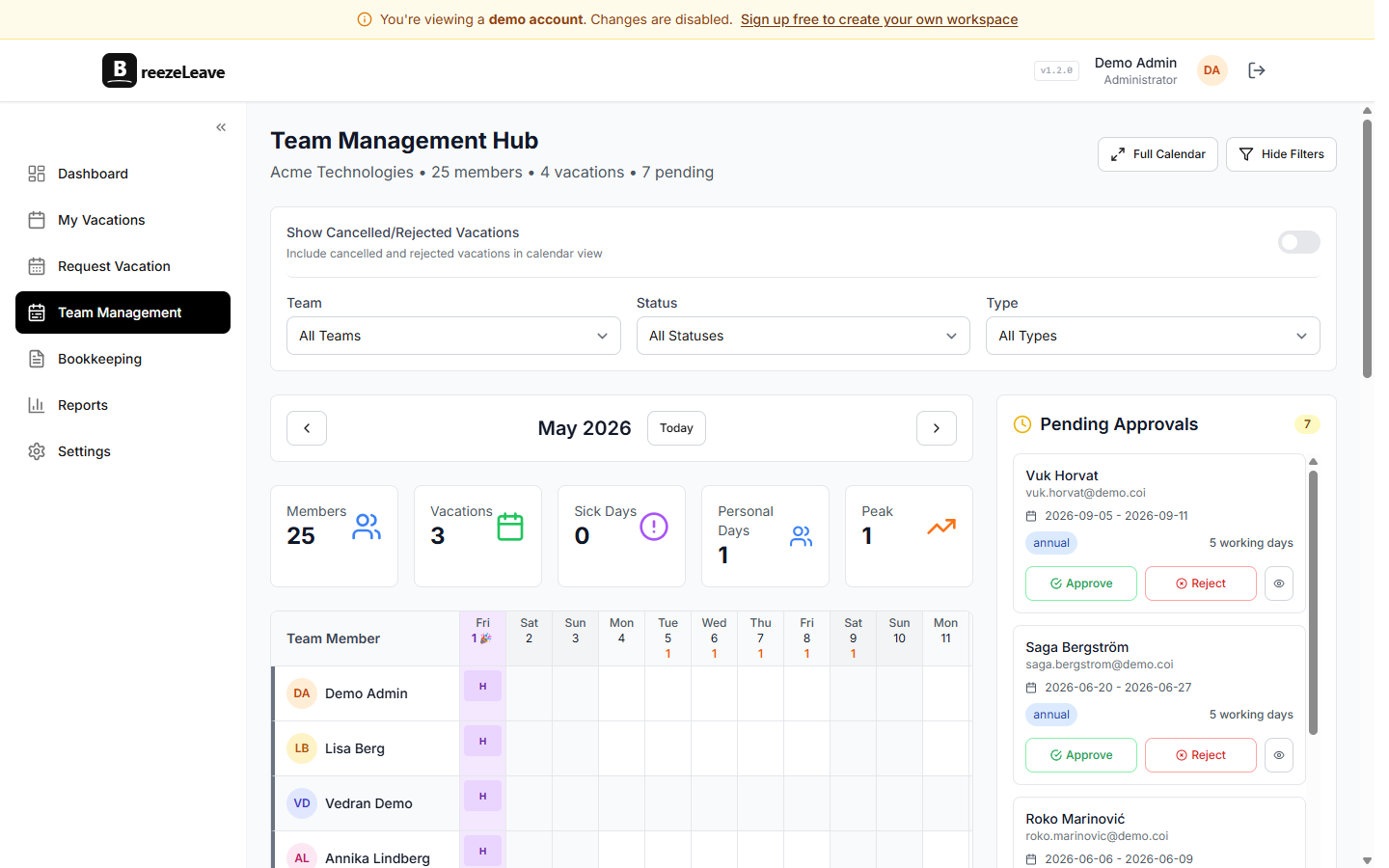
- No team overlap? The conflict check compares the request against approved leave on the same team for the same date range. Even one overlap is enough to fail this check and route to the approver.
- No blackout overlap? Any overlap with a configured blackout window fails auto-approval. The request can still be submitted but goes to the approver (or gets blocked entirely, depending on the blackout type).
A pass example and a fail example
Two requests submitted on the same Monday morning. Same leave type, same advance notice rules, same auto-approval criteria configured (up to three days, no team overlap, requester past probation, advance notice at least five business days).
Pass example
Alex requests Friday, June 12 off. Vacation type. Submitted on Monday, June 1 (eight business days of notice). Alex has been with the company for fourteen months. Their balance is twelve days. No teammate on the same team has approved leave on June 12. No blackout window applies. Auto-approval fires: balance moves to eleven days, the team calendar updates, the action channel posts the approval.
Fail example
Sam requests Monday, June 15 through Friday, June 19 off (five days). Vacation type. Submitted on Wednesday, June 10 (three business days of notice). Sam has been with the company for nine months. The request fails the duration cap (five days exceeds the three-day rule) and the advance-notice rule (three business days falls short of five). The request routes to the configured approver with both reasons visible. Sam sees the same reasons on their side. The approver can approve anyway, ask Sam to shorten the request, or decline.
Approver review is the default for anything outside the rules
Auto-approval never replaces the approver. It changes which requests reach them. Anything that fails a check still requires a human decision. The approver sees the request in Slack or Teams (or the web app), with the failure reason attached. They can approve, decline, or push back for a change. The decision is logged the same way it would be for a request reviewed end to end by a human.
This matters for the cases that look fine on paper and are not in practice. The rule set cannot know that the employee asking for the week of the launch is the only one who has shipped the integration on staging. A human can. The auto-approval is for the routine cases that drain attention from the cases that need it.
A conservative starting configuration
The lowest-risk starting point for most teams:
- Eligible leave types: Vacation only. Keep sick leave, parental leave, bereavement, and unpaid leave on approver review.
- Duration cap: One day. Single-day requests are the lowest-risk to approve without review.
- Tenure threshold: Past probation. The probation lockout already handles the early-tenure case; auto-approval kicks in only once that window has closed.
- Advance notice: Two business days. Short enough to feel useful to the employee, long enough to give the team some warning.
- Team overlap: Required to be zero. Any conflict routes to the approver for review.
Once you have watched this configuration run for a month and the approver queue is only the cases that needed review, you can extend the duration cap or relax the notice rule. The vacation rules engine page shows the full set of checks that fire across all rule types, including the order they run in and how they interact with the approval chain.
What auto-approval does not do
Three things worth being explicit about, since they sometimes get assumed:
- It does not predict coverage gaps. The conflict check is a count of approved leave on the same team. It does not know that the one engineer who can deploy production is the requester. That call still belongs to the approver.
- It does not skip the audit log. Every auto-approval is logged with the rule that fired and the timestamp. The trail looks the same as an approver-reviewed approval for compliance purposes.
- It does not override blackout dates. A request inside a blackout window cannot auto-approve, regardless of how many other criteria it meets.
Setting it up
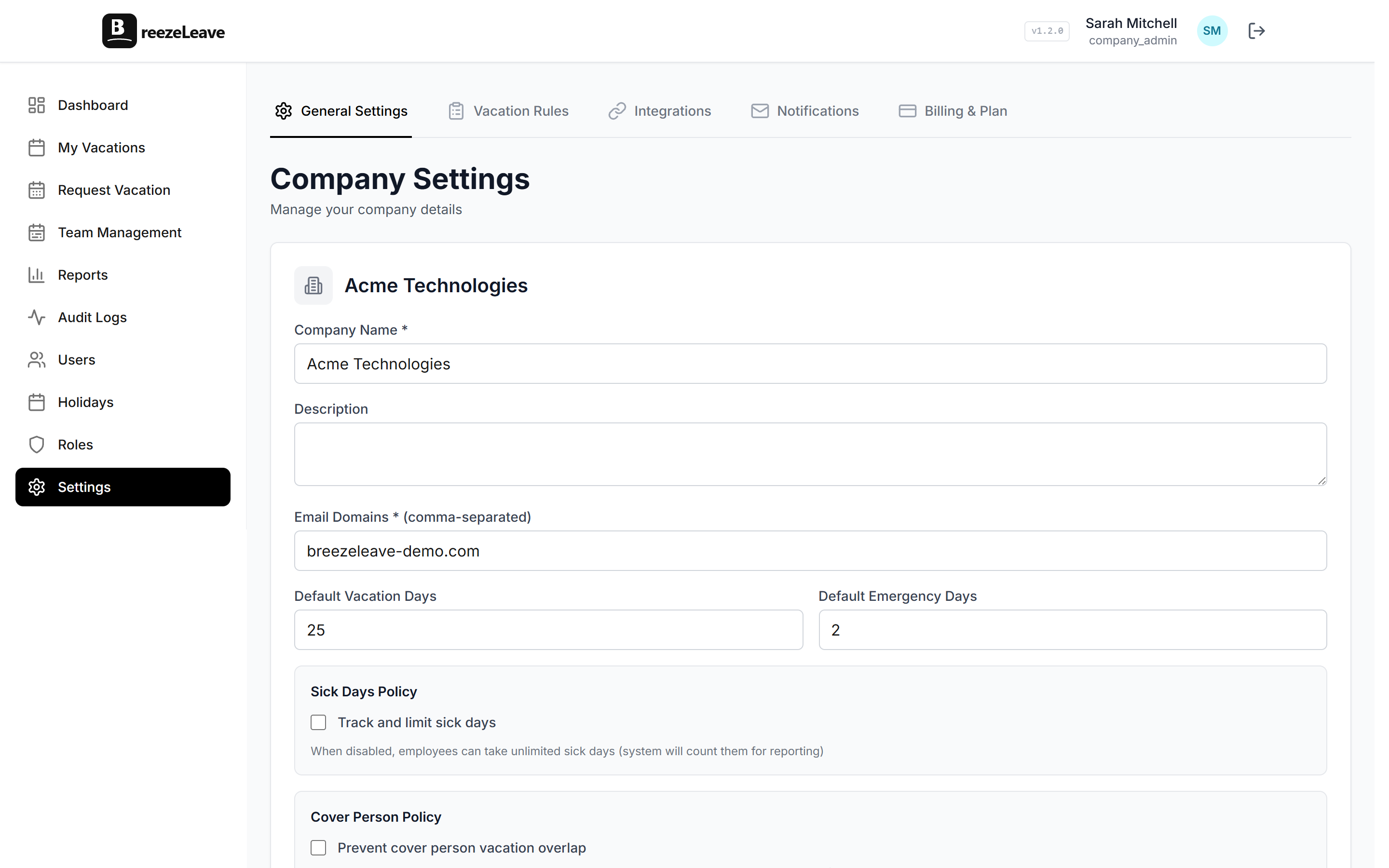
- Open Settings. Find the auto-approval section.
- Pick the eligible leave types. Vacation is the safest starting point; add others as you build trust in the rule set.
- Set the duration cap, tenure threshold, advance notice, and overlap rule. The conservative starter values above are a reasonable baseline.
- Save and watch the queue. For the first month, check the review review queue weekly. The requests that show up should be the ones you would have wanted to look at anyway.
Related reading
- How to set up auto-approval for vacation requests covers the policy questions before the setup screen.
- Blackout dates use case pairs with auto-approval to keep peak periods protected.
- Vacation rules engine for the full set of checks that run on every request.
- See pricing for plan limits (free for teams up to 10).
Frequently asked questions
Everything you might want to know before getting started. Still have questions? Reach out anytime.
The conservative pattern: single-day requests for an employee past probation with no team overlap and a healthy balance. The middle pattern: requests up to three days, still requiring no team overlap and a fixed amount of advance notice. The aggressive pattern: anything up to one week that does not touch a blackout window. The right answer depends on how much your team trusts the calendar conflict check and how brittle your coverage is. Start with the conservative version and tighten only after you have watched a few weeks of decisions.
They route to the configured approver in Slack, Microsoft Teams, or the web app. The decline reason is shown on the request itself: which criterion failed, what the actual value was (for example, "request is six days, auto-approval is capped at three"), and who needs to act next. The approver can override, ask for changes, or decline. Nothing falls through; failed auto-approval is the same as an unreviewed manual request.
Yes. The probation lockout fires before auto-approval is even considered. If an employee is inside the probation window you configured (typically 90 days from the hire date), the request form blocks submission entirely for the leave types covered by the lockout. Auto-approval never sees the request.
Auto-approval is configured at the company level for the leave type and the rule criteria. If your finance team needs stricter advance notice than engineering, configure that via the advance-notice rule per leave type or via separate leave types per group. The simpler the rule set, the easier it is to explain when an employee asks why a colleague's request auto-approved and theirs did not.
Yes. Every auto-approved request posts to the action channel in Slack or Teams and shows on the team calendar. If something looks off, the approver can open the request and revoke the approval. The decision is logged so there is no doubt later about who acted, when, and why.
The request detail page shows the breakdown for that request. There is not a separate analytics page dedicated to rule outcomes; the audit trail lives on each request and in the standard audit log. If you want to see how often auto-approval fires versus manual review, the leave reports give the high-level split by leave type and date range.
Rule changes apply to requests submitted after the change. Pending requests in the queue keep the decision they were headed toward when they were submitted. If you tighten the rules and want to re-evaluate a pending request, decline it and ask the employee to resubmit. If you loosen the rules, future requests get the benefit immediately.