
The most common Google Calendar problem with leave management is not technical. It is that an approval happens in one tool, the calendar lives in another, and the two never talk. Someone takes a week off, forgets to block their calendar, and gets booked into a client call on day three. The approval was correct. The data just stopped at the boundary of the leave tool.
BreezeLeave fixes that boundary with a per-user OAuth connection that creates all-day events on your own Google Calendar when a request is approved, and removes them when a request is cancelled. Status: Live. No admin involvement, no shared credentials, and no scope beyond events on calendars the user owns.
A narrow OAuth scope by design
BreezeLeave requests one Google API scope: https://www.googleapis.com/auth/calendar.events.owned. That scope authorizes event access only on calendars the user owns. It does not grant access to other people's calendars, contacts, Drive, Gmail, or other Google services.
Why this matters: most Google Calendar tools ask for the wider calendar scope, which includes full access to calendars available to the user. BreezeLeave does not need that. Its implementation does not list or import existing events. It uses a private request-to-event mapping to create, update, and delete only the BreezeLeave leave events associated with the connected user.
Per-user, not per-company
Calendar integrations often default to a shared company account. That means an admin manages the OAuth credentials, every approved leave goes to one company calendar, and employees lose control over their own calendar. The per-user model takes the opposite path: each person owns their connection.
- Each employee connects from their profile. No admin tickets, no shared secrets, no broker. The OAuth grant is between Google and the individual user.
- Events go to the connected user's primary calendar. Whoever shares your calendar at work will see the leave show up there, the same way a meeting would.
- Disconnect is one click. You revoke the token in BreezeLeave and the refresh token is deleted from the database. Existing calendar events stay where they are; you can delete them in Google Calendar if you want.
- Any Google account works. Personal Gmail, Google Workspace, and Workspace for Education all use the same OAuth flow. No admin pre-approval needed unless your Workspace policy restricts third-party apps.
For team-wide visibility, BreezeLeave already ships the shared team calendar, the Slack /whoisoff command, and the Teams away notifications. Google Calendar sync is for the individual: it keeps your calendar accurate so meetings do not collide with your time off.
The five-step lifecycle
From the moment an employee clicks Connect to the moment they disconnect, the integration runs through five clean states.
1. Connect
The employee opens their profile in BreezeLeave and clicks Connect Google Calendar. They are redirected to the Google consent screen, which lists the single calendar.events.owned scope. They approve and are redirected back. BreezeLeave stores the refresh token, associates it with their BreezeLeave user, and flips the profile to "Connected".
2. Backfill on connect
On every connect (or when the employee clicks Sync All Vacations), BreezeLeave reads every approved leave that has not yet ended and creates or updates the corresponding all-day events on the calendar. Past leaves are skipped; nobody needs a calendar entry for last March. BreezeLeave stores a private request-to-event mapping so the two systems stay in sync going forward without inspecting unrelated events.
3. Forward sync on approval
From that moment, every new approval triggers an event creation. The event title is the leave type and the employee's first name (for example, "Vacation - Jane"). The dates match the approved request, the event is all-day, and the description carries any note the employee added. Visibility is set to Busy so scheduling tools (Calendly, Google Meet suggestions, internal scheduler bots) respect the time.
Approved open-ended sick leave is also synced immediately. Its single all-day event extends through the current day and advances daily until the leave is closed, when the same event is updated with the final end date.
4. Cancellation sync
If the employee cancels their leave (or an admin cancels it for them), BreezeLeave looks up the matching event ID from the request and deletes the event. The event disappears from Google Calendar in a few seconds. No ghost events for trips that never happened. If the dates change instead of being cancelled, the same flow updates the existing event so the calendar matches the new dates.
5. Disconnect cleanup
When an employee disconnects, BreezeLeave revokes the token on Google's side and deletes the refresh token from its own database. The connection state goes back to "Not connected" and the profile shows the Connect button again. Existing calendar events are not deleted automatically; the employee can clean them up in Google Calendar if they want, or leave them as historical records.
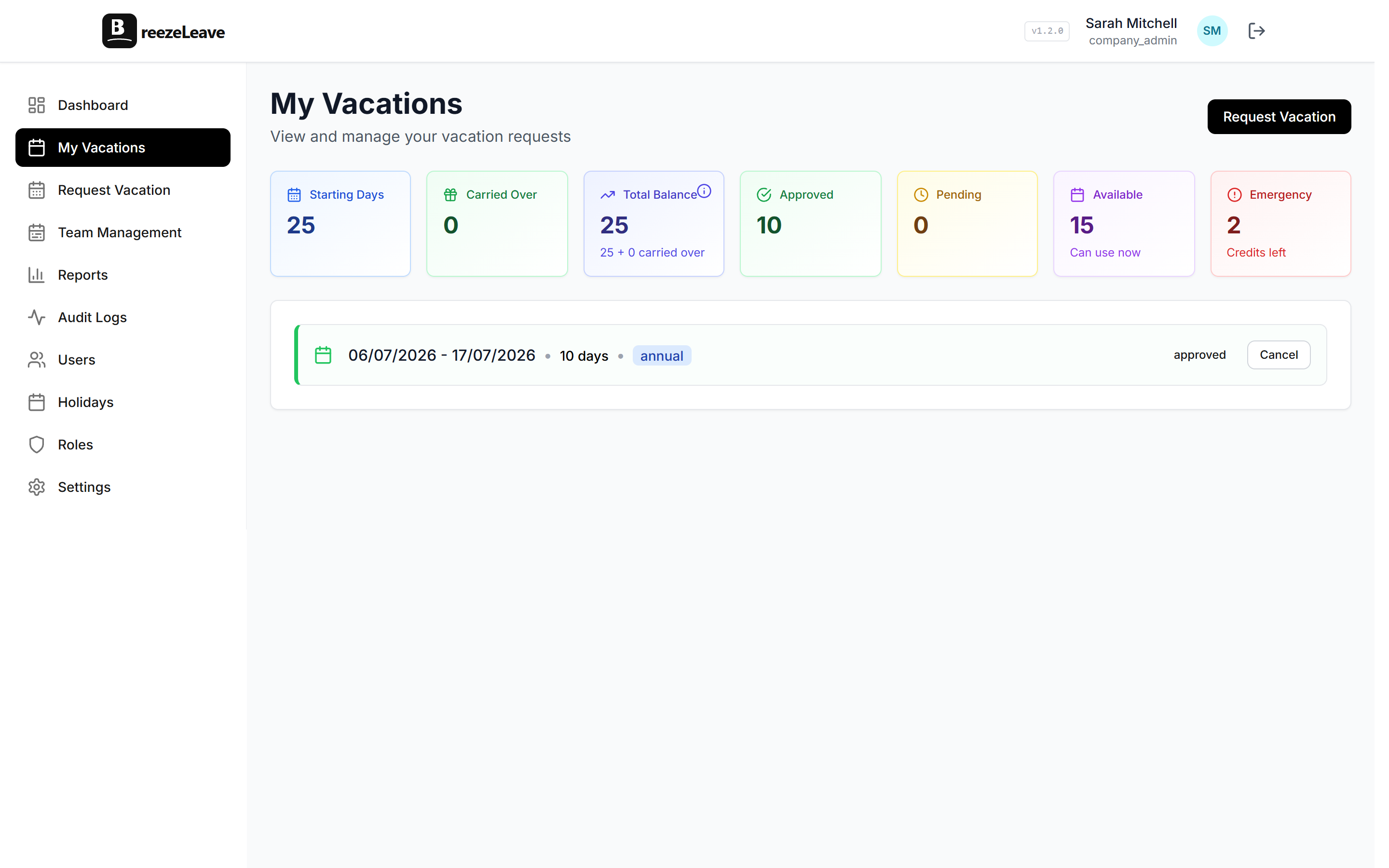
What ends up on your calendar
Every event follows the same shape, so it is easy to scan and easy to filter on.
| Field | Value |
|---|---|
| Summary | Leave type, hyphen, employee first name (Vacation - Jane). |
| Start, end | All-day dates matching the approved request. |
| Calendar | The user's primary calendar. |
| Visibility | Busy. Scheduling tools respect the block. |
| Description | Optional employee note from the BreezeLeave request. |
| Ownership mapping | Stored privately in BreezeLeave so only the matching event can be updated or deleted later. |
Manual blocking vs automatic sync
Most people "sync" their leave to Google Calendar by remembering to create an event after each approval. It works until someone forgets. Here is the practical difference between the two approaches across the day-to-day cases.
| Scenario | Manual blocking | BreezeLeave sync |
|---|---|---|
| Vacation approved | Remember to create event | Event created in a few seconds |
| Dates moved | Remember to update or recreate event | Old event updated in place |
| Leave cancelled | Remember to delete event | Event deleted in a few seconds |
| Forgot to block | Meetings sneak into PTO | Cannot happen |
| Setup effort per leave | Every time | None after connecting |
The Google Calendar PTO sync vs shared calendar post walks through the choice between per-user sync (what this integration does) and a shared company calendar (what some HR tools default to). The two are not mutually exclusive, but most teams find per-user fits the privacy model better.
When a token expires
Google sometimes invalidates an OAuth token: the user changed their Google password, they manually removed the app under "Apps with access to your account", their organisation rotated keys, or the token simply expired. When that happens, BreezeLeave gets a 401 on the next sync attempt and marks the connection as disconnected on the profile.
The employee sees the Connect button again and can re-authorise in 30 seconds. No data is lost on the BreezeLeave side, because the source of truth is the request record, not the calendar event. Reconnecting automatically reconciles events that changed or drifted in the meantime.
Works with the rest of the integration set
Google Calendar sync is one piece. Most teams pair it with Slack notifications or Microsoft Teams Adaptive Cards for team-wide awareness, plus the in-app calendar for cross-team visibility. The Slack and Teams pieces post to channels; Google Calendar sync writes to each employee's personal calendar. The two layers cover team and individual respectively, and neither one duplicates the other.
The full list of Live, Beta, and Planned integrations is on the integrations page. Outlook Calendar sync is on the Planned list (Microsoft 365 scope work in progress); for now Outlook users get the leave on the team calendar and through Teams cards, just not in their personal Outlook calendar.
Setup in 30 seconds
- Open your Profile page in BreezeLeave.
- Click Connect Google Calendar.
- On the Google consent screen, review the single scope (
calendar.events.owned) and approve. - Approved leaves that have not ended are backfilled automatically.
- Done. Future approvals and edits sync automatically. Cancellations remove only their matching BreezeLeave events. The next time you go on holiday, your calendar already knows.
The blog post on how to sync your vacation days to Google Calendar covers the same flow with screenshots and the typical troubleshooting points.
Pairs with Project Operations
BreezeLeave is two products. The Leave Management side, which Google Calendar sync belongs to, handles balances and individual calendars. Project Operations adds project budgets, logged hours, and capacity planning for agencies. When an approved vacation reduces an employee's available capacity for a project week, the same person's Google Calendar shows the all-day event. The two views match because they share the same underlying request record. For pricing details, see the pricing page. The Google Calendar integration is included on every plan, including the free tier for teams up to 10.
Frequently asked questions
Everything you might want to know before getting started. Still have questions? Reach out anytime.
A single scope: https://www.googleapis.com/auth/calendar.events.owned. It authorizes event access only on calendars you own. BreezeLeave uses it only to create, update, and delete its mapped leave events in your primary calendar; the implementation does not list or import your existing meetings or access other Google services.
Per-user. Each employee connects their own Google account from their BreezeLeave profile. No admin, no shared service account, no IT ticket. Each person controls their own connection and can disconnect at any time.
BreezeLeave revokes the OAuth token on the Google side, deletes the refresh token from its database, and stops syncing. Existing events stay on your calendar (so a vacation already on your calendar is not deleted), but no new events are created and no cancellations sync.
Yes. The integration uses the standard Google OAuth flow, so any account with Google Calendar works: personal Gmail, Google Workspace, or Workspace for Education. Your IT admin does not need to whitelist anything.
Whenever you connect, BreezeLeave reads every currently-approved leave that has not ended yet and creates or updates the corresponding all-day events on your calendar. Past leaves are skipped. The button on the profile page also lets you re-run reconciliation manually.
Google occasionally invalidates tokens (password change, the user revoking access, key rotation). BreezeLeave detects the 401 response and marks the connection as disconnected. You see the Connect button again on your profile; one click and re-authorise, and BreezeLeave automatically reconciles your events.