
Most "Teams integrations" for leave management are webhooks. They send a chat message into a channel that says "Sarah requested 5 days off", and the manager has to switch apps to approve it. A webhook cannot accept a button press, so the approval round trip still runs through email or a browser tab.
BreezeLeave's Teams integration is a registered Bot Framework app. It posts Adaptive Cards with real buttons, listens for the click, writes the decision back, and updates the card in place. The approver never leaves Teams. Status: Live, running on the production tenant since release.
Bot Framework, not a chat webhook
The technical choice matters because it changes what the integration can do. Microsoft offers two ways to put a bot in Teams: incoming webhooks and the Bot Framework. Webhooks are easy to set up and can only post messages. The Bot Framework requires app registration and OAuth, but it can receive interactions, post Adaptive Cards, and update them based on replies.
BreezeLeave uses the Bot Framework path. Behind the scenes:
- The backend uses
ConnectorClientfrombotframework-connectorto authenticate against the Microsoft App credentials and post to a tenant. - Each card is built with the Adaptive Card schema (version 1.5) and attached to a conversation activity via
CardFactory.adaptiveCard. - Button presses arrive on the bot endpoint as a message activity. The backend resolves the user, validates the permission, writes the decision, and edits the original card to show the result.
The visible effect: an approver opens Teams on their phone, taps Approve on the card, and sees the card change to "Approved by you on 13 May" two seconds later. The employee sees the same status update in their personal Teams chat with the bot.
What an Adaptive Card carries
The approval card holds everything the approver needs to decide without opening a browser:
- Employee name, role, and team.
- Requested dates, leave type, and day count.
- The running balance for that leave type after the request.
- Any note the employee added when they filed.
- The current voter tally for multi-approver teams.
- Two buttons: Approve, Reject. Reject opens an input for an optional reason.
Updates to the card happen in place. Two seconds after a click the buttons disappear and the card carries the decision, the approver's name, and the timestamp. There is no second message saying "request approved"; the first card becomes the audit entry.
Channel routing with msTeamsChannelIds
Each company in BreezeLeave stores a comma-separated list of Microsoft Teams channel IDs in the company settings. The first ID is the action channel where approval cards go. The second is the awareness channel where the daily who-is-off summary, sick-day notifications, and weekly upcoming-absences posts land.
The same channel can hold both, but most teams keep them separate. The two-channel pattern works the same way it does in Slack: action items get one home so they do not get muted, and awareness items get another home so they can be skimmed.
For multi-team companies, you can pin the bot to a different channel pair per team. A regional sales team in EMEA gets cards in their own channel; the engineering team in another. The backend resolves which channel to post to based on the requesting employee's team, so the approver in EMEA never sees engineering cards.
The set of cards BreezeLeave posts
Seven Adaptive Cards ship with the integration. Each one is built from a template in the backend and customised at send time with the current request data.
| Card | When it posts | Channel |
|---|---|---|
| Vacation request | A new leave request needs approval. | Action |
| Vacation approval | A request was approved (replaces the request card). | Action |
| Vacation cancel | An employee cancelled approved leave. | Action |
| Away notification | Daily summary of who is off today. | Awareness |
| Vacation reminder | DM to the employee a few days before their leave starts. | DM |
| Who-is-off | Reply to a /whoisoff query in the action channel. | Action |
| No-one-off | Response when nobody is currently away. | Action |
Every card is also dispatched as a personal DM to relevant individuals when appropriate. The employee gets a DM confirming their request, the approver gets a DM if the channel post is mistakenly muted, and the team gets the public channel update.
Mobile-first, because approvers are not at desks
Adaptive Cards render the same way on Teams desktop, web, iOS, and Android. The cards are designed to fit a 360-pixel-wide mobile screen: short labels, single-column layout, large tap targets, and the approve button positioned at the bottom so a manager's thumb does not have to stretch.
Most approval clicks come from phones, not desktops. The flow is built around that. A manager getting on the train can read the card on the platform, decide, and tap. The whole round trip takes about ten seconds, including the second Teams takes to confirm the update.
Teams vs email for approval speed
Email approvals work, but they sit behind a tab switch and a login. Here is the practical difference, measured in clicks per decision and where the friction lives.
| Step | Email-only flow | Teams Adaptive Card |
|---|---|---|
| Where the request lands | Inbox, sometimes Promotions tab | Active Teams channel |
| Clicks to approve | Open email, click link, log in, click Approve | One tap on the card button |
| Phone friendly | Tab switch on mobile | Native mobile UI |
| Visibility for the rest of the team | Only the approver sees it | Optional awareness channel update |
| Audit trail | Across multiple emails | Card updates in place |
Email is still useful as a backup channel. BreezeLeave keeps email notifications running even when Teams is connected; the approver can act via either path and the first action wins. The Adaptive Cards approval post walks through the card schema and the data each version carries.
Setup, in five steps
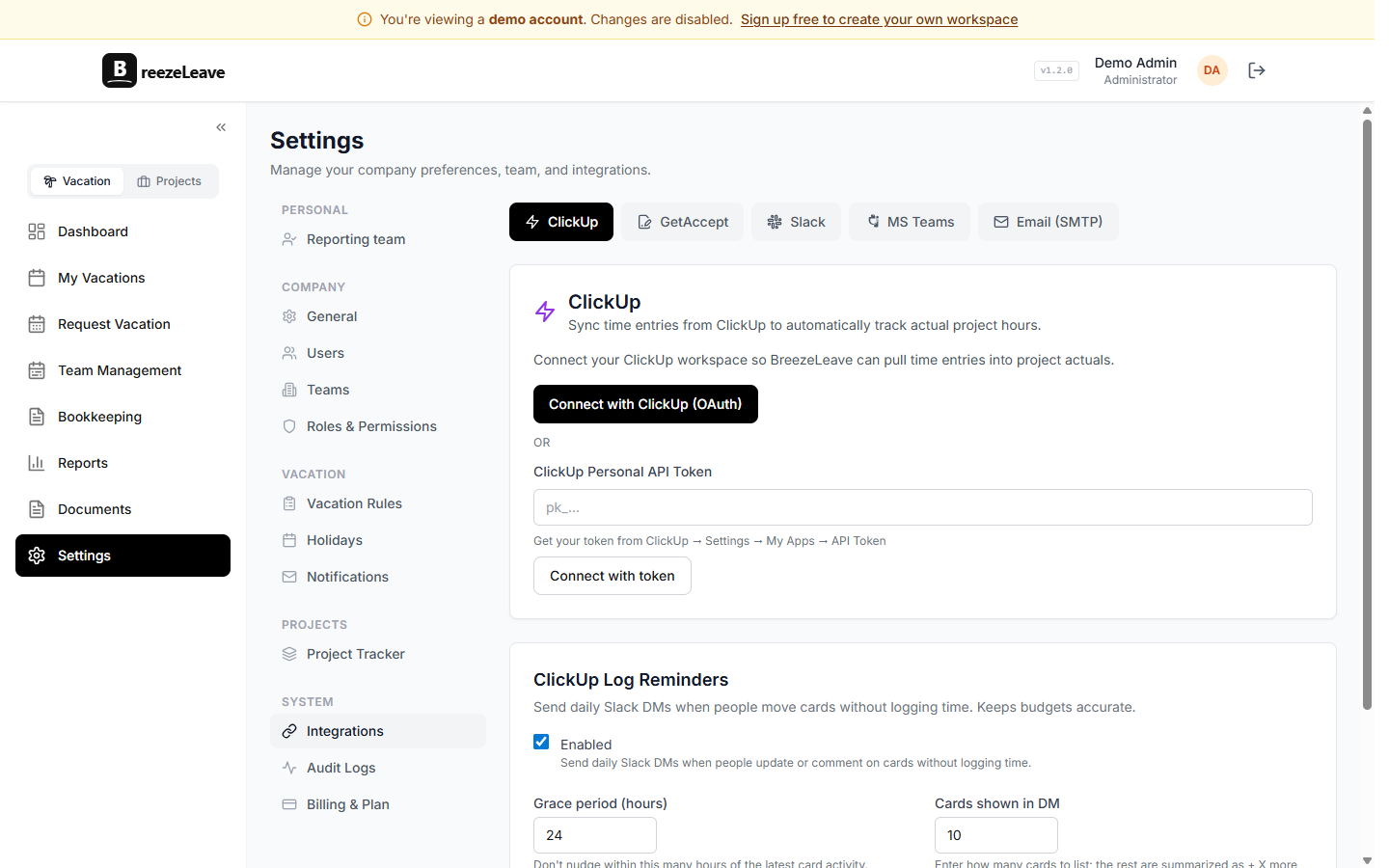
- Open Settings, Integrations, Microsoft Teams in BreezeLeave and click Connect. The Microsoft consent screen lists the bot's scopes; an admin approves them.
- Install the bot into the channels you want. Add the BreezeLeave app to the action channel and the awareness channel. Teams confirms the install.
- Copy the channel IDs from the Teams URL or the bot's "I am here" confirmation message and paste them into
msTeamsChannelIdsin BreezeLeave (comma-separated, action first). - Run a test. File a vacation request as a regular user, watch the Adaptive Card land in the action channel, and approve from a phone. The card should update with the decision in about two seconds.
- Invite the rest of the team. Each member is mapped to a BreezeLeave user on first interaction with the bot. Slack and Teams DMs can run in parallel; pick the right channel per team.
The full step-by-step is in the Microsoft Teams leave management guide. If your company also uses Slack, the Slack vs Teams workflows post covers when to pick which.
Pairs with Slack and Project Operations
BreezeLeave is two products. Leave Management runs the Teams bot described above. Project Operations adds capacity planning, project budgets, and logged-hours analytics; it does not currently install Teams cards (the equivalent Slack commands /logtime and /myhours live on the Slack side). Agencies that run both products often use Slack for engineering and Teams for client-facing teams, with the bot active in both. The integrations page lists every Live, Beta, and Planned integration.
For pricing, including how the Teams integration sits on the free plan and the paid tiers, see the pricing page. The Teams bot itself does not require any Microsoft licensing beyond standard Teams access; it runs against any Microsoft 365 tenant that has Teams enabled. The bot has been tested against Business Basic, Business Standard, and E3 tenants without changes.
Frequently asked questions
Everything you might want to know before getting started. Still have questions? Reach out anytime.
A real bot. BreezeLeave registers an app on the Microsoft Bot Framework and posts Adaptive Cards through ConnectorClient. Webhook-only integrations cannot receive button clicks back, which is why approvals would not work that way.
Each company stores a comma-separated list in msTeamsChannelIds. The first ID is the action channel where approval cards are posted. The second is the awareness channel for who-is-off notifications and sick-day alerts. The same channel can be used for both.
Yes. Adaptive Cards render natively in iOS and Android Teams clients. A manager can read the request, see the running balance, and tap Approve or Reject from their phone in under five seconds.
Standard Bot Framework scopes: ChannelMessage.Send to post cards, ChannelMessage.Read.Group to update them in place, and TeamMember.Read.Group to map BreezeLeave users to Teams members. No admin consent for tenant-wide directory reads is required.
Yes. Both integrations live in BreezeLeave. Engineering can stay on Slack while finance and HR sit in Teams, and BreezeLeave routes notifications to whichever workspace each team belongs to.
About 10 minutes. The Microsoft consent flow installs the bot into your tenant, you pick the channels, and the app is ready to post. No IT ticket, no admin console rules to configure unless your tenant requires app pre-approval.
Pending requests are not lost. Email approvals keep working, and the same request also appears as an Adaptive Card in Teams. The approver can decide via either channel; the first decision wins and the other one is closed out.