
How to Set Up Microsoft Teams Leave Management with BreezeLeave
Your team lives in Microsoft Teams. Your leave management should too. Here's how to connect BreezeLeave to Teams for notifications, approvals, and absence visibility.
If your company runs on Microsoft Teams, you already know: anything that requires switching to another app gets forgotten. Leave requests, approval notifications, "who's off today" checks. If they don't happen inside Teams, they happen slowly or not at all.
BreezeLeave's Microsoft Teams integration brings leave management into the channels your team already uses. No browser tabs. No context switching. Requests, approvals, and absence notifications, all inside Teams.
What the Teams integration does
BreezeLeave connects to Microsoft Teams through incoming webhooks and sends structured notifications to your configured channels. Here's what you get:
- New request notifications. When someone submits a leave request, a formatted card appears in the designated channel with employee name, dates, leave type, and total days.
- Approval/rejection updates. When a manager approves or rejects a request, the team gets notified. No more "did my request go through?" messages.
- Daily absence summaries. A morning notification listing who's out today and who's returning soon. Teams use this instead of asking around.
- Sick day alerts. Immediate notification when someone logs sick leave, so managers can adjust workloads.
If you've read our Slack bot setup guide, the Teams integration follows the same philosophy: meet your team where they already work.
Step 1: Create incoming webhooks in Teams
BreezeLeave uses Microsoft Teams incoming webhooks to send notifications. You'll need to create two webhook URLs: one for action notifications (requests, approvals) and one for absence/away notifications.
- Open Microsoft Teams and go to the channel you want notifications in
- Click the channel name, then "Manage channel"
- Go to Connectors (or "Workflows" in newer Teams versions)
- Find "Incoming Webhook" and configure it
- Give it a name (e.g., "BreezeLeave") and copy the webhook URL
- Repeat for the second channel if you want separate action/away channels
Two-channel setup
We recommend using two channels: one for action items (new requests, approvals needed) and one for informational updates (who's off today, return notifications). This keeps action items from getting buried under daily status updates.
Step 2: Connect webhooks in BreezeLeave
Once you have the webhook URLs from Teams:
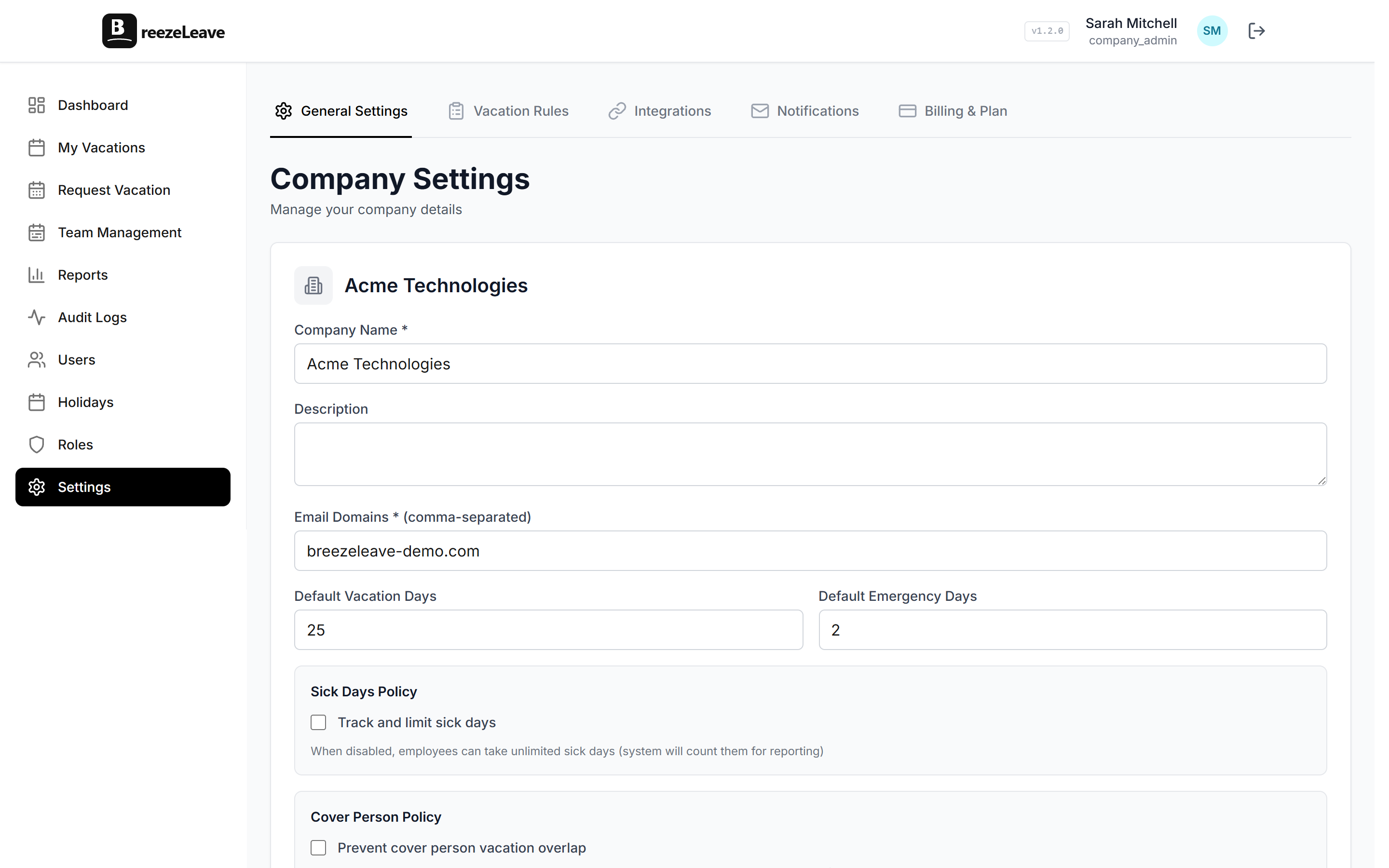
- Go to BreezeLeave Settings
- Find the Microsoft Teams section
- Paste the webhook URL for your action/requests channel
- Paste the webhook URL for your away/notifications channel
- Send a test notification to verify the connection
- Save
BreezeLeave sends a test card to each channel so you can confirm everything is working before going live. The whole setup takes about five minutes.
What notifications look like in Teams
BreezeLeave sends Adaptive Cards to Microsoft Teams, the same rich card format that native Teams apps use. Each notification includes:
- Employee name and profile
- Leave type (vacation, sick, personal, emergency)
- Date range and total business days
- Request status (pending, approved, rejected)
- Any notes the employee added
The cards are formatted for readability. They're not plain text blobs dumped into a channel. They're structured, scannable, and contain all the information a manager needs to act on.
Teams vs Slack: which should you use?
Use whichever platform your team lives in. BreezeLeave supports both, and the feature parity is close:
| Feature | Slack | Microsoft Teams |
|---|---|---|
| New request notifications | Yes | Yes |
| Approval/rejection updates | Yes | Yes |
| Daily absence summaries | Yes | Yes |
| Slash commands (/whoisoff) | Yes | Via web app |
| Interactive approve/reject buttons | Yes | Via web app |
| Setup time | ~2 minutes (OAuth) | ~5 minutes (webhooks) |
The main difference is that Slack's integration is deeper. Slash commands and interactive buttons work natively in Slack, while Teams uses webhooks for notifications with actions handled in the web app. For most teams, the notification flow is what matters most, and both platforms deliver that equally well.
Multi-company and multi-channel setups
If you manage multiple companies in BreezeLeave, each company gets its own Teams webhook configuration. Company A's notifications go to Company A's Teams channels. There's no cross-contamination.
Within a single company, the two-channel pattern (action + away) keeps your notifications organized. Managers watch the action channel for requests to approve. The whole team watches the away channel for daily absence updates.
Getting started
The full setup is:
- Create two incoming webhooks in your Microsoft Teams channels
- Paste the webhook URLs into BreezeLeave Settings
- Send test notifications to verify
- Save and go
From that point on, every leave request, approval, and absence update flows into Teams automatically. Your team sees who's off without opening another app, and managers get notified of pending requests in the same place they're already working.
For more on optimizing your notification setup, see our guide on vacation notifications that actually get read.