Microsoft Teams Adaptive Cards for Leave Approvals
A guide for IT admins and HR admins on how the BreezeLeave Teams adaptive cards handle leave approvals: card behavior, channel mapping, common scope mistakes.
A request lands in the BreezeLeave dashboard at 10:14. An adaptive card posts in the team's Microsoft Teams approvals channel a few seconds later. The line manager sees it while reviewing a PR in the same window, taps Approve, and the card updates in place to show the request as approved. The employee gets a notification three seconds after that. The whole cycle takes under ten seconds, without anyone opening a browser tab. That is the adaptive card story working as designed.
The story breaks when the integration is half-configured. Cards post to the wrong channel, the Approve button returns an error because the user mapping is missing, or nothing posts at all because the comma-separated channel IDs were typed with spaces. This article is for the IT admin and HR admin setting up the Teams integration well enough that the ten-second cycle is the default outcome.
What an adaptive card is, in this context
An adaptive card is a structured Microsoft Teams message that renders rich content natively, including action buttons. BreezeLeave posts an adaptive card to a configured Teams channel when a request needs an approval. The card shows:
- The requester name and team.
- The date range and the working-day count.
- The leave type and any note from the requester.
- Two action buttons: Approve and Reject.
- A link out to the full request view in BreezeLeave.
When the approver taps Approve or Reject, the card calls the BreezeLeave API directly, updates the request status, and re-renders the card in place to confirm the action. The audit log records who approved, when, and which channel the card lived in.
The two-channel pattern, Teams edition
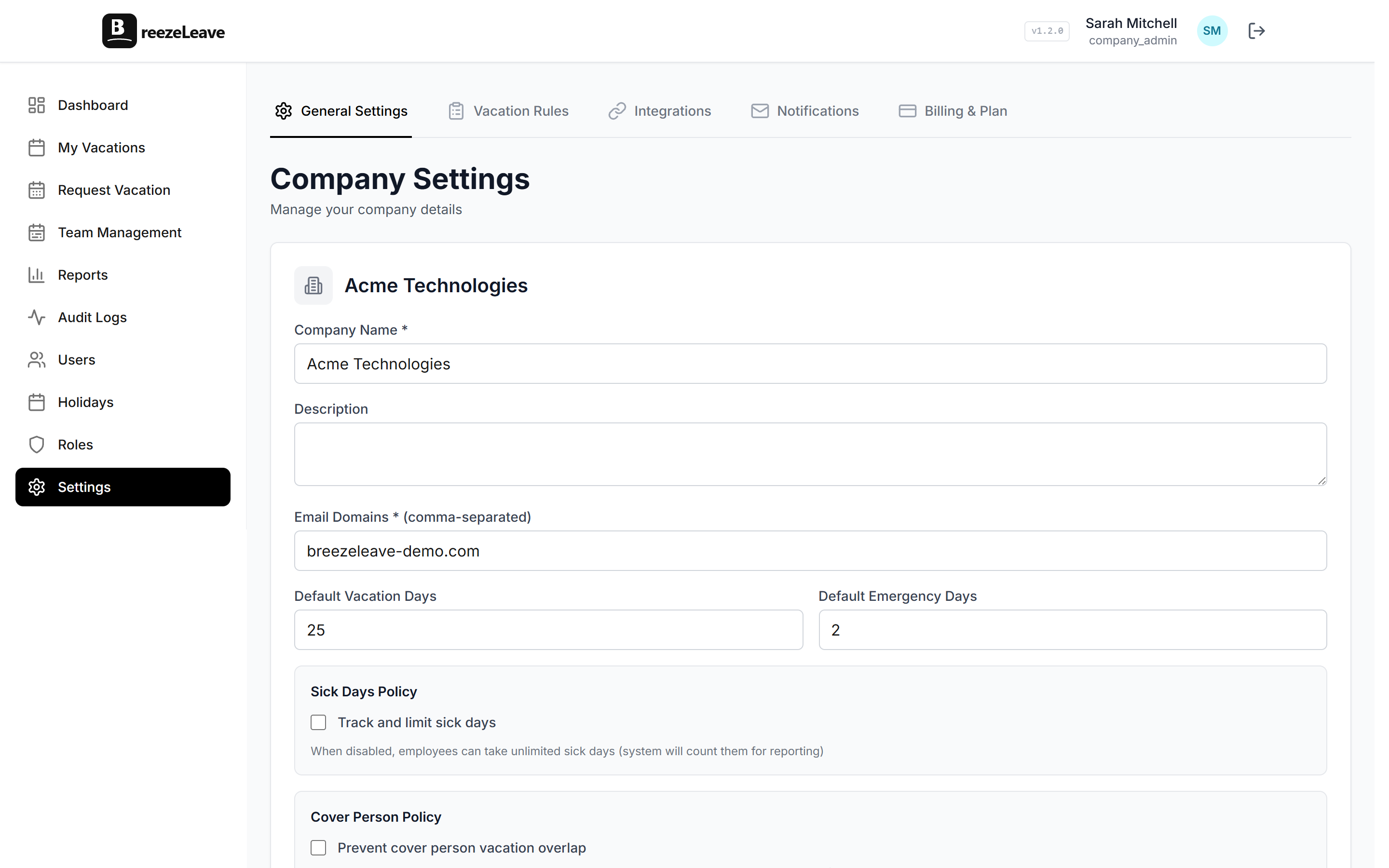
BreezeLeave's Teams setup mirrors the Slack two-channel idea. The integration uses a comma-separated list of Teams channel IDs in Company Settings. Index 0 is the action channel where approval cards post. Index 1 is the away channel where the who-is-off digest and absence notifications post.
| Channel role | Settings index | What posts |
|---|---|---|
| Action channel | 0 (first ID in the list) | Approve/reject cards, escalations |
| Away channel | 1 (second ID in the list) | Who-is-off digests, sick notifications |
The comma-separated format trips people up. The setting accepts channel IDs joined by commas with no spaces. 19:abc...,19:xyz... is correct. 19:abc..., 19:xyz... is not. If cards stop posting after a settings change, the leading space on the second ID is the most common cause.
Finding a Teams channel ID
Channel IDs are not visible by default. The reliable way to grab one:
- Open Microsoft Teams in the desktop or web app.
- Right-click the channel name and choose "Get link to channel".
- Copy the link, then extract the channelId parameter from the URL.
The ID looks like 19:abc123def456@thread.tacv2. Paste it into the BreezeLeave Teams settings, exactly as copied. If the link contains URL-encoded characters, paste it through a small decoder first. The setting expects the raw ID.
User mapping: the silent failure
An adaptive card calls the BreezeLeave API when Approve is tapped. The API needs to know which BreezeLeave user pressed the button. That mapping comes from the Teams user ID, which BreezeLeave looks up when the integration is installed and refreshes when users log in.
Two scenarios produce a failed Approve action:
- The Teams user has no matching BreezeLeave account. The Approve button returns an error. The fix is to invite the user to BreezeLeave and map the email.
- The user's email changed. The mapping is stale. The user can re-authenticate to refresh the mapping, or HR can update the email in BreezeLeave.
Neither failure removes the card. It just means the action does not complete. Users who hit this should see a clear error on the card itself, not a silent miss. The audit log is where you confirm the action did not record.
How approvals route to a channel
Adaptive cards do not post to a personal chat by default. They post to the configured action channel. That is intentional: an approval channel that everyone in the team can see makes coverage decisions transparent. If a manager is out and a peer approver steps in, the card and its history are still visible to the team.
Direct-message approvals are also supported when escalation rules require them. If the primary approver does not act within a configured window, the card escalates to a backup approver as a direct message. That keeps the channel from filling with repeated reminders.
For the broader picture of multi-step approvals and escalations, the post on multi-person approvals covers how to design the rules behind the cards.
Card behavior that matters in practice
A few card behaviors are worth knowing because they shape how the team uses the integration day to day.
- Cards update in place. After an action, the card replaces its buttons with a status badge. There is no second message; the original card now reads "Approved by X" or "Rejected by Y".
- Mobile rendering is supported. Buttons are tappable on the Teams mobile app. Approvers on the road do not need a different setup.
- One card per request. Edits and resubmits produce new cards. The old card stays in channel history as a record.
- Threaded replies stay in Teams. A reply to the card thread is a Teams conversation. It does not write to BreezeLeave. Anything that should be recorded has to be a comment on the request itself.
Common Teams integration mistakes
Three patterns account for almost every Teams support conversation BreezeLeave has with customers.
| Symptom | Likely cause | Fix |
|---|---|---|
| No card appears | Channel ID typo or trailing space | Re-copy IDs, join with commas, no spaces |
| Approve button errors | User mapping missing | Invite the user, confirm email match |
| Cards post twice | Two BreezeLeave companies sharing one channel | Use separate Teams channels per company |
| Old cards have dead buttons | Card was acted on outside Teams | Expected; the badge reflects current state |
Permissions and tenant scope
Two permission topics come up when an IT admin installs the BreezeLeave Teams bot. Both are worth understanding before the rollout.
Bot scope at install. The bot needs permission to post to the configured channels and to receive button actions from those channels. Microsoft Teams handles this through standard bot permissions at install time. If the install was scoped narrowly to a single team, adding a second team later means re-running the install with the new scope.
Multi-tenant cases. Some companies operate multiple Microsoft 365 tenants. The BreezeLeave Teams integration is per-tenant. A single BreezeLeave company that needs cards in two Teams tenants needs two separate Teams integrations, each pointing at the same BreezeLeave account. This is rare in practice; most companies live in one tenant.
For broader access-control patterns inside BreezeLeave itself, the post on role-based access in leave management covers how approver roles map to what people can see and do.
Rolling out cards to an existing team
If your team has been approving requests in the BreezeLeave dashboard for months and you are turning on Teams cards now, the rollout question is how to avoid two approval paths for the same request.
The integration handles this. Once a request is approved via the card, the dashboard shows the same status, and the card on the channel re-renders with the badge. There is no double approval. The risk is cultural, not technical: approvers who used to check the dashboard every morning need a new prompt. Two things help:
- Send a one-time announcement. Explain the action channel, where the cards will appear, and that the dashboard remains available for everything else.
- Run the first week in both places. Encourage approvers to act on cards but check the dashboard at end-of-day for anything missed. After a week the habit usually flips.
After the first week, the dashboard becomes the place for everything that does not fit a card: bulk approvals, balance views, and policy questions. The card stays the fast path.
When to keep approvals out of Teams
Not every approval belongs in a Teams card. A few cases where the dashboard is the better surface:
- Sensitive leave types. Bereavement, medical, or parental leave can carry context the requester does not want in a shared channel. Keep these in a private approval flow or scope the card to a direct message.
- Multi-step approvals with finance. A finance check that requires balance-sheet context is better done in the dashboard, where the full balance is on screen.
- Bulk approvals. Approving 30 requests at once is faster in the dashboard than tapping 30 cards.
The integration does not block any of these. Approvers can always open the request in BreezeLeave from the card link. The card is the fast path; the dashboard is the deep one.
Quick reference: Teams integration checklist
- Install the BreezeLeave bot in the Teams workspace.
- Add the bot to the action channel and the away channel.
- Copy each channel's ID via "Get link to channel".
- Paste the IDs into Company Settings as a comma-separated list with no spaces.
- Verify a test request posts to the action channel.
- Tap Approve on the test card to confirm user mapping is working.
- Confirm the away channel receives the who-is-off digest on the next scheduled post.
- Set escalation rules for missed approvals (see multi-person approval).
Once the eight steps are clean, the ten-second approval cycle becomes the default. To configure the Teams integration for your company, head to connecting BreezeLeave to Microsoft Teams.