
ClickUp Logged-Hours Hygiene Checklist
A delivery-lead checklist for keeping ClickUp logged hours clean before invoicing: no-log periods, unmapped users, expected vs logged deltas, and the conversation that happens next.
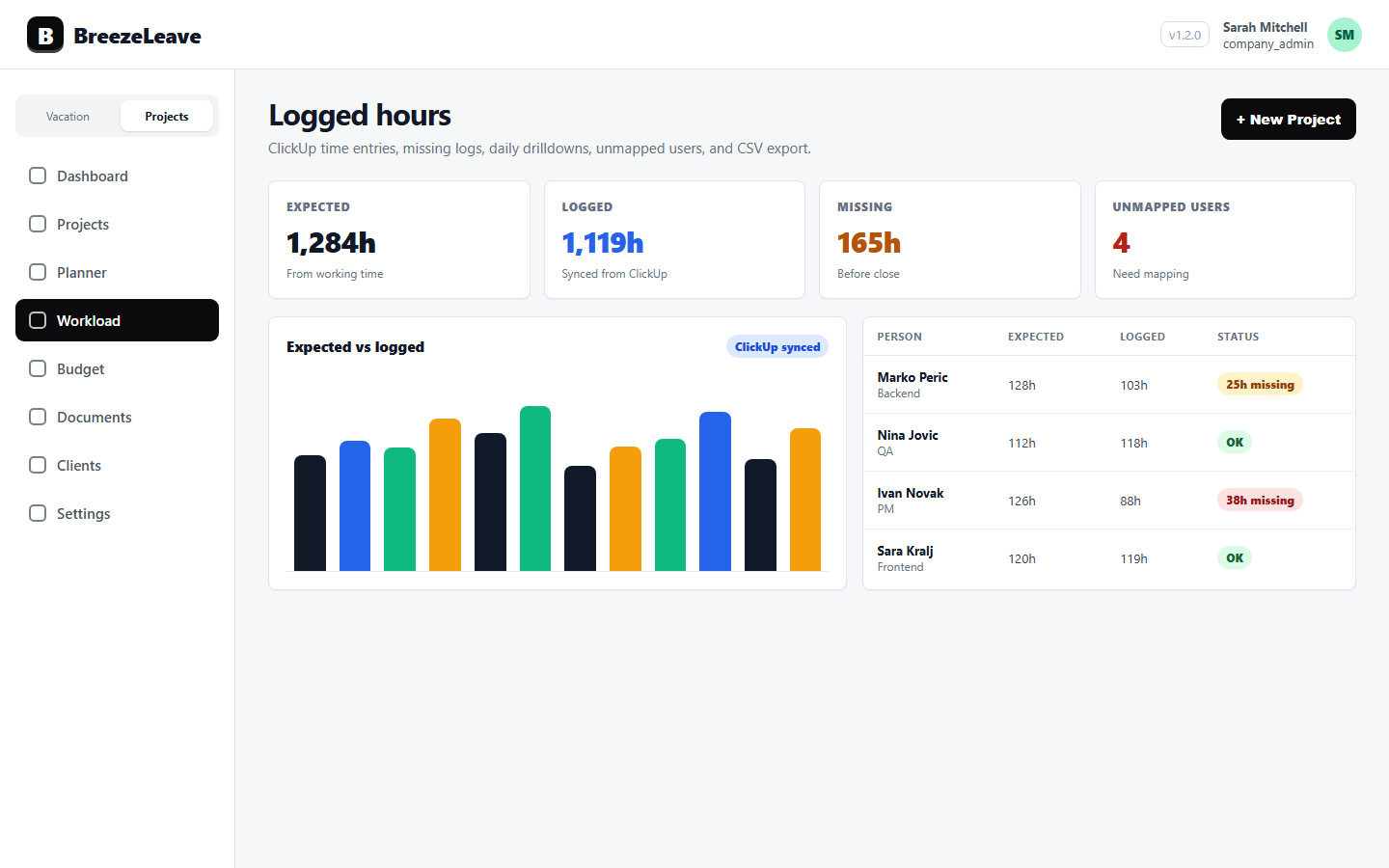
Every delivery lead working with retainer clients knows the moment. It is the 28th of the month, the finance team has asked for invoice-ready hours by Friday, and the ClickUp time entries look thin. Two designers logged nothing for the second week, a backend engineer's hours stop on the 15th, and there is a contractor in the system whose hours never showed up at all because they were never mapped to a BreezeLeave user. The hygiene cleanup happens in the last 48 hours of the month, which is the worst possible time to be chasing entries.
This checklist is for the delivery lead or operations manager who would rather catch these issues weekly than scramble at month-end. It walks through the four signals BreezeLeave surfaces from the ClickUp integration, the order to act on them, and the conversation that follows when an entry looks suspicious.
What the integration brings in
BreezeLeave imports time entries from ClickUp on a schedule and surfaces four hygiene signals in the logged-hours view:
- No-log periods. Three or more business days in a row with no time entry for a given user.
- Unmapped users. ClickUp users whose entries cannot be tied to a BreezeLeave account because the email or username does not match.
- Expected vs logged delta per person. The difference between the expected hours for the period (after subtracting PTO and holidays) and what the user actually logged.
- Daily drilldowns. Per-day entries for a user, useful for spotting a missed Tuesday or a holiday that was logged anyway.
The four signals build on each other. No-log periods point at the days; the expected vs logged delta points at the magnitude; unmapped users explain why a person is missing from the report entirely; the drilldown is where the conversation happens.
The weekly hygiene checklist
Run this on Friday afternoon, or Monday morning if Friday is too busy. Fifteen minutes once a week prevents the 48-hour scramble at month-end.
| Step | What to check | Exit condition |
|---|---|---|
| 1. Unmapped users | Any ClickUp user with no BreezeLeave match | Zero unmapped users |
| 2. No-log periods | 3+ business days without entries | Each period has a reason on file |
| 3. Expected vs logged delta | Users with deltas over a chosen threshold | Each delta explained or escalated |
| 4. Daily drilldown spot-checks | Random sample of 3-5 users | Holiday and weekend entries look right |
Each step takes about three minutes if the previous week was clean. The first week of a new ClickUp integration takes longer because user mapping needs full attention. After that, the routine becomes a quick scan.
Step 1: clear unmapped users first
An unmapped ClickUp user is a person whose hours never enter the BreezeLeave report. Until they are mapped, the rest of the hygiene checks are blind to that person. Two scenarios produce unmapped users:
- A new hire was added to ClickUp before BreezeLeave. Their email exists in ClickUp but not in BreezeLeave yet. Invite them to BreezeLeave with the matching email.
- A contractor logs hours in ClickUp but the email there differs from the BreezeLeave record. Update one or the other so the addresses match.
The unmapped-users view shows each unmatched ClickUp user with the entries they have logged so far. A two-minute pass clears the list. The conversation with the missing person is usually short: "I noticed your hours are not flowing into our hours report; what email did you use in ClickUp?"
Step 2: investigate no-log periods
A no-log period is three or more business days in a row without a time entry. It does not mean the person was idle. Most no-log periods have a legitimate explanation:
- Approved PTO that has not yet appeared in BreezeLeave because the request is pending.
- Sick leave that has not been formally entered.
- A week of internal work that nobody told the person to log.
- A person tracking time in a different tool for one project.
The pattern matters more than the count. One no-log period a quarter, with a clear reason, is normal. Three a month for the same person is a signal that either the time tracking habit needs reinforcement or the work itself is not appearing as ClickUp cards. Either way, the conversation goes to the team lead, not to the individual.
BreezeLeave shows the period alongside the user's PTO and holiday records, so the delivery lead can see whether the gap is explained by leave. If the gap lines up with an approved request, it disappears from the noise list automatically.
Step 3: read the expected vs logged delta
The expected vs logged delta is the number that finance cares about. For each person, BreezeLeave computes:
- Expected hours = working days in the period * standard daily hours - PTO hours - holiday hours.
- Logged hours = sum of ClickUp time entries in the period.
- Delta = expected - logged.
A positive delta means logged less than expected. A negative delta means logged more than expected, which is rarer but happens when someone logs after-hours work or covers a weekend.
Pick a threshold. A delta over 8 hours per person per week is worth a conversation. A delta over 16 hours is worth a same-day check. The numbers depend on the team's culture and how strictly time is tracked, but the threshold lets the delivery lead focus on the meaningful cases instead of every minor variance.
Step 4: drill into daily entries
The daily drilldown is for sanity-checking. Sample three to five users a week. For each, scan a recent week's entries and look for two patterns:
- Hours logged on public holidays. If the country profile shows a public holiday but the user logged a full day, ask why. Sometimes it is a legitimate out-of-cycle project; sometimes the timezone is wrong on the ClickUp account.
- Hours logged on weekends. Same question. Out-of-cycle work is fine but should be documented in case the client questions the invoice line.
The drilldown is also where most card-mapping issues show up. If a user is logging time to a ClickUp card that is in the wrong project, the time will count toward the wrong client. The post on card efficiency analytics for delivery teams goes deeper into card-level signals.
The conversation that follows a flag
Hygiene reports are not performance reports. A no-log period or a large delta is a question, not a verdict. The tone of the follow-up conversation matters because the team has to keep logging time honestly week after week.
Three phrases work well:
- "I see a gap from the 10th to the 14th. What were you on that week?"
- "Your hours are 12 short of expected this week. Anything I can help unblock?"
- "You logged a few hours on Sunday. Was that an emergency or a planned thing?"
Each one assumes a legitimate reason exists. Most of the time, it does. The exception is the conversation about the person whose hygiene is consistently poor, which is a coaching conversation, not a logging conversation.
What month-end looks like after weekly hygiene
With weekly hygiene running, month-end becomes a one-hour close. The expected vs logged report is already accurate, the no-log periods have been explained or fixed in real time, and the unmapped-users list has been empty for weeks. The CSV export goes to finance, the retainer reports line up with logged hours, and the invoicing conversation is about scope, not data.
For the deeper story of how the same data flows into retainer reviews and budget reports, see ClickUp time tracking for agency projects. Hygiene is the first layer; the analytics sit on top of it.
Quick reference: the weekly hygiene checklist
- Clear the unmapped-users list.
- Read the no-log periods report and tag each entry with a reason.
- Read the expected vs logged delta and flag anyone past the threshold.
- Sample three to five daily drilldowns for sanity.
- Open one conversation per flagged item using the assume-good phrasing.
- Save the cleaned report; that is your month-end starting point.
- Adjust the threshold if too many or too few flags came up.
The point is not to chase every minute. It is to keep the data clean enough that finance, retainers, and capacity decisions all run from the same numbers. To configure the ClickUp integration and start the hygiene routine, head to pulling ClickUp time into BreezeLeave.