Role-Based Permissions Matrix for Leave Management
A permission-by-permission matrix for leave management roles: who can approve, edit rules, see costs, change balances, and manage users without overexposing data.
A finance lead at a 90-person company opened the leave tool to pull a quarterly cost report and noticed she could also edit the company-wide accrual rules. Nobody had given her that permission on purpose. The tool only had two roles: admin and employee. Because finance needed read access to salary-linked balances, she had been marked admin. That meant she could rewrite the carryover rule for the whole company by accident, and only the audit log would notice.
This article is for the HR admin or IT admin sitting down to design a real permissions matrix in BreezeLeave. Below is the per-permission breakdown for the five built-in roles (Owner, Admin, HR, Manager, Employee), where custom roles fit, and which scoped configurations stop the finance-as-admin problem before it starts.
Why a permission matrix beats a role list
Most leave tools ship with named roles (HR, Manager, Employee) and a vague description of what each one can do. That is fine for a 10-person team. Past 50 people, the named-role model breaks every time finance, IT, payroll, legal, or an external consultant joins the system. Each of those people needs a slice of HR access without the full HR surface area.
A permission matrix swaps the question. Instead of "what can HR do?" you ask "who can approve this specific action?" The answer becomes a table. Each row is a permission. Each column is a role. Each cell is yes, no, or scoped. The matrix exposes overlaps and gaps that a role list hides.
If you cannot draw your permission model as a grid that a new admin can read in two minutes, your model is doing more than it should.
The built-in roles and what they actually cover
BreezeLeave ships with five built-in roles. Each one represents a job-shape that shows up at almost every company. The names are familiar; the boundaries are stricter than most teams expect.
- Owner. Full access including billing, plan changes, and deleting the company. Usually one or two people.
- Admin. Everything except billing and ownership transfer. Configures rules, users, integrations, and reports.
- HR. Manages employees, balances, requests, and reports. Cannot rewrite policy rules unless explicitly granted.
- Manager. Approves requests for direct or scoped reports. Sees team balances and team calendar. No access to other teams.
- Employee. Submits requests, sees own balance and history, sees the team calendar (who is out, not why).
The permission matrix, line by line
This is the matrix to bring into your next access review. Each row is a real permission BreezeLeave gates separately. Columns are the five built-in roles. "Scoped" means the role has the permission only for employees they own (their team, their company, their country).
| Permission | Owner | Admin | HR | Manager | Employee |
|---|---|---|---|---|---|
| View own balance and requests | Yes | Yes | Yes | Yes | Yes |
| Submit a leave request | Yes | Yes | Yes | Yes | Yes |
| Approve or reject a request | Yes | Yes | Scoped | Scoped | No |
| Adjust an employee balance | Yes | Yes | Scoped | No | No |
| Edit vacation rules and policy | Yes | Yes | No | No | No |
| Manage users and roles | Yes | Yes | Scoped | No | No |
| View cost and salary data | Yes | Yes | Optional | No | No |
| View audit log | Yes | Yes | Yes | Own actions | No |
| Run company-wide reports | Yes | Yes | Scoped | Team only | No |
| Edit integrations and SSO | Yes | Yes | No | No | No |
| Manage billing and plan | Yes | No | No | No | No |
The two columns that surprise people are Adjust an employee balance and Edit vacation rules and policy. Most companies start out giving HR both. That is fine on day one and dangerous on day two hundred: an HR coordinator adjusting a balance is a routine fix; an HR coordinator quietly changing the carryover rule for the whole company is an audit event nobody wants to find later.
Where custom roles fit
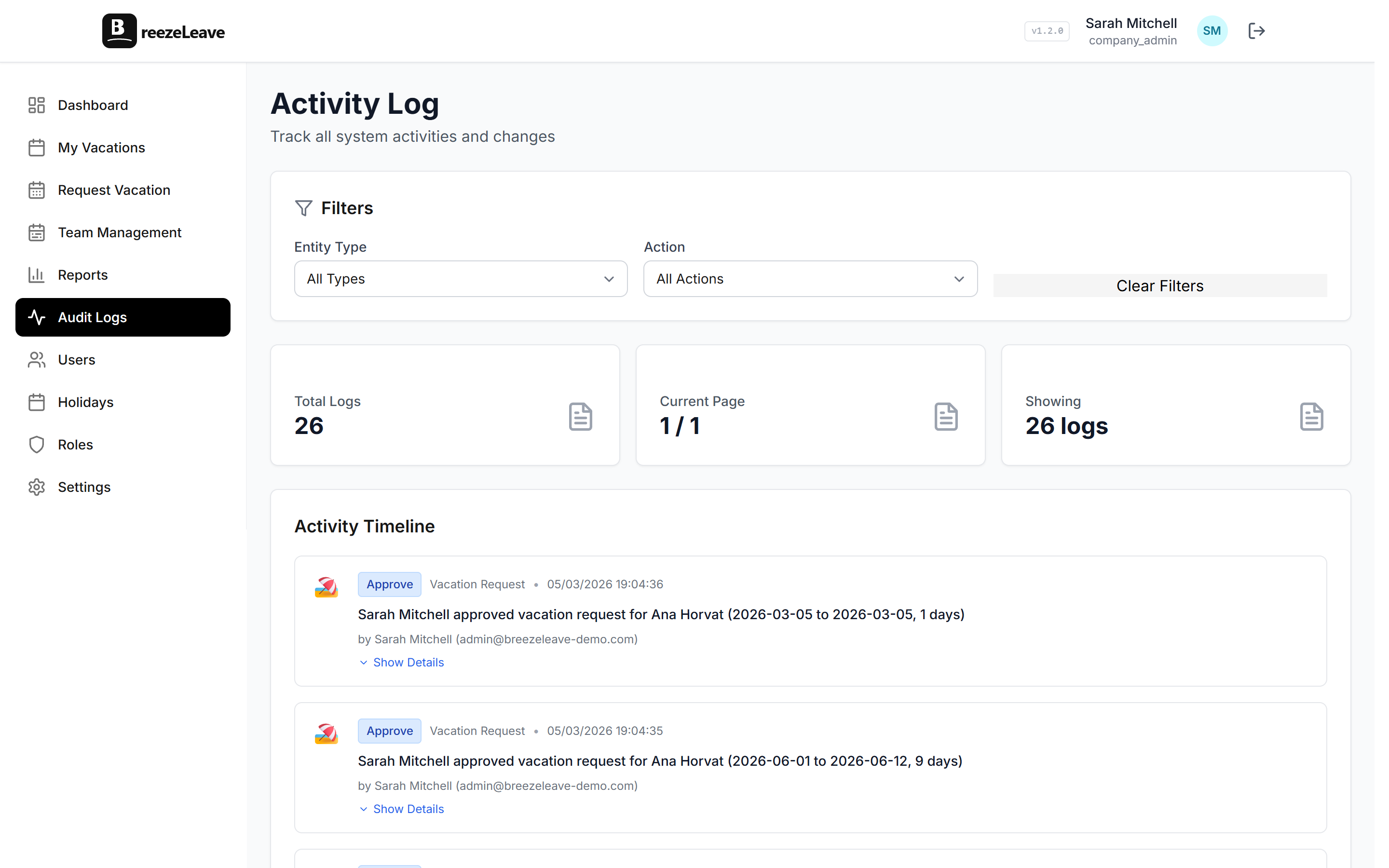
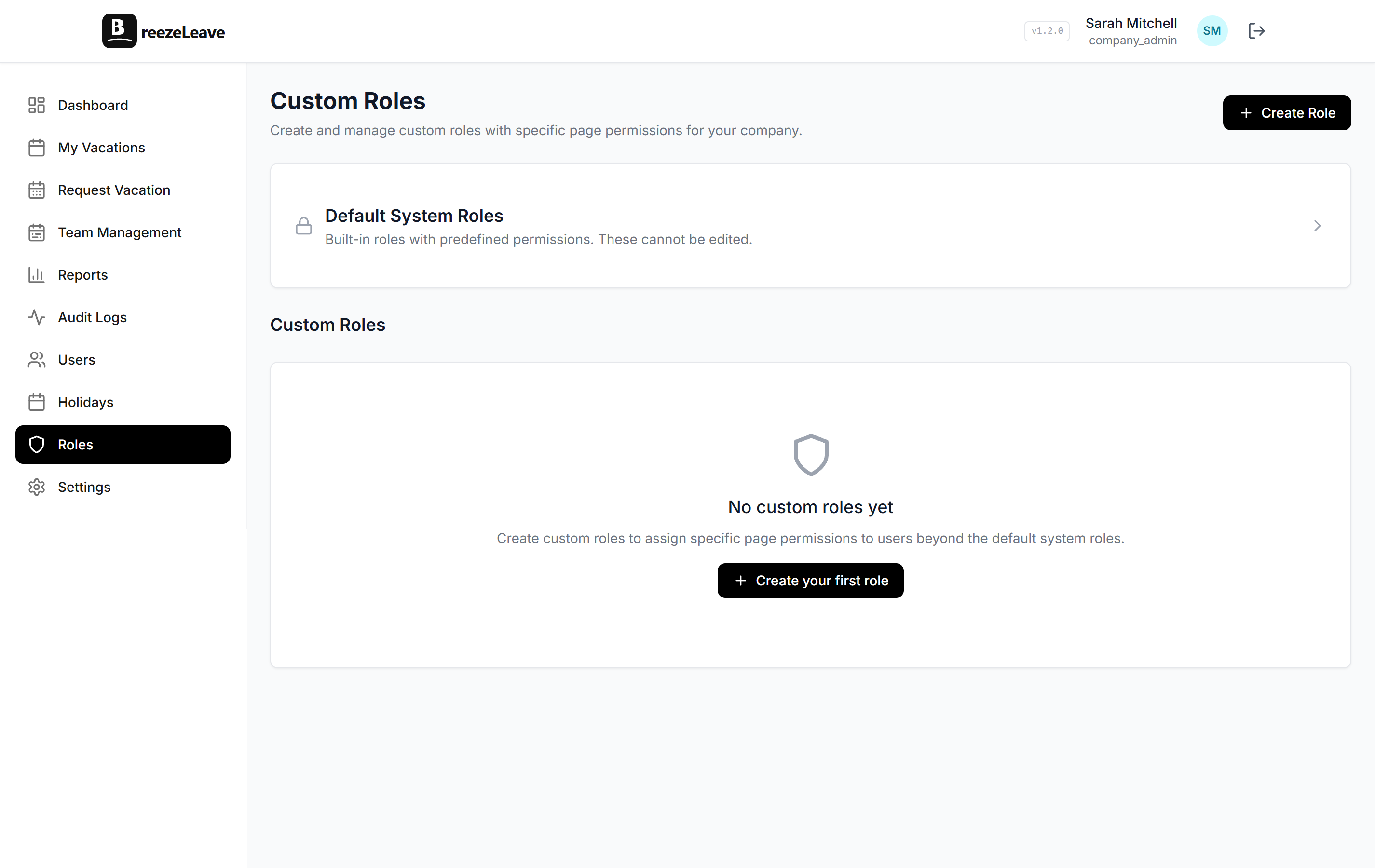
The five built-in roles cover roughly 80% of leave-management access needs. The remaining 20% is the reason custom roles exist. The four most common custom roles to design first:
- Finance Read. Read-only access to balances, accruals, cost reports, and payroll export. No approval rights. No rule editing. This is the role the finance lead in the opener should have had.
- Payroll Operator. Same as Finance Read plus the ability to mark a payroll period as exported and lock the underlying entries from retroactive edits.
- IT Onboarding. Can create and deactivate users, assign managers, and trigger SSO provisioning. Cannot view balances or requests unless explicitly granted.
- External HR (scoped). HR-level access scoped to a subset of companies or countries. Covered in detail in our external HR scoped access guide.
Each custom role starts from a built-in role and removes or adds permissions from there. Naming convention matters: name the role after the job, not the person. "Finance Read" survives when the finance lead changes; "Maria K." does not.
Scoping: the third dimension of the matrix
Two roles can hold the same permission and still see different things. A manager in Zagreb and a manager in Stockholm both have "Approve a request" permission, but each only sees their direct reports. That is scoping. It is what stops the matrix from collapsing into "HR sees everything."
BreezeLeave supports three scope dimensions for any role:
| Scope | What it limits | Typical use |
|---|---|---|
| Company | Which legal entity the user can see | Group HR who runs one of three companies |
| Country / region | Which country's employees are visible | Regional HR for Croatia only |
| Team or department | Which team members are visible | Manager approves only their team |
Scopes compose. A user can be HR for one company, scoped to two countries inside that company. The matrix then reads "HR permissions, scoped to Company A, Countries CR and RS." That is the level of precision an enterprise access review usually wants.
A four-step rollout for a real company
Designing the matrix on paper is the easy part. Rolling it out without breaking approvals on Friday is harder. The sequence that holds up:
- List every current role assignment. Export the user list. For each user, write down their current role and the actual job they do. The mismatches surface immediately.
- Draft custom roles for the mismatches. Finance, payroll, IT, external HR, and any contractor with system access usually need their own role.
- Move one role at a time. Change finance first, then payroll, then IT. Watch the audit log for blocked actions. Adjust permissions before moving the next group.
- Schedule a quarterly review. Put a recurring calendar event on the HR admin and IT admin. Export the user list, confirm every custom role is still needed, and revoke access for anyone who changed jobs.
The quarterly review is the part most teams skip. It is also the part that prevents a former contractor from still having scoped admin access nine months after their project ended.
Common matrix mistakes
Four patterns show up almost every time a permissions matrix is designed in a hurry. Each one is fixable before it becomes an incident.
Treating "read cost" and "edit policy" as the same level
Finance needs to read salary-linked balance data. They do not need to edit the carryover rule. Separate the two permissions. The matrix above has them in different rows for a reason.
Forgetting the audit log permission
Audit log visibility is its own permission. HR needs it to resolve balance disputes. The article on how audit logs resolve vacation balance disputes walks through the trail HR follows when a balance is contested.
Giving managers HR scope by mistake
A manager promoted to head of department often inherits the previous head's role assignments, which sometimes include HR access for a different team. Reset on promotion.
No role for external consultants
Outsourced HR and external bookkeepers need access too. Pretending they will use a shared admin login is the worst option. A scoped external role with named individual logins is the only sustainable answer. The product-side rundown is on the features page under role-based access.
Bring the matrix to your next access review
The matrix above is meant to be printed, edited with your own custom roles, and brought to the quarterly review meeting. The point of role-based permissions in leave management is not to lock everyone out. It is to give each person the slice they need and remove the rest.
BreezeLeave supports the five built-in roles, unlimited custom roles, and scoping by company, country, or team. Owners and admins set the matrix once and adjust as the team changes. Control access with custom roles from the roles page in your settings, or start with the defaults and layer custom roles on top as your team grows past the named-role limit.