Vacation Adjustments: When and How to Manually Add or Remove Days
Automatic accruals handle 95% of cases. But what about signing bonuses, disciplinary deductions, or mid-year policy changes? That's where adjustments come in.
Rules-based vacation accruals are great. They handle seniority, carry-over, and bonuses automatically. But there are always exceptions. A new hire was promised 5 extra days as part of their offer. An employee took unpaid leave and needs their balance reduced. A policy change mid-year means everyone gets 2 more days.
These are vacation adjustments: manual additions or deductions that override or supplement the automatic system. Every leave management tool needs them. The question is whether they're tracked properly.
When to use adjustments
Adjustments are for exceptions, not standard policy. If you're making the same adjustment for every employee, you probably need a rule, not an adjustment. Here are legitimate use cases:
- Signing bonuses. "We promised this candidate 3 extra vacation days as part of their offer letter." Add 3 days to their balance with a note explaining why.
- Unpaid leave deductions. An employee took 2 weeks of unpaid leave. Their paid vacation balance doesn't change, but you might need to adjust other entitlements.
- Policy corrections. HR realizes they applied the wrong country's rules to someone. Adjust the balance to match the correct entitlement.
- Disciplinary actions. In some jurisdictions, vacation days can be docked for specific policy violations. (Check your local employment law first.)
- Mid-year hires. An employee joins in July. Their annual entitlement should be prorated, but the automatic rules might give them the full year. An adjustment corrects this.
- Compensation for overtime. Some companies offer comp time instead of overtime pay. Adjustments add those earned days to the balance.
How adjustments work in BreezeLeave
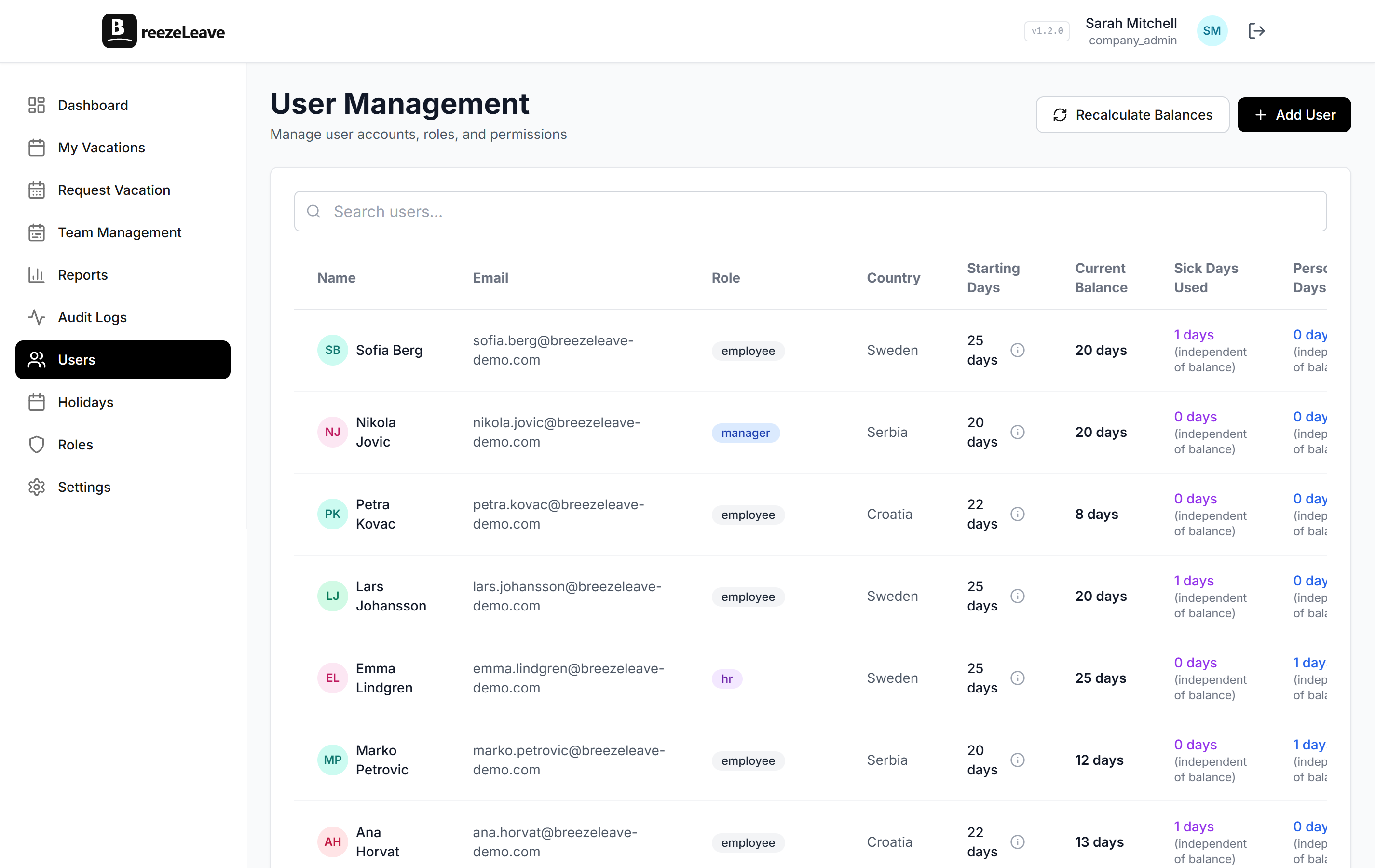
BreezeLeave lets HR managers and admins add vacation adjustments to any employee's profile. Each adjustment includes:
- Number of days: positive (add days) or negative (remove days)
- Reason: a required text field explaining the adjustment
- Date: when the adjustment was applied
- Applied by: automatically recorded (the HR user who made the change)
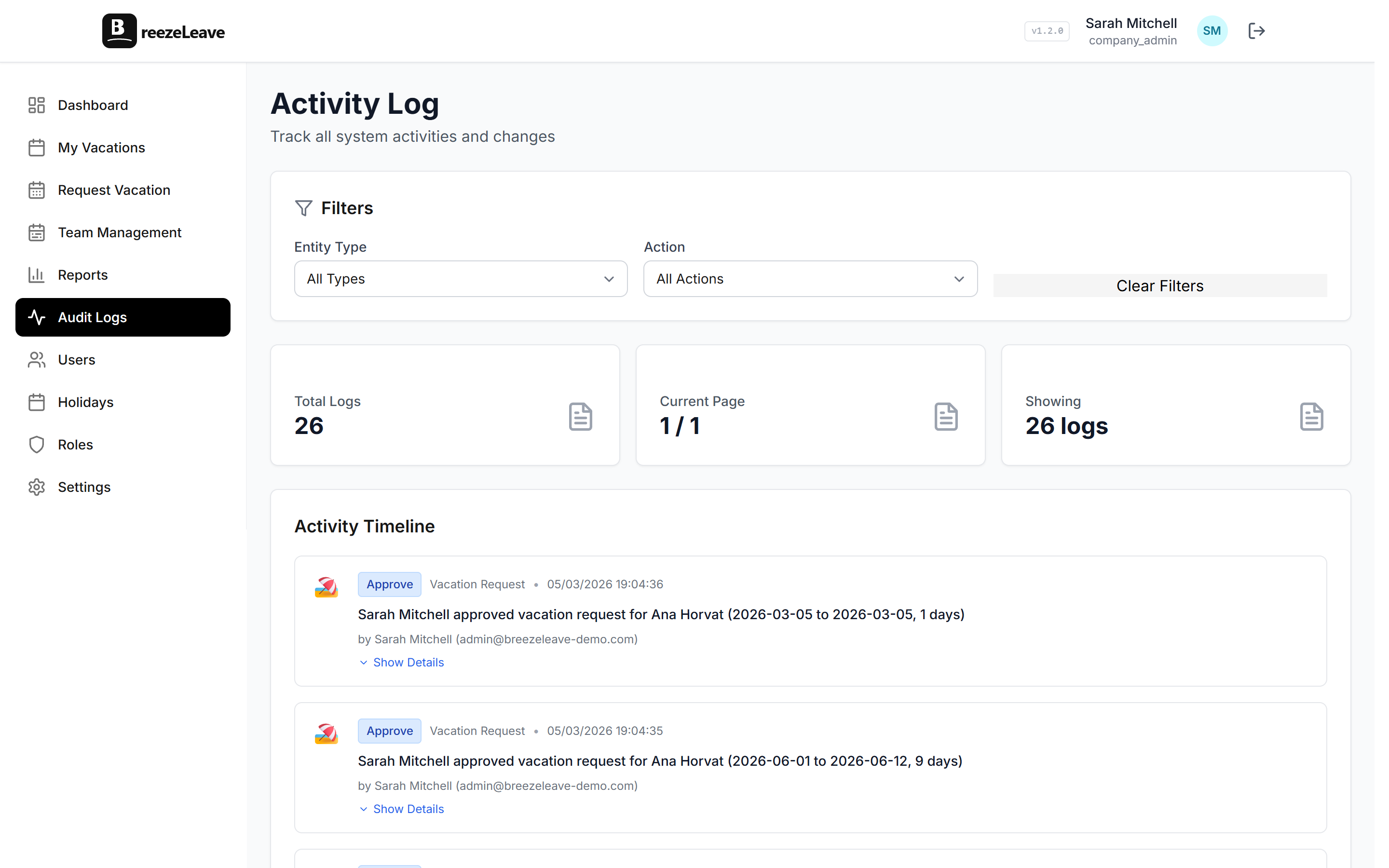
The adjustment immediately updates the employee's available balance. It's visible in their profile, in the balance breakdown, and in the audit log.
The audit trail matters
This is where most spreadsheet-based systems fail. Someone adds 3 days to an employee's balance in a Google Sheet. Six months later, nobody remembers why. The employee asks, HR guesses, and trust erodes.
In BreezeLeave, every adjustment is permanently recorded with:
- Who made the adjustment
- When it was made
- How many days were added or removed
- The reason provided
This audit trail is accessible to admins and HR. If an employee questions their balance, you can show them the exact history: "Your base is 25 days from seniority rules, plus 3 days from your signing bonus adjustment on March 15th, minus 1 day deducted on September 8th for the policy correction."
Pro tip
Always write a clear, specific reason when creating an adjustment. "Signing bonus per offer letter dated Feb 2026" is useful. "+3 days" is not. Your future self (or the next HR person) will thank you.
Adjustments vs. rules: when to use which
| Scenario | Use a Rule | Use an Adjustment |
|---|---|---|
| Everyone with 5+ years gets 25 days | Yes (seniority rule) | No |
| One employee was promised extra days | No | Yes (individual adjustment) |
| Birthday bonus for all employees | Yes (birthday bonus setting) | No |
| Compensating one person for overtime | No | Yes (comp time adjustment) |
| Company-wide policy change adds 2 days | Update the base rule | Or batch-adjust existing employees |
The rule of thumb: if it applies to a group of people based on a condition (tenure, country, usage), it's a rule. If it applies to one person for a specific reason, it's an adjustment.
How employees see their adjustments
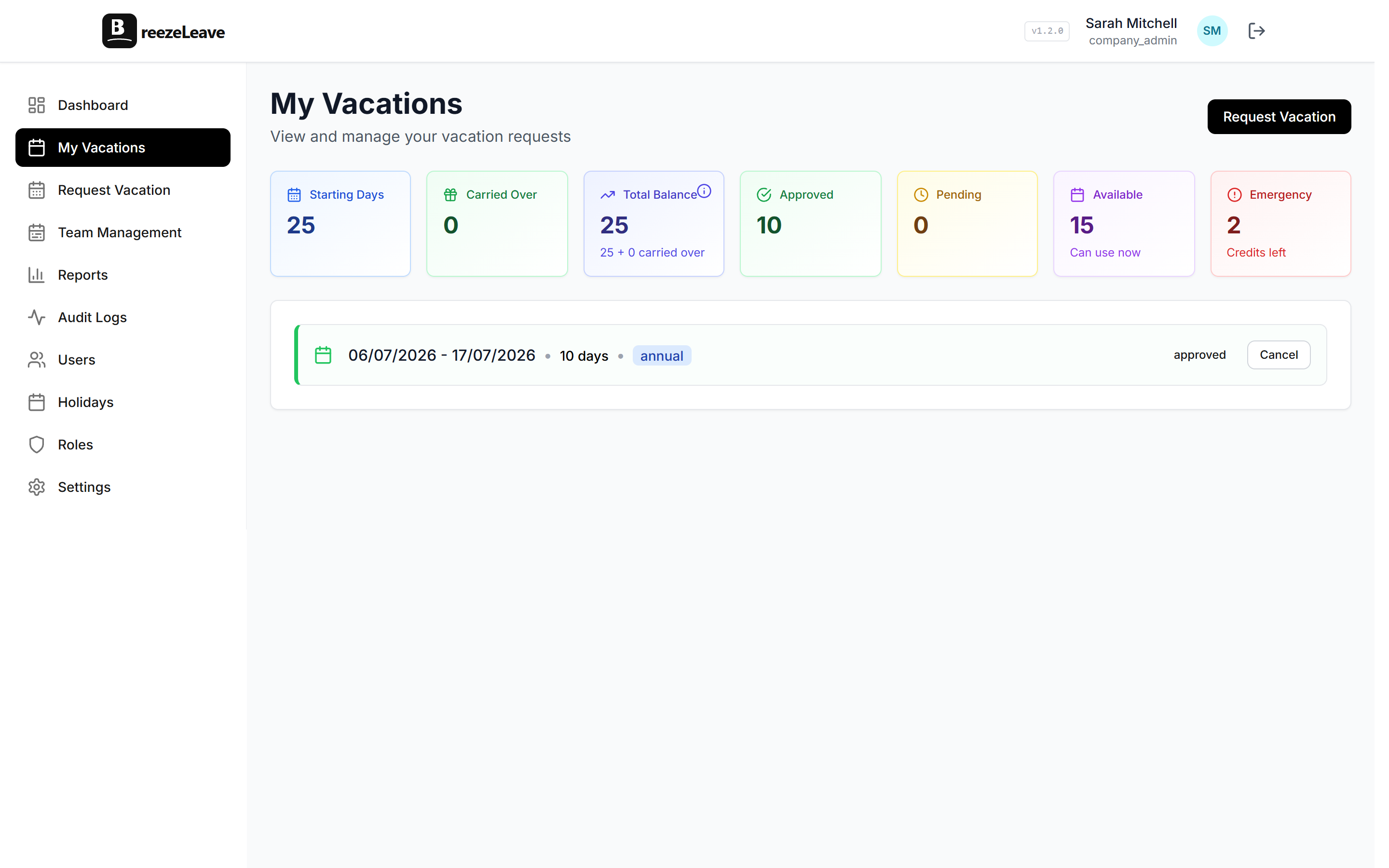
Transparency is key. In BreezeLeave, employees can see their own vacation balance breakdown, including any adjustments. They don't need to ask HR "why do I have 28 days instead of 25?" The answer is visible in their dashboard.
This reduces HR inquiries and builds trust. Employees know their balance is correct because they can see exactly how it's calculated: base allocation + carry-over + bonuses + adjustments = total.
Creating an adjustment
It takes about 30 seconds:
- Go to the employee's profile in the Users section
- Click "Add Adjustment"
- Enter the number of days (positive or negative)
- Write the reason
- Save
The balance updates immediately. The adjustment appears in the audit log. The employee sees it in their balance breakdown. Done.
For setting up the automatic systems that handle most balance calculations, see our seniority accruals guide and carry-over guide. Adjustments are the manual complement to those automated rules.