Employee Vacation Calendar Guide for Managers
What a useful employee vacation calendar shows a team lead before approving leave: coverage gaps, overlaps, public holidays, and the request someone is about to send.
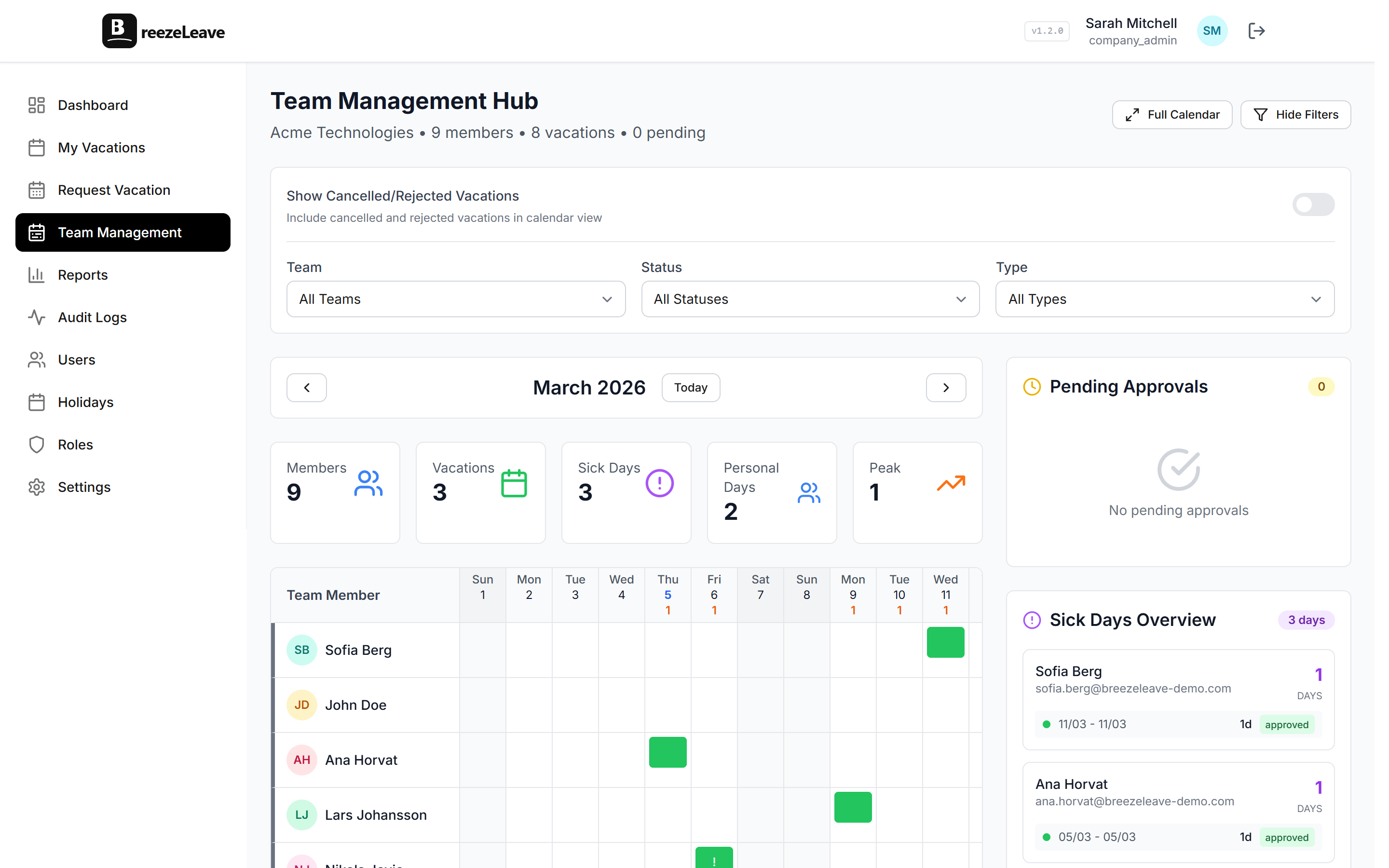
The hardest part of approving a vacation request is not the request itself. It is knowing what else is happening that week. Two senior engineers already off. A client review on Thursday. A public holiday on Friday in Croatia but not in Sweden. The request lands in Slack, the manager has 90 seconds before the next meeting, and the only thing visible is the request itself, with no context.
A useful employee vacation calendar fixes that visibility gap. It does not replace judgment. It gives the manager the four facts they need before clicking approve: who else is off, who is covering, what days actually count as working days, and whether the request collides with a known team event. This article walks through how a team lead should read the calendar, what to check before approving, and how to prevent the most common coverage gaps.
What the calendar should answer in five seconds
Open the team calendar with one question in mind: can the team still operate that week? Five seconds, four facts:
- Who else from this team is already approved off?
- Is anyone else's request pending for overlapping days?
- Are there public holidays inside the requested range?
- Is there a known team event, deadline, or blackout window?
If the calendar makes those four facts visible without clicking around, the approval decision is fast. If it does not, every request becomes a small investigation.
Reading the calendar by view
Most calendars offer three views: month, week, and a team list. Each one answers a different question, and using the wrong one wastes time.
| View | Best for | When it slows you down |
|---|---|---|
| Month | Planning quarterly capacity, spotting clusters | Approving a single request next week |
| Week | Approving near-term requests, coverage checks | Comparing summer plans across the team |
| Team list | Seeing who is off today and who is back when | Spotting overlaps across teams |
A useful default for team leads is the week view. It answers the immediate "can I approve this" question fastest. The month view is for the once-a-quarter capacity review with HR or the project lead.
Coverage checks before approving
Coverage is what the calendar is for. Before approving, run three quick checks.
- Concurrent absences in the same role. Two designers off the same week is a different problem than one designer and one developer. Check by role, not just by name.
- Critical knowledge holders. The only person who knows the deploy pipeline, the only account lead for a launching client, the only person who has the alarm code. These deserve a one-line note in their profile or a cover person assignment.
- Working days versus calendar days. A request from Wednesday to Tuesday is six calendar days but four working days, less if a public holiday lands in the range. The tool should subtract the right number from the balance.
If the calendar shows that three of five team members are already off the requested week, the response is not always "no". Sometimes it is "yes, but please confirm coverage for the daily client call". A short message back beats a silent rejection.
Filters that make the calendar useful
A calendar with everyone in the company is noise. The useful filters are:
- Team or department. See only the people you approve for.
- Country. Useful when public holidays differ; a Croatian holiday is irrelevant for the Swedish branch.
- Leave type. Filter out sick days when planning long-term capacity; include them when planning this week's coverage.
- Status. Pending requests should be visible alongside approved ones; otherwise an approver does not see the second request that arrived 10 minutes ago.
The team-list view with country and status filters covers 80 percent of a manager's daily use. For the broader capacity picture, see the team capacity planning article on how to combine the calendar with workload.
Public holidays and cross-country teams
The most common silent error in a vacation calendar is treating a public holiday in one country as a working day in another. A Swedish manager approves a Croatian colleague's request that includes June 22 (a public holiday in Croatia), the calendar counts six days, payroll deducts five, and three months later the balance does not match.
The fix is on the configuration side, not the calendar side: each employee has an operating country, and the request calculation should subtract that country's holidays. The calendar should display them as well, so an approver in another country can see why the deduction is smaller than expected.
For the broader holiday-handling logic, the holiday management article walks through custom holidays, operating countries, and the working-day math.
Spotting conflicts before they ship
The calendar's quiet superpower is showing pending requests next to approved ones. Most conflicts are visible the moment a second request arrives. A common pattern: Anna requests June 10 to 14, gets approved, and the request disappears from the approver's inbox. On Friday, Marko requests June 12 to 18. If the approver does not open the calendar, they may approve a second person from the same two-person team.
Two habits prevent this:
- Approve requests inside the calendar view, not from the email or Slack notification alone.
- Set a team-level concurrent absence limit if the team is small. Two on a five-person team is usually the cap; three is rarely safe.
For teams that frequently hit the same conflict, the team vacation conflict article covers rules that prevent these conflicts at the team level.
Cover person assignments
A cover person assignment turns "who handles this while you are off" into a visible field on the request, not a Slack thread the day before. The pattern is simple: when an employee submits a request, they name a cover person; the cover person receives a notification and confirms; the approval includes the confirmation.
Cover assignments work best when the roles are interchangeable enough that coverage is a real handoff, not a polite fiction. For roles where coverage is impossible (the only person who can sign payroll, the only person with vendor access), the better practice is to plan around their leave, not pretend someone will cover.
The product side is covered on the employee vacation calendar page and in the blackout dates use case for blocking critical periods, with more detail in the cover person assignments article.
When the calendar is the deciding factor
Some requests are obvious yes. The team is fully staffed, no public holidays in the range, balance is fine, and no project deadline is at risk. The calendar confirms this in seconds.
Some requests are obvious no. The team has a launch event, the requester is the owner, and there is no realistic cover. The calendar shows the conflict, and the response is a short message explaining why.
The middle category is where the calendar pays off most. A request that overlaps with another person off, but only by one day, and only on a day when the team has no scheduled events. Without the calendar, the manager either rejects out of caution or approves blindly. With the calendar, the manager can approve with one clarifying question: "Can you make sure the Tuesday standup has someone covering?"
Manager habit
Open the team calendar once a week, not only when a request lands. A five-minute scan on Monday surfaces three or four small conflicts that are cheaper to fix on Monday than on Thursday.
Calendar habits for the team
The calendar is also a communication tool for the team, not just for the approver. Three habits keep it useful:
- Approve fast. Requests held for days do not appear on the calendar; pending status is fine, but a multi-week limbo hides real conflicts.
- Encourage early requests. A request submitted four weeks out is much easier to plan around than one submitted three days out.
- Make the calendar shareable. The team should be able to see the same view as the manager. Approved leave is not confidential within the team.
For teams using Google Calendar, the per-user sync described in the Google Calendar sync article keeps personal calendars updated without adding a parallel system.
A short approval checklist
When a request lands, run through these five items in the calendar view:
- Open the team or country view that matches the requester.
- Check for overlapping approved or pending leave in the same role.
- Confirm the working-day count matches the requested range minus any public holidays.
- Look for known events: launches, client reviews, audits, or blackout windows.
- If a cover person is needed, confirm it is named before approving.
Five quick checks beat one slow investigation. The calendar's value is making each check take seconds instead of minutes.
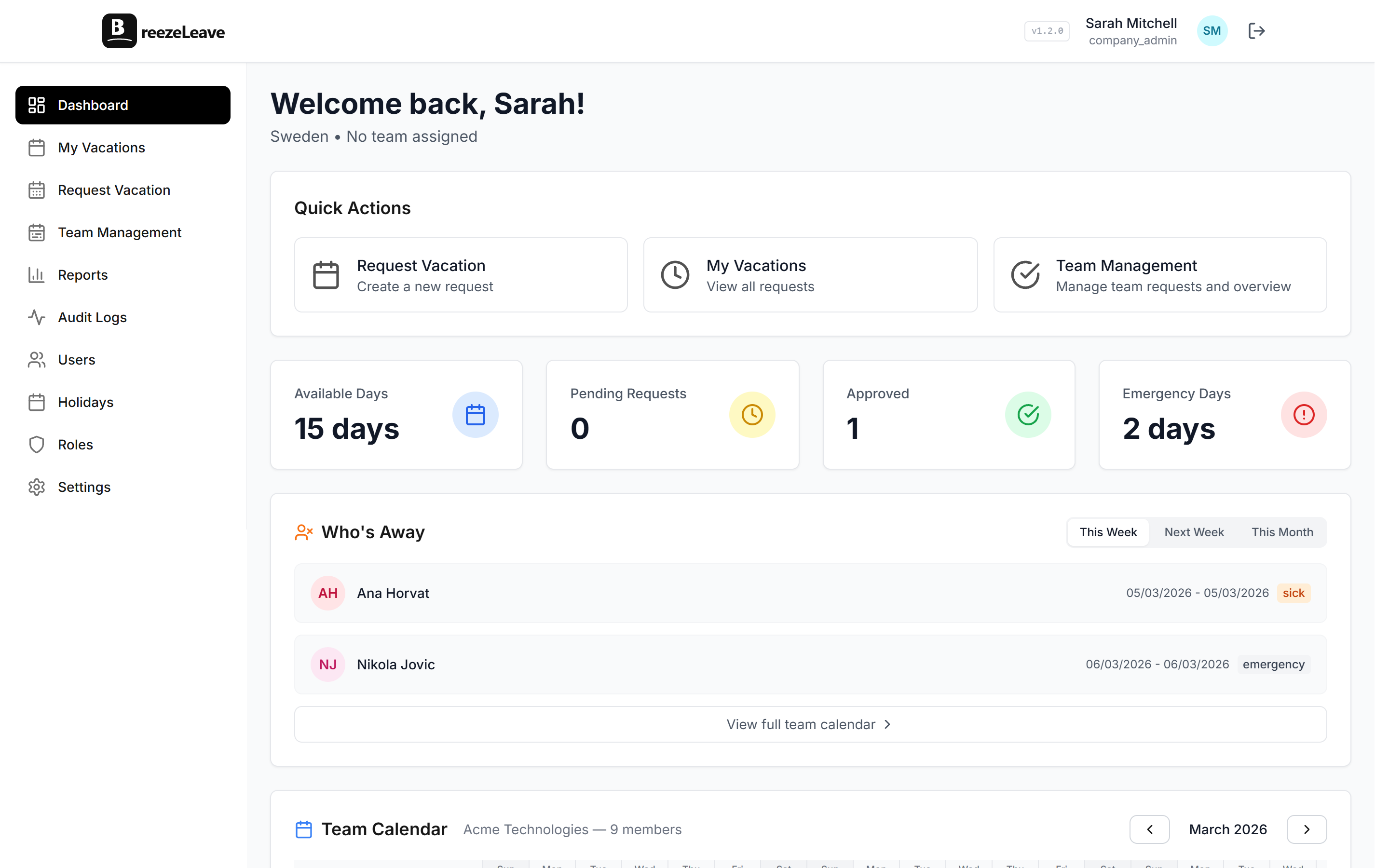
To open the team vacation calendar and see how BreezeLeave stacks approved leave, pending requests, and public holidays in one view, the employee vacation calendar page shows the live screens with filters by team, country, and leave type.